# Multipart/Form-Data

In Astera, Multipart is one of the content types present within the response body of an API flow. It is used for sending and receiving files and textual data. This content type is present in both the *API Request* and *API Response* objects.&#x20;

### Multipart Form/Data in Astera

1. To start, create a new API flow.&#x20;

<figure><img src="https://3083465318-files.gitbook.io/~/files/v0/b/gitbook-x-prod.appspot.com/o/spaces%2FsR50Wa7EwZGlmPSAMkkf%2Fuploads%2F0M0DplvbpKWaDN0t8V7Q%2F01-API-Flow.PNG?alt=media&#x26;token=d83751b4-fe82-4a65-9fa5-7cd89c92e90a" alt=""><figcaption></figcaption></figure>

2. Right-Click on the *Request* object and select *Properties* from the context menu.

<figure><img src="https://3083465318-files.gitbook.io/~/files/v0/b/gitbook-x-prod.appspot.com/o/spaces%2FsR50Wa7EwZGlmPSAMkkf%2Fuploads%2F4tjBee9e73oTbfNOXKpp%2F02-Properties.PNG?alt=media&#x26;token=328adb0e-6f53-4187-bd22-44a81a6dc58a" alt=""><figcaption></figcaption></figure>

This will open a new window.

<figure><img src="https://3083465318-files.gitbook.io/~/files/v0/b/gitbook-x-prod.appspot.com/o/spaces%2FsR50Wa7EwZGlmPSAMkkf%2Fuploads%2FhWzxhLnDrb2apmetAGS9%2F03-Open-Window.PNG?alt=media&#x26;token=e7365d09-c19b-4b29-90fd-fb3b3d3cf684" alt=""><figcaption></figcaption></figure>

3. Click *Next* and you will be led to the next screen.

<figure><img src="https://3083465318-files.gitbook.io/~/files/v0/b/gitbook-x-prod.appspot.com/o/spaces%2FsR50Wa7EwZGlmPSAMkkf%2Fuploads%2FgskzVIePR7MW4EqMaGLC%2F04-Next-Screen.PNG?alt=media&#x26;token=ee6ac6c8-7a9c-48e1-bcd8-9aaafe99773c" alt=""><figcaption></figcaption></figure>

For the *Get HTTP Method,* Astera supports *application/json* type.&#x20;

However, when it is selected to *Put, Post, Delete or Patch,* you can see the following options in the *Content Type* dropdown menu.&#x20;

<figure><img src="https://3083465318-files.gitbook.io/~/files/v0/b/gitbook-x-prod.appspot.com/o/spaces%2FsR50Wa7EwZGlmPSAMkkf%2Fuploads%2FGWFVYK5i0KLhAC4YUKUQ%2F05-Content-Type.PNG?alt=media&#x26;token=86700fc5-e87b-4327-8c76-b06206bc5fad" alt=""><figcaption></figcaption></figure>

### Multipart Form/Data in the Request Object&#x20;

For our use case, we have configured our *Request* object in the following manner. It is a Post request, with the resource BodyAndParams used and the processing type is *Synchronous*. We aim to upload a file to one of the designated directories from a defined directory with the name we have provided.

<figure><img src="https://3083465318-files.gitbook.io/~/files/v0/b/gitbook-x-prod.appspot.com/o/spaces%2FsR50Wa7EwZGlmPSAMkkf%2Fuploads%2FUIx9uEWdy6K3x3bK32ju%2F06-Selected-Multipart.PNG?alt=media&#x26;token=41213baa-7b5f-4af1-bb1e-133be396098f" alt=""><figcaption></figcaption></figure>

4. Clicking *Next* will allow us to set the directory where we want to receive any text or file. In our case, we are receiving a file. &#x20;

This is the file that will be received on the user end, i.e., when the user requests it, we will get the file within the request body.

<figure><img src="https://3083465318-files.gitbook.io/~/files/v0/b/gitbook-x-prod.appspot.com/o/spaces%2FsR50Wa7EwZGlmPSAMkkf%2Fuploads%2FXJ5fB4LT7swveydzhzLr%2F07-File.PNG?alt=media&#x26;token=cdf53499-b2f3-451e-a9d4-c7ac203d990b" alt=""><figcaption></figcaption></figure>

The name of our variable is File and we can select from the following types,

<figure><img src="https://3083465318-files.gitbook.io/~/files/v0/b/gitbook-x-prod.appspot.com/o/spaces%2FsR50Wa7EwZGlmPSAMkkf%2Fuploads%2FRW1JdaEjGolDlL25Utzb%2F08-Types.PNG?alt=media&#x26;token=d95ef0e3-7d35-4bbb-8f7a-3cc41a709d45" alt=""><figcaption></figcaption></figure>

{% hint style="info" %}
**Note:** The *Content Type* option here is used for readability.
{% endhint %}

In the Destination Folder column, we have defined the path to a folder where the receiving file will be stored.

<figure><img src="https://3083465318-files.gitbook.io/~/files/v0/b/gitbook-x-prod.appspot.com/o/spaces%2FsR50Wa7EwZGlmPSAMkkf%2Fuploads%2FZAU7ErdKOfDdXosuE6Ol%2F09-Destination.PNG?alt=media&#x26;token=915430bb-5aff-4ef7-bc60-e5dc37d690eb" alt=""><figcaption></figcaption></figure>

The *Default Name* column allows us to define a name for the file. In this case, the original name of the file will not be used when saving, rather the name that is defined here.

<figure><img src="https://3083465318-files.gitbook.io/~/files/v0/b/gitbook-x-prod.appspot.com/o/spaces%2FsR50Wa7EwZGlmPSAMkkf%2Fuploads%2FllYkBvlklEXWafQQWbxA%2F10-Default-Name.PNG?alt=media&#x26;token=3a956b78-e3c9-413c-b960-852871c3885d" alt=""><figcaption></figcaption></figure>

For now, we will keep this section blank. &#x20;

5. We will click *OK* and the *Request* object will be configured. &#x20;

<figure><img src="https://3083465318-files.gitbook.io/~/files/v0/b/gitbook-x-prod.appspot.com/o/spaces%2FsR50Wa7EwZGlmPSAMkkf%2Fuploads%2FJhmRldsUO3BO1uXKs5R0%2F11-Ok.PNG?alt=media&#x26;token=1f36dd48-1b1a-47ed-80c9-16d8a28fda6c" alt=""><figcaption></figcaption></figure>

6. Next, we will deploy the API flow and generate a test flow for it.

<figure><img src="https://3083465318-files.gitbook.io/~/files/v0/b/gitbook-x-prod.appspot.com/o/spaces%2FsR50Wa7EwZGlmPSAMkkf%2Fuploads%2F08P25ntAfa1YyQ4Y3Gd0%2F12-Deployment.PNG?alt=media&#x26;token=7afa73a8-7ab4-4c4c-a842-bed5de1a81d7" alt=""><figcaption></figcaption></figure>

<figure><img src="https://3083465318-files.gitbook.io/~/files/v0/b/gitbook-x-prod.appspot.com/o/spaces%2FsR50Wa7EwZGlmPSAMkkf%2Fuploads%2FK0CG968Hvb1U0Wt49mCk%2F13-TestFlow.PNG?alt=media&#x26;token=82190cbe-2d02-40c1-a0ac-411453b89783" alt=""><figcaption></figcaption></figure>

7. Next, we will open the test flow that has been generated.

<figure><img src="https://3083465318-files.gitbook.io/~/files/v0/b/gitbook-x-prod.appspot.com/o/spaces%2FsR50Wa7EwZGlmPSAMkkf%2Fuploads%2FdZXygeynoGMdF8TBjunD%2F14-Generated.PNG?alt=media&#x26;token=124d7142-1f76-45bf-92e4-ec13c24a51c8" alt=""><figcaption></figcaption></figure>

Within the *Properties* of this object, we can see our entire operation.

<figure><img src="https://3083465318-files.gitbook.io/~/files/v0/b/gitbook-x-prod.appspot.com/o/spaces%2FsR50Wa7EwZGlmPSAMkkf%2Fuploads%2F5wRc224RwAI5ZIPEyOaW%2F15-Testflow-Properties.PNG?alt=media&#x26;token=a0126385-93b3-48c0-8fd1-2cd4cd2571d2" alt=""><figcaption></figcaption></figure>

8. We will then click *Next* until we reach the Input Layout window.

<figure><img src="https://3083465318-files.gitbook.io/~/files/v0/b/gitbook-x-prod.appspot.com/o/spaces%2FsR50Wa7EwZGlmPSAMkkf%2Fuploads%2FEjiOdOFcSkVfmAtbLi5g%2F16-Content.PNG?alt=media&#x26;token=bf156319-c6b4-40fd-aad2-46acee5682b3" alt=""><figcaption></figcaption></figure>

9. Here, we can select the file that is to be sent.

<figure><img src="https://3083465318-files.gitbook.io/~/files/v0/b/gitbook-x-prod.appspot.com/o/spaces%2FsR50Wa7EwZGlmPSAMkkf%2Fuploads%2FGKBKfaPowW8okjvwxKSi%2F17-FileUpload-Select.PNG?alt=media&#x26;token=8bc126d9-2002-4305-bb0a-3a0c0a696e57" alt=""><figcaption></figcaption></figure>

10. Making an API Call and previewing the output lets us see that the content we used was sent.

<figure><img src="https://3083465318-files.gitbook.io/~/files/v0/b/gitbook-x-prod.appspot.com/o/spaces%2FsR50Wa7EwZGlmPSAMkkf%2Fuploads%2F7RmDWxpjru96khGbHC0U%2F18-Preview-Output.PNG?alt=media&#x26;token=0f5fbccd-9907-46b0-8de3-ed8acb179905" alt=""><figcaption></figcaption></figure>

As you can see, our file has also been uploaded to the designated folder.

<figure><img src="https://3083465318-files.gitbook.io/~/files/v0/b/gitbook-x-prod.appspot.com/o/spaces%2FsR50Wa7EwZGlmPSAMkkf%2Fuploads%2FYFKJydDRATUmDQf9y7wI%2F19-Uploaded-File.PNG?alt=media&#x26;token=51892eb5-bb50-4415-aa33-a24869ab1fbe" alt=""><figcaption></figcaption></figure>

11. If we send both a file and a text using the *Multipart Form/Data* option and then preview the output, we can see both in the Data Preview window.&#x20;

{% hint style="info" %}
**Note:** Sending a text does not require providing a directory.&#x20;
{% endhint %}

<figure><img src="https://3083465318-files.gitbook.io/~/files/v0/b/gitbook-x-prod.appspot.com/o/spaces%2FsR50Wa7EwZGlmPSAMkkf%2Fuploads%2FXdMqobyV20L9zzsCH3jI%2F20-Multiple.PNG?alt=media&#x26;token=921f1b5e-4a43-4646-9768-cb8d95f072e3" alt=""><figcaption></figcaption></figure>

### Multipart Form/Data in the Response Object&#x20;

1. Right-click on the *Response* object and select *Properties* from the context menu.&#x20;

This will open a new window.&#x20;

Here, you can see the *Multipart/Form-Data* option in the dropdown menu.

<figure><img src="https://3083465318-files.gitbook.io/~/files/v0/b/gitbook-x-prod.appspot.com/o/spaces%2FsR50Wa7EwZGlmPSAMkkf%2Fuploads%2FvD88Z2RkC6o25qCD4i2l%2F21-Response-Properties.PNG?alt=media&#x26;token=d6bd7ff3-9414-4049-a8fc-c6970d36953e" alt=""><figcaption></figcaption></figure>

Since in the *Request*, the file only used to be received so we would select only the path of the folder. Within the *Response* object, we are sending the file, thus we will need to provide the file path.&#x20;

2. For our use case, we will select the *Multipart/Form-data* option, then proceed to the next screen.&#x20;

Here, we are selecting the directory of the file we need to send, alongside a text.

<figure><img src="https://3083465318-files.gitbook.io/~/files/v0/b/gitbook-x-prod.appspot.com/o/spaces%2FsR50Wa7EwZGlmPSAMkkf%2Fuploads%2FkTbEPqdUe5Rn5cQHWsOL%2F22-Next.PNG?alt=media&#x26;token=df8a00b8-45ba-4eae-9cb9-eacbc319c8ed" alt=""><figcaption></figcaption></figure>

3. We will then deploy the API flow and generate its test flow.

<figure><img src="https://3083465318-files.gitbook.io/~/files/v0/b/gitbook-x-prod.appspot.com/o/spaces%2FsR50Wa7EwZGlmPSAMkkf%2Fuploads%2F6xIoEo5HKDWXtnKvos2F%2F23-Test-Flow.PNG?alt=media&#x26;token=7da04975-6d59-4bd7-9354-de62adc0235c" alt=""><figcaption></figcaption></figure>

{% hint style="info" %}
**Note:** The variable object is present because that is the file that the user requires in the response.
{% endhint %}

<figure><img src="https://3083465318-files.gitbook.io/~/files/v0/b/gitbook-x-prod.appspot.com/o/spaces%2FsR50Wa7EwZGlmPSAMkkf%2Fuploads%2F40FbqZbNCGmm04QyhTdj%2F24-Variables.PNG?alt=media&#x26;token=5019d4dd-ce8a-484f-98cb-1e344ceb609b" alt=""><figcaption></figcaption></figure>

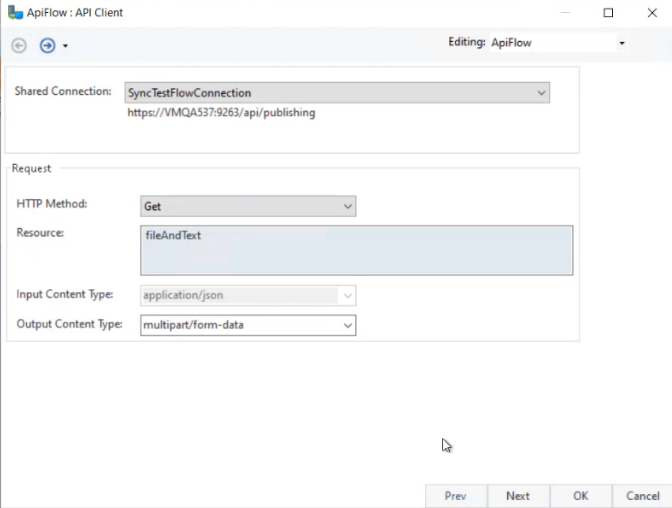
4. Since this is a Get call, we will be getting our file in the output. Thus, our output content type is *Multipart/Form-Data.*

<figure><img src="https://3083465318-files.gitbook.io/~/files/v0/b/gitbook-x-prod.appspot.com/o/spaces%2FsR50Wa7EwZGlmPSAMkkf%2Fuploads%2FoREjqBzdjAbtevKKRUVL%2F25-API-Flow.PNG?alt=media&#x26;token=2165871e-d1e6-425f-bf2d-d664b3f861ab" alt=""><figcaption></figcaption></figure>

5. In the Output Layout screen, we will provide the destination folder of where the file will be saved.

<figure><img src="https://3083465318-files.gitbook.io/~/files/v0/b/gitbook-x-prod.appspot.com/o/spaces%2FsR50Wa7EwZGlmPSAMkkf%2Fuploads%2FAwxVPGNPfyoTO8K4FHQi%2F26-Selected.PNG?alt=media&#x26;token=0efd91f9-8ad7-449d-bee0-854a2f8cb583" alt=""><figcaption></figcaption></figure>

6. We will then click *OK* and preview our output.&#x20;

As you can see, the file and the text can be seen in the Data Preview window.&#x20;

<figure><img src="https://3083465318-files.gitbook.io/~/files/v0/b/gitbook-x-prod.appspot.com/o/spaces%2FsR50Wa7EwZGlmPSAMkkf%2Fuploads%2FV9GBEj1ofOzBYEkoOFhR%2F27-File-Text.PNG?alt=media&#x26;token=aa336385-38c6-4d71-988c-73877371ca7a" alt=""><figcaption></figcaption></figure>

The file path and file name can then be used further within the scope of the flow.

<figure><img src="https://3083465318-files.gitbook.io/~/files/v0/b/gitbook-x-prod.appspot.com/o/spaces%2FsR50Wa7EwZGlmPSAMkkf%2Fuploads%2FBgkUD8IhK0FZnMeqlFI9%2F28-FilePath.PNG?alt=media&#x26;token=5eb89611-2c21-49cb-a192-f1be99513dee" alt=""><figcaption></figcaption></figure>

7. Selecting the Create Unique Files for Download option in the Response Options of the API Client object will create a new file every time the call is made.

<figure><img src="https://3083465318-files.gitbook.io/~/files/v0/b/gitbook-x-prod.appspot.com/o/spaces%2FsR50Wa7EwZGlmPSAMkkf%2Fuploads%2FKJlLbzg1bLX8GFMZN78v%2F29-Unique-Files.PNG?alt=media&#x26;token=b6f71467-a2a8-4fa9-942e-78e473d874f0" alt=""><figcaption></figcaption></figure>

As you can see below, a new file has been created with a new name.

<figure><img src="https://3083465318-files.gitbook.io/~/files/v0/b/gitbook-x-prod.appspot.com/o/spaces%2FsR50Wa7EwZGlmPSAMkkf%2Fuploads%2F6ST0qtZM1MS8tDxd7L4E%2F30-New-File.PNG?alt=media&#x26;token=b3fa6892-ae88-47f2-9d39-05495800b6c4" alt=""><figcaption></figcaption></figure>

This concludes the working of the Multipart/Form-Data within the *Request* and *Response* objects in Astera.