> For the complete documentation index, see [llms.txt](https://documentation.astera.com/llms.txt). Markdown versions of documentation pages are available by appending `.md` to page URLs; this page is available as [Markdown](https://documentation.astera.com/astera-data-stack-v10/project-management-and-scheduling/project-management/cluster-monitor-and-settings.md).
# Cluster Monitor and Settings
The *Cluster Monitor* and *Cluster Settings* help in managing the cluster database that you have made for Astera.
### Cluster Monitor
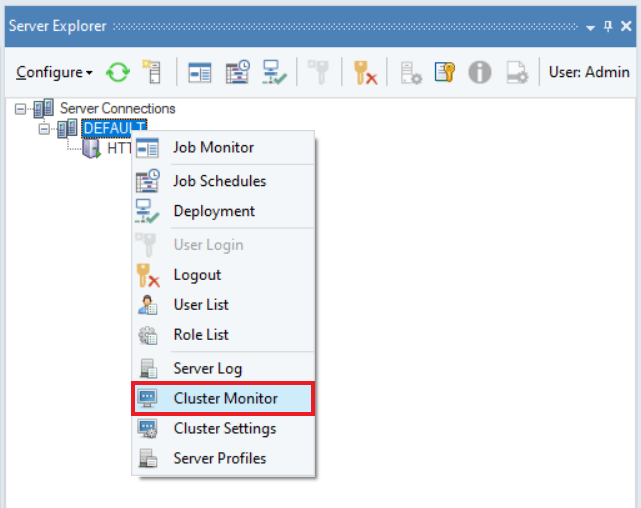
To open the Cluster Monitor, go to the *Server Explorer > Right Click on Default > Cluster Monitor*.
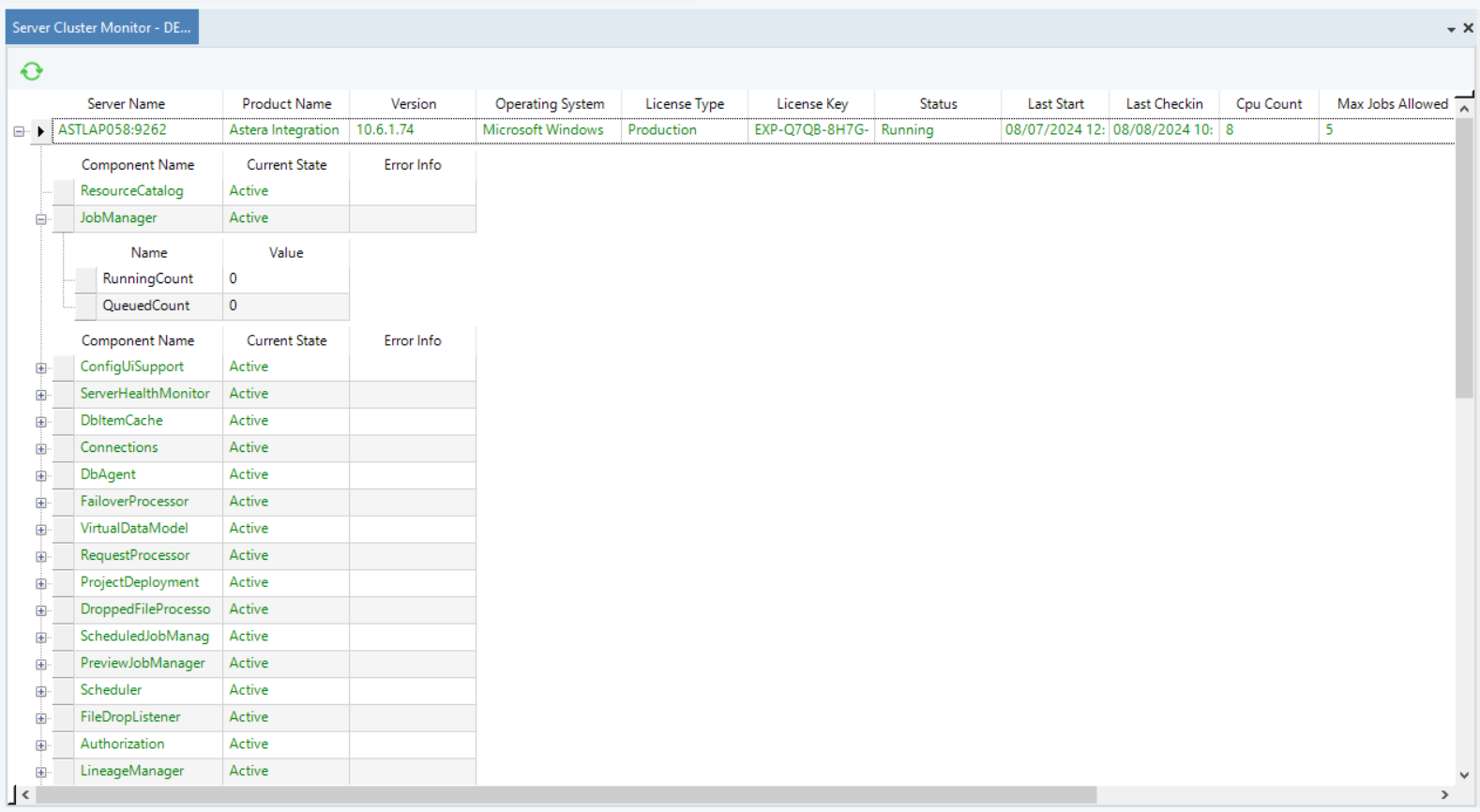
The cluster monitor shows us details about all clusters on our server. It also tells us information about which product is running on a particular server, it's version, operating system, type of license as well details such as how many jobs are running and queued and more.
### Cluster Settings
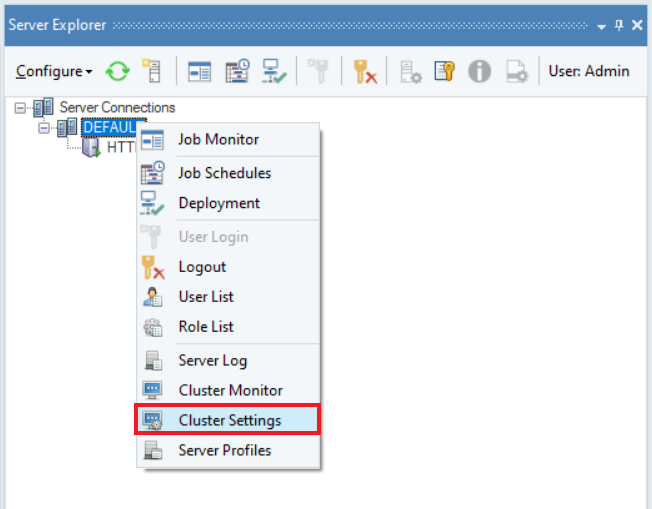
To open the Cluster Settings panel, go to the *Server Explorer > Right Click on Default > Cluster Settings*.
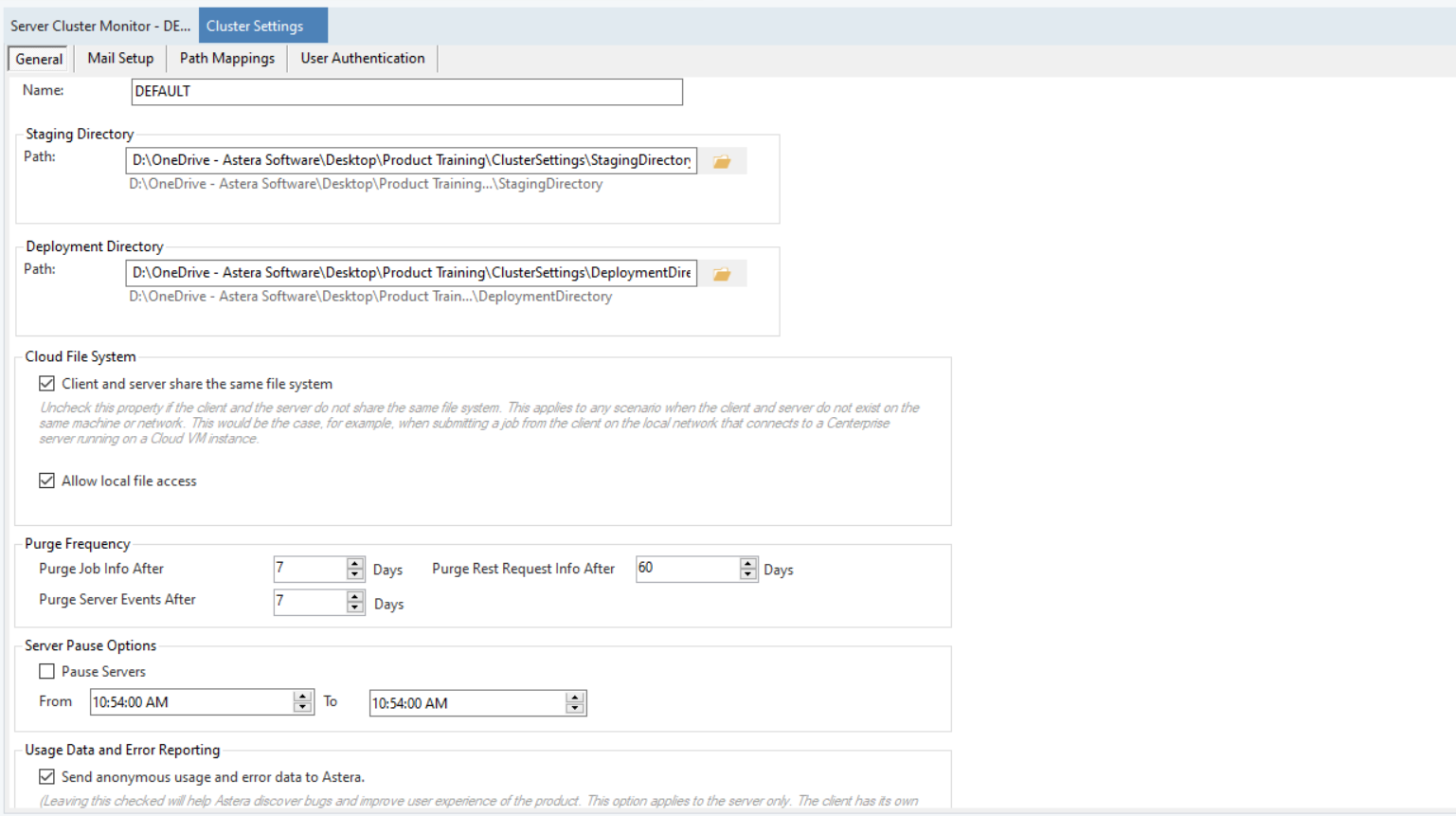
In the Cluster Settings panel, there are different tabs available where users can:
* *General:* Configure their general cluster settings
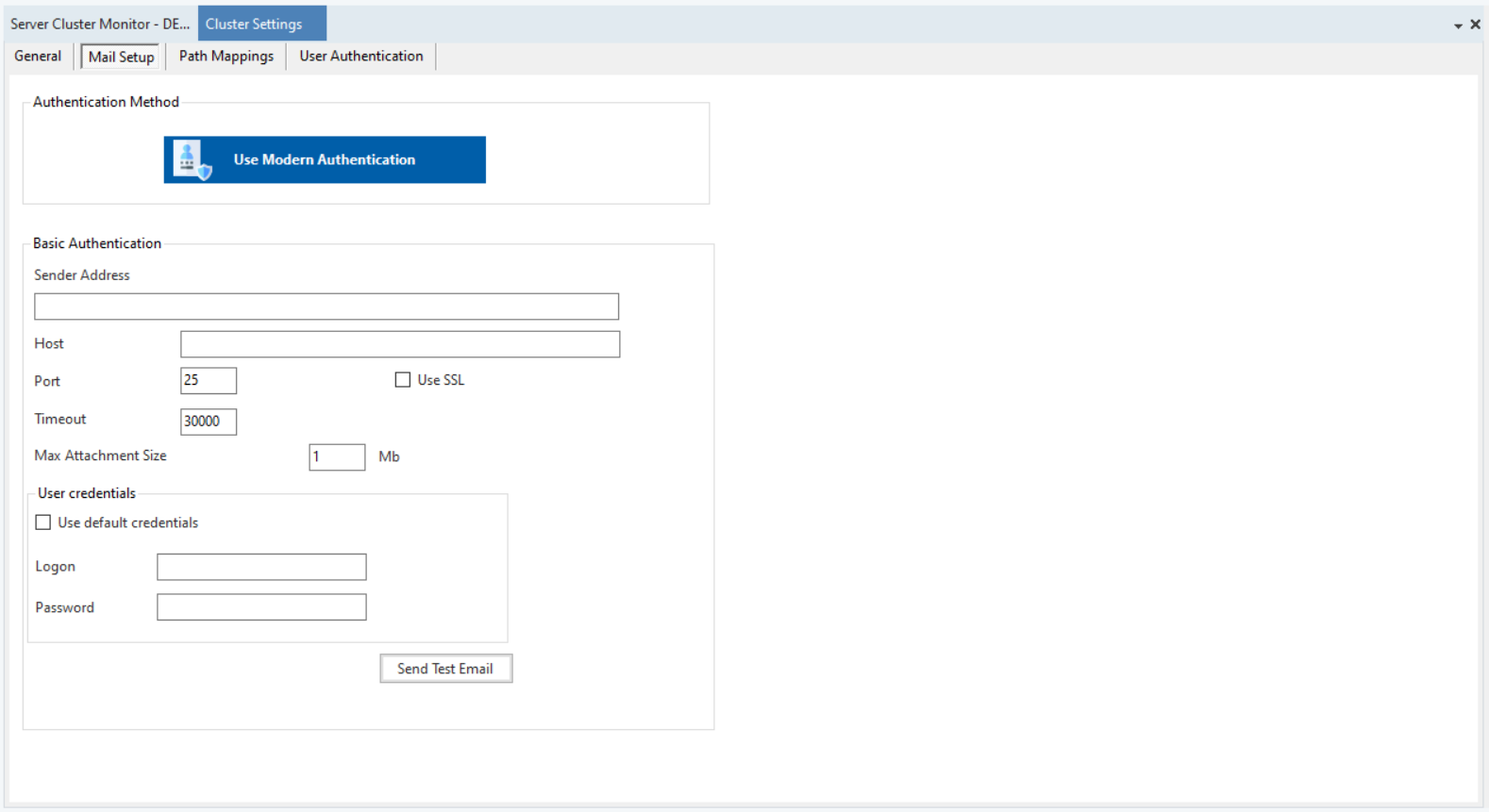
* *Mail Setup:* Setup their mailing service
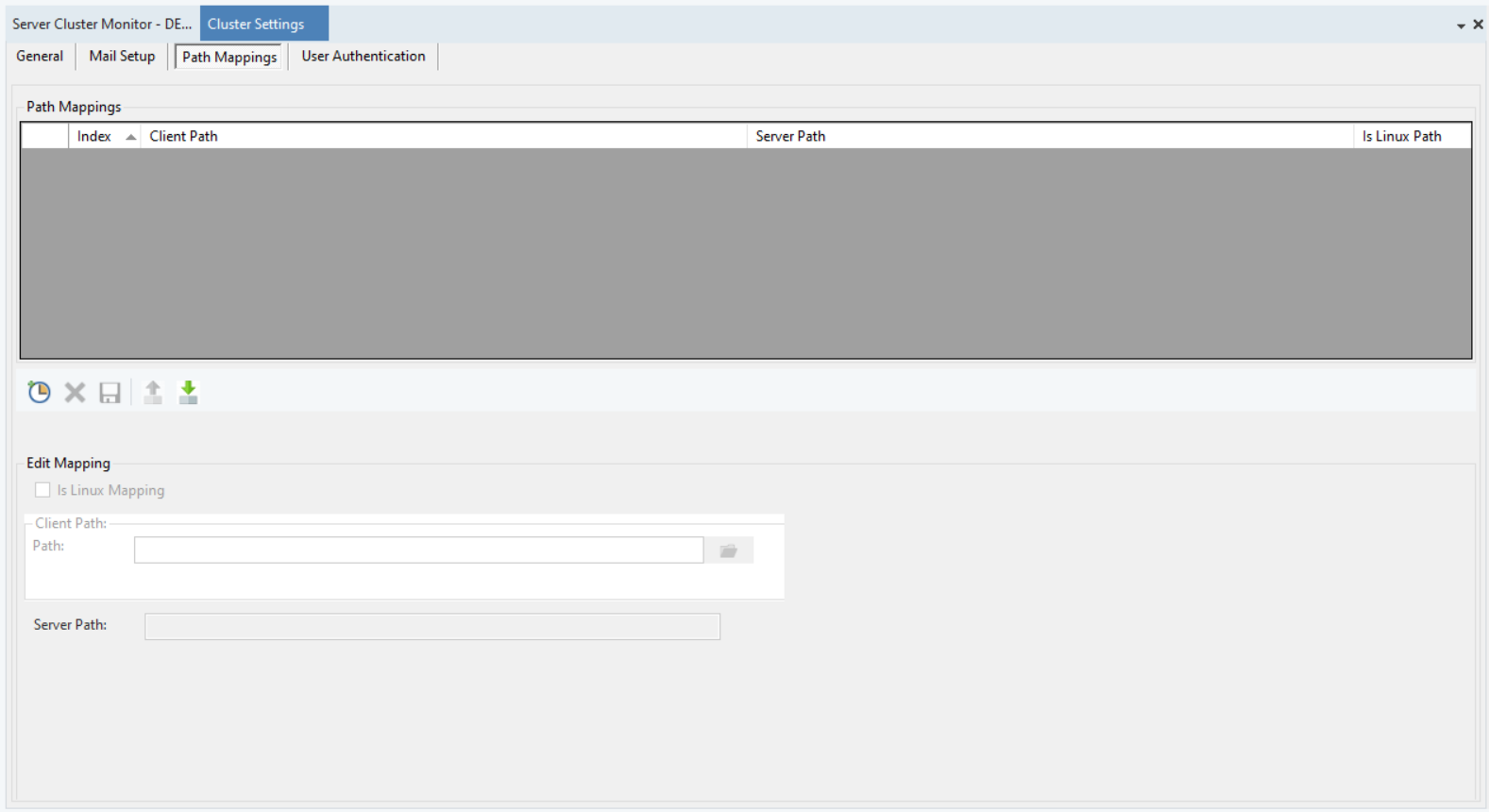
* *Path Mappings:* Provide alternate paths for directory
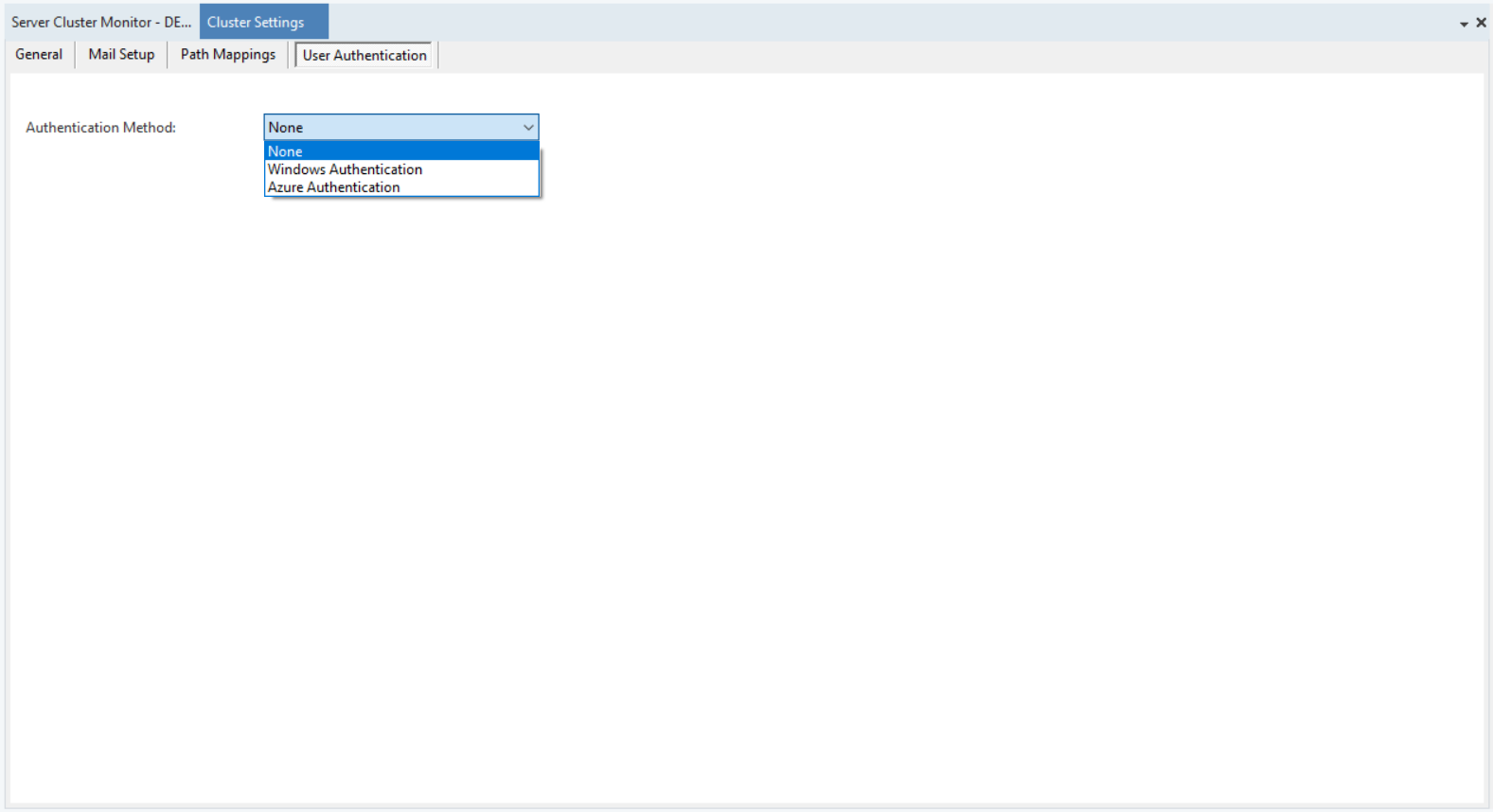
* *User Authentication:* Setup different user authentication methods.
Let's look at all the configuration options available in these tabs.
#### General
* *Name*: Users can set their cluster's name here, by default the name 'DEFAULT' is set.
* *Staging Directory:* The staging directory path is specified here.
* *Deployment Directory:* The deployment directory path is specified here.
* *Cloud File System:*
* If a user unchecks the option *client and server share the same file system,* then this indicates that the client and server does not exist on the same machine or network (for example their client is on a Local Network and their server is on a Cloud VM instance). In this case a temporary CAR file will be sent to the server to allow the flow to be executed easily on the server.
* If a user unchecks the option *Allow local file access,* then it will restrict the user to only use system local paths to read/write data from files (like pdf, excel, csv etc)
* *Purge Frequency:*
* *Purge Job Info After:* Users can specify the number of days until jobs information should be saved on the server, after which they will be purged.
* *Purge Server Events After:* Users can specify the number of days until server events information should be saved on the server, after which they will be purged.
* *Purge Rest Request Info After:* Users can specify the number of days until Rest request information should be saved on the server, after which they will be purged.
* *Server Pause Options:* Users can check this option when they want to pause all activity on their servers and specify the time duration until this is necessary. This option is usually useful when there is a Maintenance happening on a server.
* *Usage Data and Error Reporting:* Users can uncheck this option if they do not want to share usage and error reporting data with Astera.
{% hint style="info" %}
**Note:** Make sure to save your settings, to implement your changes, by right-clicking on *Cluster Settings > Save.*
{% endhint %}
#### Mail Setup
#### Path Mappings
#### User Authentication
---
# Agent Instructions
This documentation is published with GitBook. GitBook is the documentation platform designed so that both humans and AI agents can read, navigate, and reason over technical content effectively. Learn more at gitbook.com.
## Querying This Documentation
If you need additional information that is not directly available in this page, you can query the documentation by asking a question.
Perform an HTTP GET request on the following URL with the `ask` and `goal` query parameters:
```
GET https://documentation.astera.com/astera-data-stack-v10/project-management-and-scheduling/project-management/cluster-monitor-and-settings.md?ask=&goal=
```
`ask` is the immediate question: it should be specific, self-contained, and written in natural language.
`goal` is what the user is ultimately trying to achieve, the reason they need the answer. Sharing it helps GitBook give you a better, more relevant answer. A goal is most helpful when it describes the outcome the user wants rather than restating the question. For example, with `ask=how do I create an API token`, a goal like `automate deployments from our CI pipeline` lets GitBook tailor the answer to that use case.
The response will contain a direct answer to the question and relevant excerpts and sources from the documentation.
Use this mechanism when the answer is not explicitly present in the current page, you need clarification or additional context, or you want to retrieve related documentation sections.