
# Pattern Count

*Pattern Count* is the number of patterns that Astera matches on your file to capture a data region. This is useful if more than one pattern is required to identify the beginning of your data region. You can specify up to five patterns in a report model at a time.

In this document, we will explore how the *Pattern Count* feature helps with the selection of a data region.

## Loading an Unstructured File

1. Open a *Report Model* in Astera by going to *File > New > Report Model.*

<figure><img src="https://3083465318-files.gitbook.io/~/files/v0/b/gitbook-x-prod.appspot.com/o/spaces%2FsR50Wa7EwZGlmPSAMkkf%2Fuploads%2FlWNuexhEvlS98t3OSoIa%2Fimage.png?alt=media&#x26;token=998c2fbc-20d6-4398-9599-6f250c43ce73" alt=""><figcaption></figcaption></figure>

2. Provide the *File Path* for the unstructured file from your directory.

<figure><img src="https://3083465318-files.gitbook.io/~/files/v0/b/gitbook-x-prod.appspot.com/o/spaces%2FsR50Wa7EwZGlmPSAMkkf%2Fuploads%2FMdR1vxhAkSIb4Xy95LuN%2Fimage.png?alt=media&#x26;token=5add1deb-0bd9-4057-b92d-4bec9e9142a3" alt=""><figcaption></figcaption></figure>

Astera supports extraction of unstructured data from Excel, csv, text, PRN, PDF, word, rtf and xls files. In this case, we are extracting data from a text file.

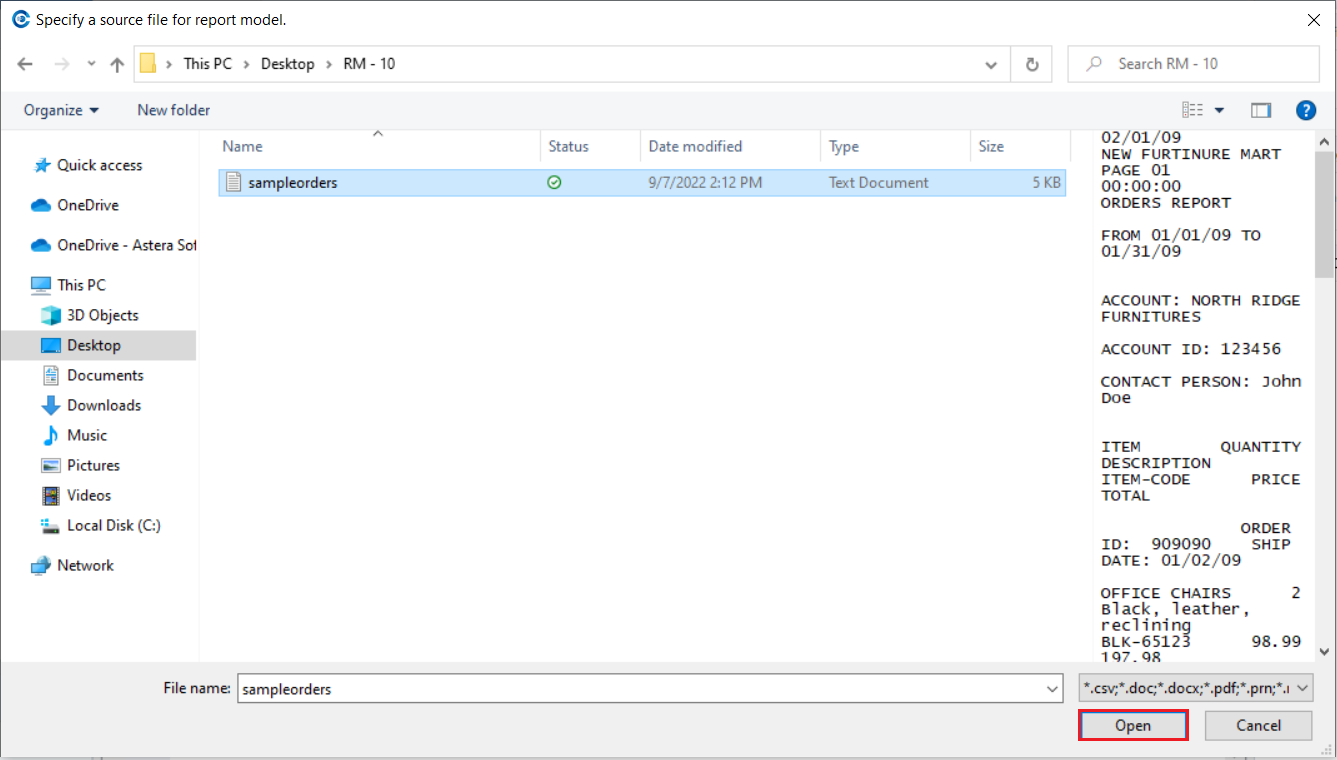
3. Click *Open*. A text file containing information regarding orders to a fictitious furniture store will open in the report model.

<figure><img src="https://3083465318-files.gitbook.io/~/files/v0/b/gitbook-x-prod.appspot.com/o/spaces%2FsR50Wa7EwZGlmPSAMkkf%2Fuploads%2FdbbqnuolqwitbsgEqkUV%2Fimage.png?alt=media&#x26;token=31bfd167-6231-427e-a688-117a508ae8ce" alt=""><figcaption></figcaption></figure>

Now that the file is open, we will create an extraction template.

## Creating a Report Model

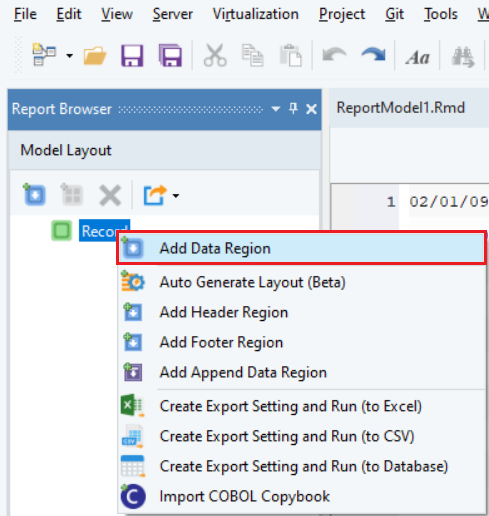
1. Right-click on the *Record* node in Model layout under the *Report Browser* panel and select *Add Data Region* from the context menu.

<figure><img src="https://3083465318-files.gitbook.io/~/files/v0/b/gitbook-x-prod.appspot.com/o/spaces%2FsR50Wa7EwZGlmPSAMkkf%2Fuploads%2FpqLUh5UEkYMuK0fC51eT%2Fimage.png?alt=media&#x26;token=8cd4efa8-ea5c-465f-bda0-1679f19f831f" alt=""><figcaption></figcaption></figure>

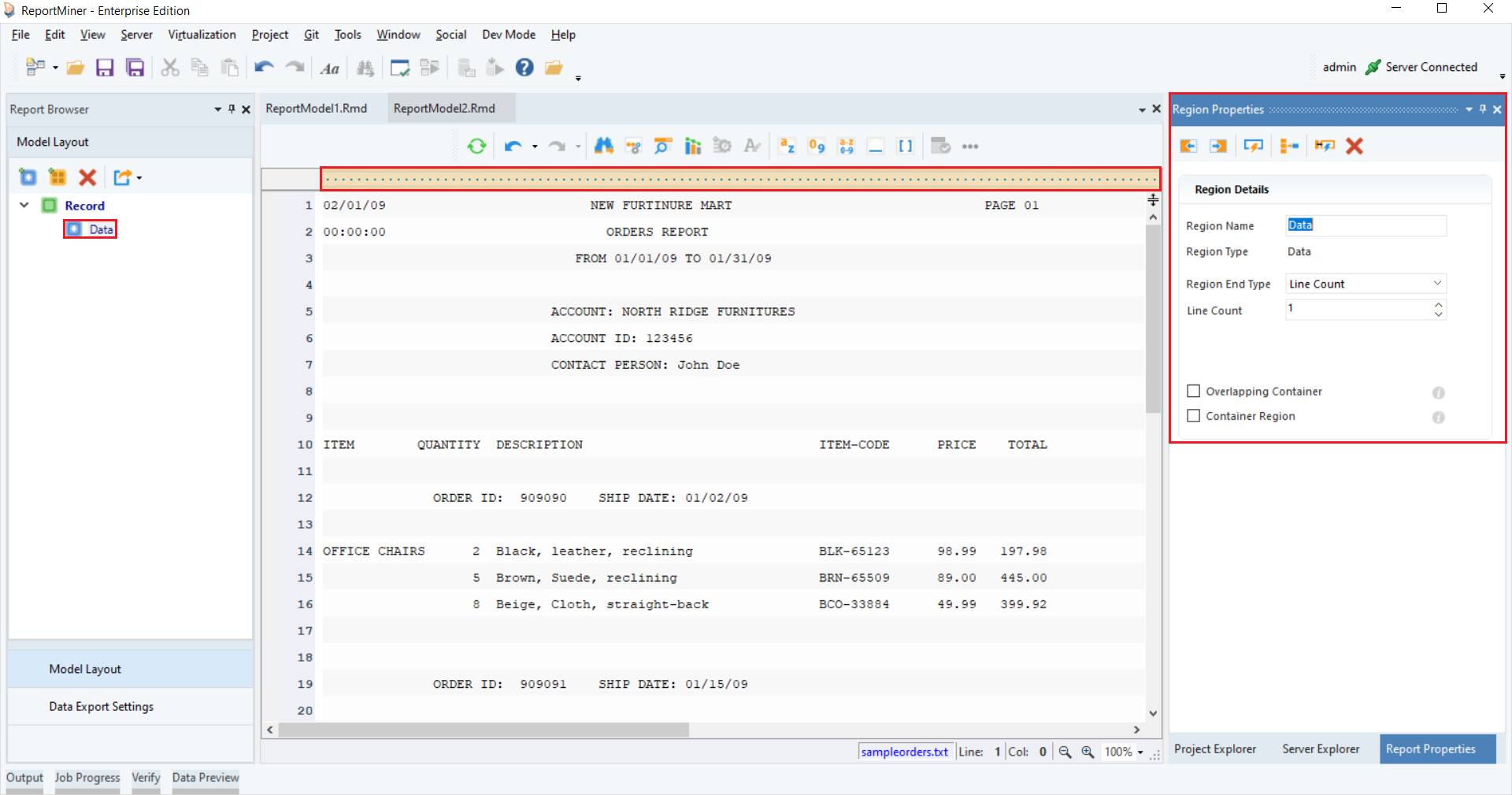
A pattern-matching bar and *Region Properties* panel will appear. And a subnode "Data" is added to the *Record* node in the Model Layout tab.

<figure><img src="https://3083465318-files.gitbook.io/~/files/v0/b/gitbook-x-prod.appspot.com/o/spaces%2FsR50Wa7EwZGlmPSAMkkf%2Fuploads%2FpiXCyHpBoNDrcD8gGSAb%2Fimage.png?alt=media&#x26;token=3ec77458-ed16-4e44-bb31-eaca0d04597f" alt=""><figcaption></figcaption></figure>

2\. Specify the pattern that the report model can look for and match in your file to capture data. You can use an alphabet, character, number, word, a wild card or any combination of these to define your pattern.

Astera has built-in wild cards to facilitate region selection.

<figure><img src="https://3083465318-files.gitbook.io/~/files/v0/b/gitbook-x-prod.appspot.com/o/spaces%2FsR50Wa7EwZGlmPSAMkkf%2Fuploads%2F4PNDVTcH0u0w5R6mEQ7D%2Fimage.png?alt=media&#x26;token=a85876bd-d366-4f2a-8336-836f72a46fbc" alt=""><figcaption></figcaption></figure>

<table data-header-hidden><thead><tr><th width="160"></th><th></th></tr></thead><tbody><tr><td><strong>Wild Cards</strong></td><td><strong>Description</strong></td></tr><tr><td><img src="https://3083465318-files.gitbook.io/~/files/v0/b/gitbook-x-prod.appspot.com/o/spaces%2FsR50Wa7EwZGlmPSAMkkf%2Fuploads%2Fk354B0h1dB6iygYy286G%2Fimage%2020230817141841200.png?alt=media" alt="image-20230817141841200"></td><td>It matches any alphabet on the file.</td></tr><tr><td><img src="https://3083465318-files.gitbook.io/~/files/v0/b/gitbook-x-prod.appspot.com/o/spaces%2FsR50Wa7EwZGlmPSAMkkf%2Fuploads%2FoOACYv3OtcbxYZD6tVhD%2Fimage%2020230817141916923.png?alt=media" alt="image-20230817141916923"></td><td>It matches any digit on the file.</td></tr><tr><td><img src="https://3083465318-files.gitbook.io/~/files/v0/b/gitbook-x-prod.appspot.com/o/spaces%2FsR50Wa7EwZGlmPSAMkkf%2Fuploads%2FtOhv6LixIQEhbx6l2ME9%2Fimage%2020230817141956380.png?alt=media" alt="image-20230817141956380"></td><td>It matches any alphabet or digit on the file.</td></tr><tr><td><img src="https://3083465318-files.gitbook.io/~/files/v0/b/gitbook-x-prod.appspot.com/o/spaces%2FsR50Wa7EwZGlmPSAMkkf%2Fuploads%2F3V3NprPD6prETGCLoeii%2Fimage%2020230817142024140.png?alt=media" alt="image-20230817142024140"></td><td>It matches any non-blank character on the file.</td></tr><tr><td><img src="https://3083465318-files.gitbook.io/~/files/v0/b/gitbook-x-prod.appspot.com/o/spaces%2FsR50Wa7EwZGlmPSAMkkf%2Fuploads%2FBSmmUF0Ue0CjkAC1Jkz2%2Fimage%2020230817142046770.png?alt=media" alt="image-20230817142046770"></td><td>It matches any blank character such as line, space, tab etc. on the file.</td></tr></tbody></table>

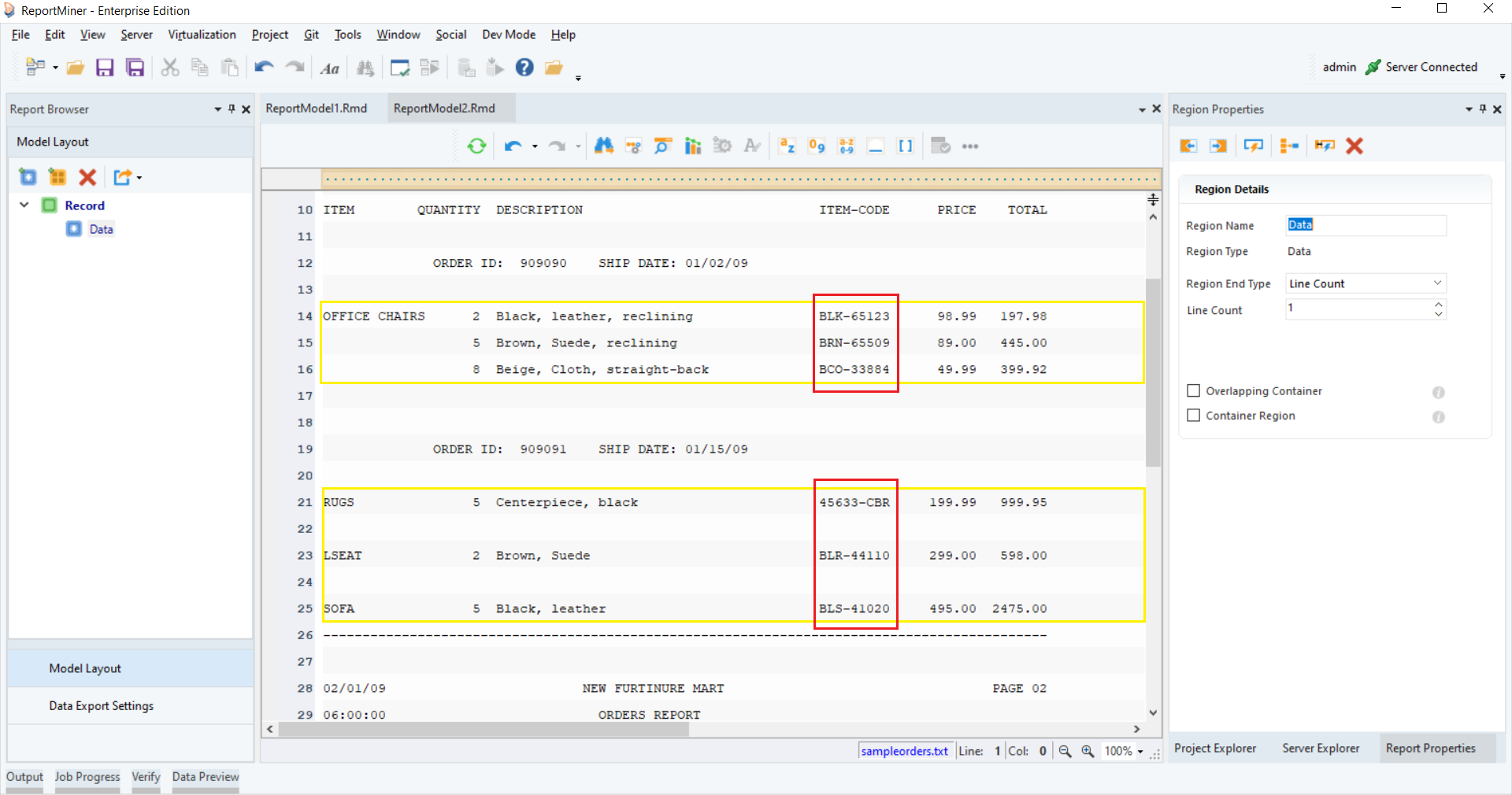
In this example, we want to capture the data highlighted in yellow. Notice that each item has a specific item code, which we can use as a pattern to extract all the item details.

<figure><img src="https://3083465318-files.gitbook.io/~/files/v0/b/gitbook-x-prod.appspot.com/o/spaces%2FsR50Wa7EwZGlmPSAMkkf%2Fuploads%2FTa3lLo2gVkfuoAjZrr0u%2Fimage.png?alt=media&#x26;token=9f36348e-89a5-4561-8e6c-571a2a3bf4fb" alt=""><figcaption></figcaption></figure>

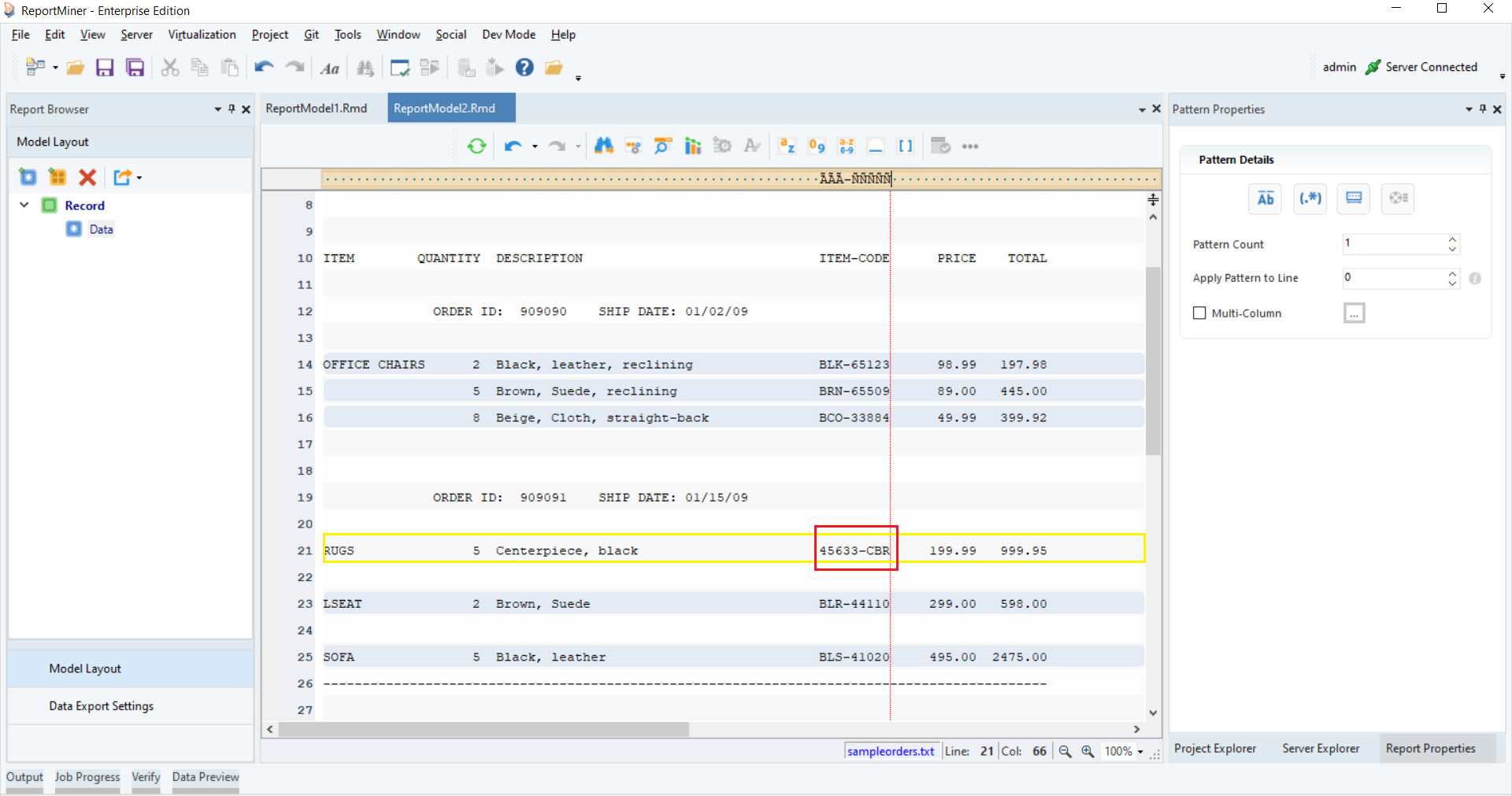
3\. The pattern is a combination of three alphabets, a hyphen, and five digits. You can use the relevant wildcards to specify the pattern. In this case, notice that some item-codes are different from this pattern. The digits in the codes appear before the alphabets. As a result, RUGS has not been captured in the data region.

<figure><img src="https://3083465318-files.gitbook.io/~/files/v0/b/gitbook-x-prod.appspot.com/o/spaces%2FsR50Wa7EwZGlmPSAMkkf%2Fuploads%2FhPSW462kQKFiXeisnptb%2Fimage.png?alt=media&#x26;token=4a351b8b-5ec8-4c56-8ce0-b2d57ce6a2a8" alt=""><figcaption></figcaption></figure>

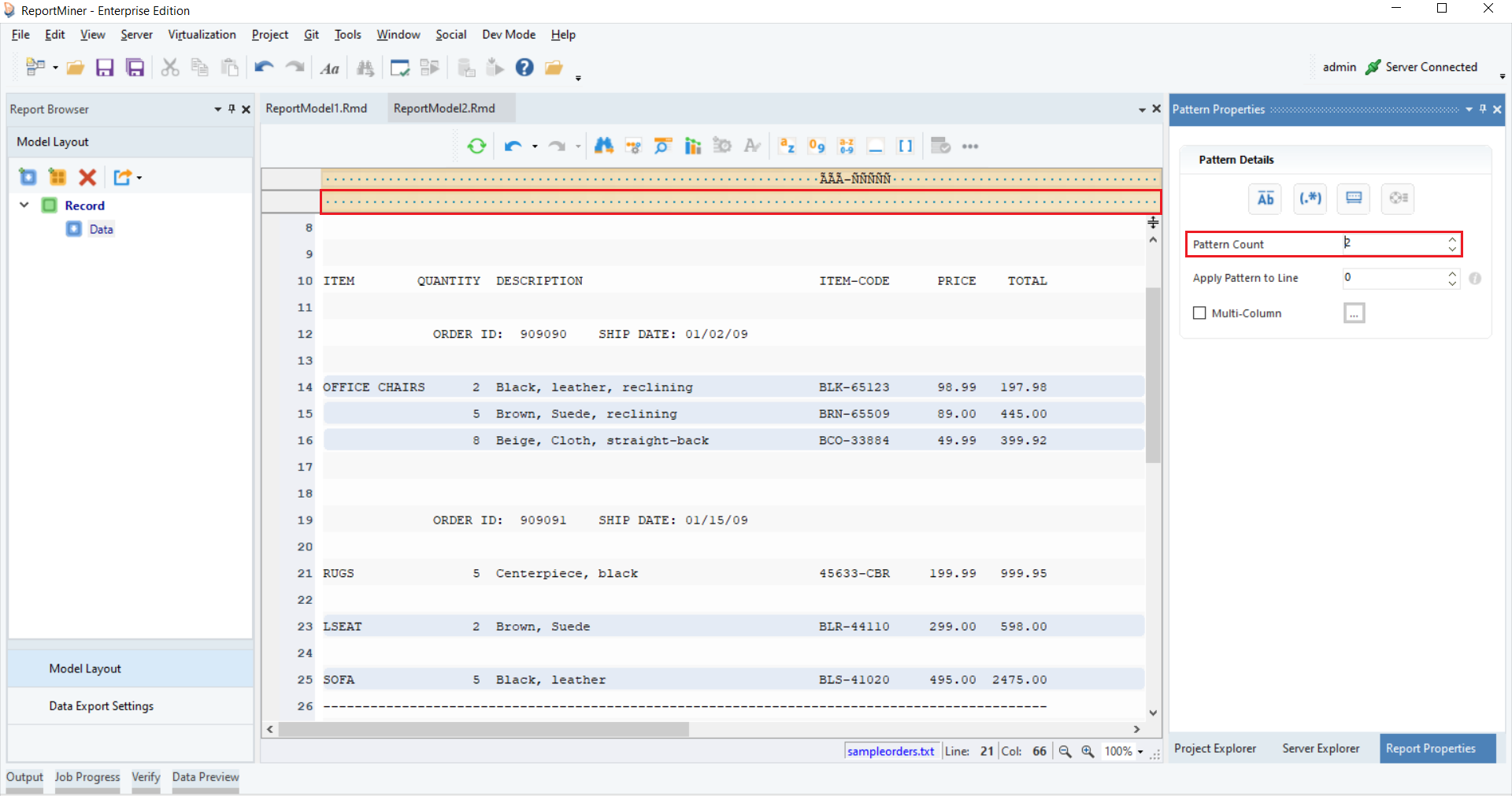
4\. In this scenario, to capture the region completely, we'll specify another pattern. You can specify up to five patterns in a single data region. We'll go to the Pattern Properties panel and increase the Pattern Count to 2. Another pattern bar appears.

<figure><img src="https://3083465318-files.gitbook.io/~/files/v0/b/gitbook-x-prod.appspot.com/o/spaces%2FsR50Wa7EwZGlmPSAMkkf%2Fuploads%2FiLTlycvzZmlSQSynvMTt%2Fimage.png?alt=media&#x26;token=4a504eca-e918-4840-8799-e1fa6cef413c" alt=""><figcaption></figcaption></figure>

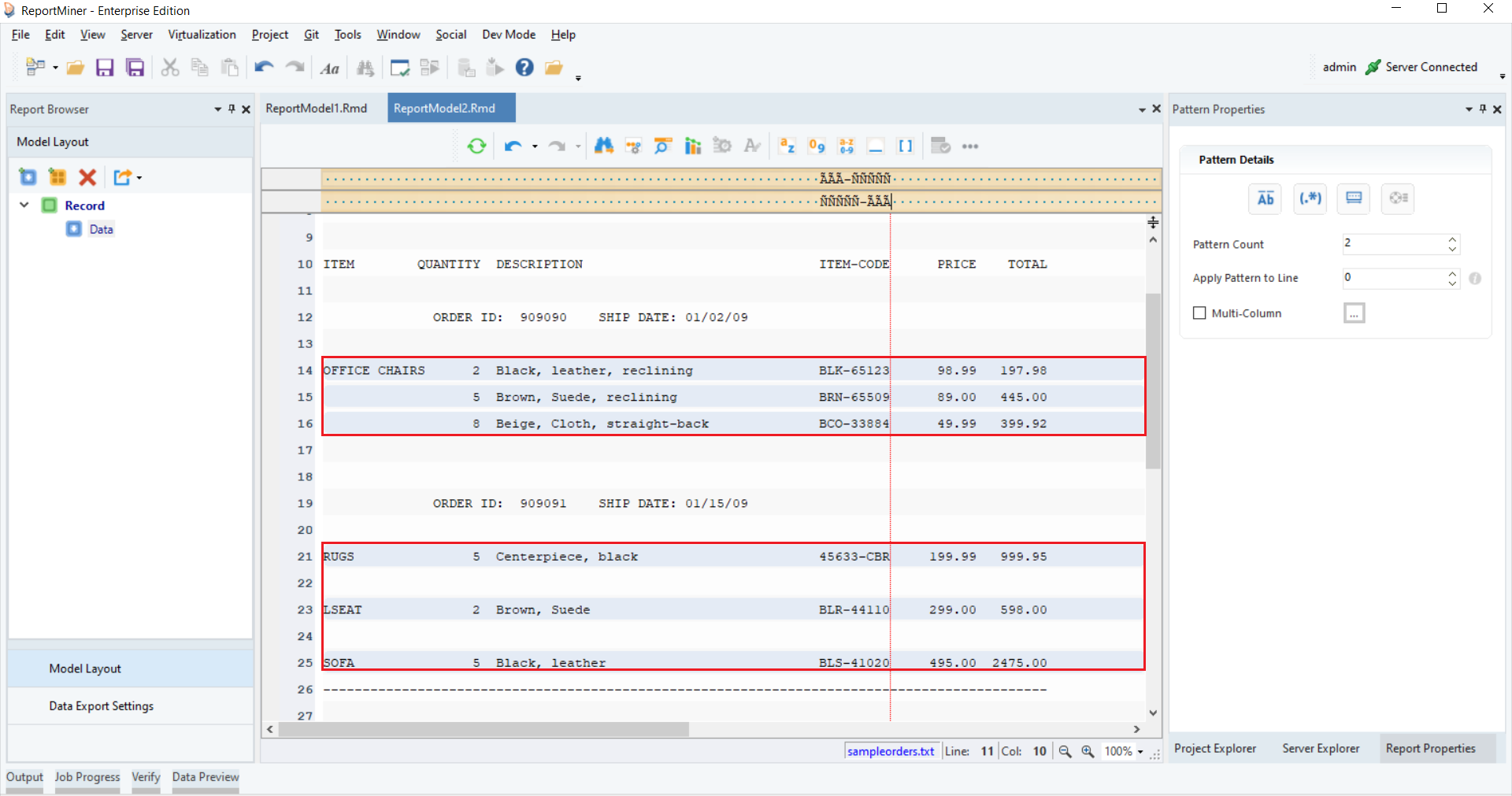
5\. On the second pattern bar, we'll specify another pattern where the 5 digits come before the 3 alphabets, separated by a hyphen. Now, all the lines with item details have been captured completely in the data region.

<figure><img src="https://3083465318-files.gitbook.io/~/files/v0/b/gitbook-x-prod.appspot.com/o/spaces%2FsR50Wa7EwZGlmPSAMkkf%2Fuploads%2FIfOtc8UDQoQgPeppiIxq%2Fimage.png?alt=media&#x26;token=e33cab5b-87fb-4455-b208-9c4dca2a857b" alt=""><figcaption></figcaption></figure>

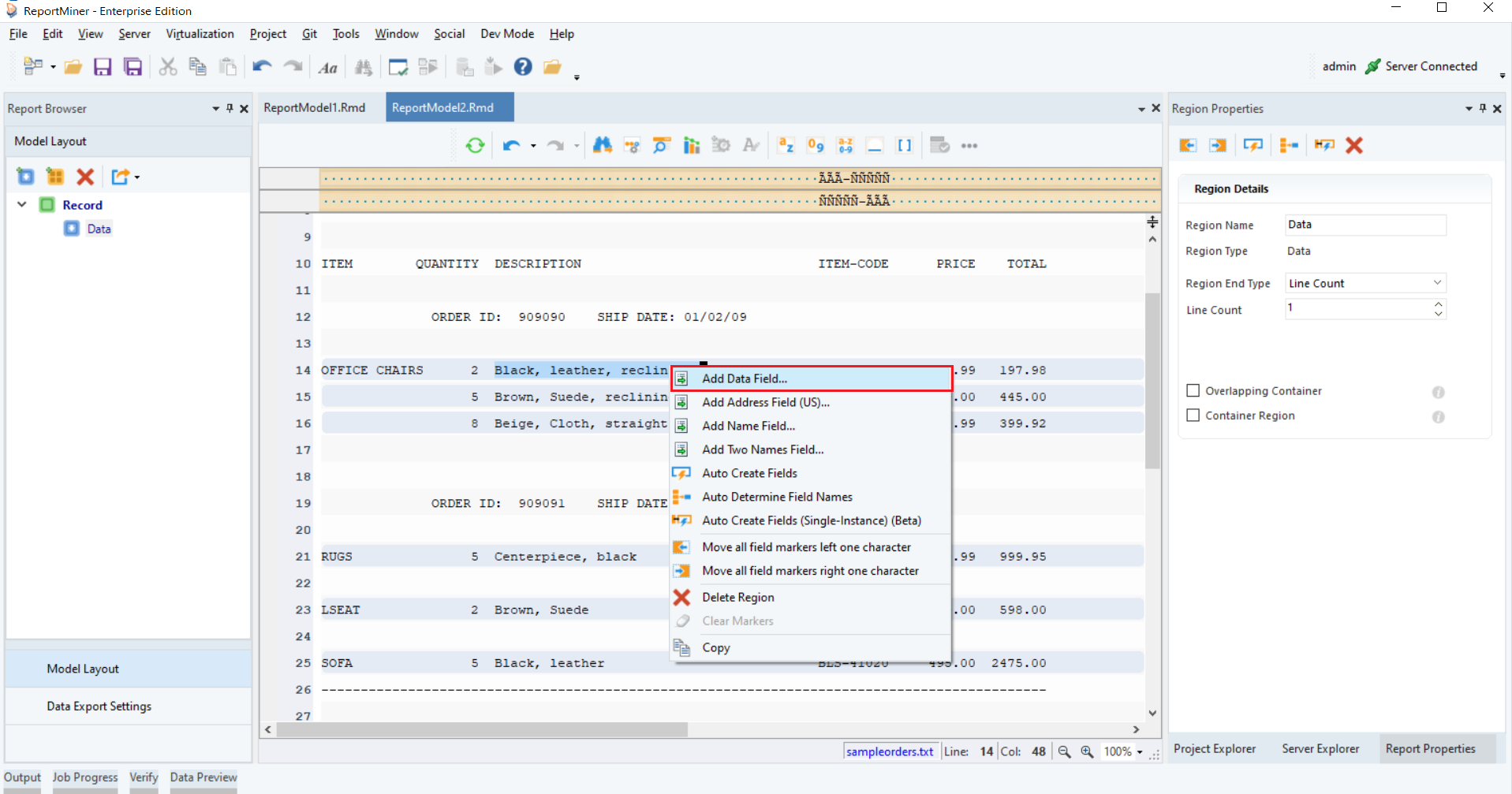
6\. Once our data region is defined, the next step is to create data fields. To do that, you can highlight each field area, right-click and select *Add Data Field.*

<figure><img src="https://3083465318-files.gitbook.io/~/files/v0/b/gitbook-x-prod.appspot.com/o/spaces%2FsR50Wa7EwZGlmPSAMkkf%2Fuploads%2FxchHEar9WkVkBoPviff3%2Fimage.png?alt=media&#x26;token=c9132bc4-dcb3-4b69-858a-b6de6383b56d" alt=""><figcaption></figcaption></figure>

7\. Repeat the process to create more data fields and name them as shown below.

<figure><img src="https://3083465318-files.gitbook.io/~/files/v0/b/gitbook-x-prod.appspot.com/o/spaces%2FsR50Wa7EwZGlmPSAMkkf%2Fuploads%2FessWdgSIkPLutJoayxVf%2Fimage.png?alt=media&#x26;token=867ce750-ed78-499b-beec-29cc2e77d7ab" alt=""><figcaption></figcaption></figure>

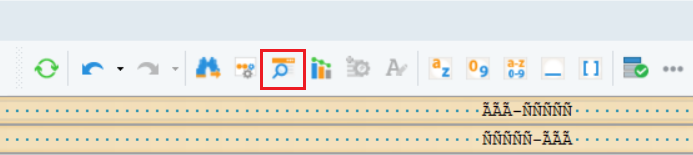
8\. Preview data by clicking on the *Preview Data* icon placed in the toolbar at the top of the designer window.

<figure><img src="https://3083465318-files.gitbook.io/~/files/v0/b/gitbook-x-prod.appspot.com/o/spaces%2FsR50Wa7EwZGlmPSAMkkf%2Fuploads%2FfT0WaUJpTZUItfEEFyq2%2Fimage.png?alt=media&#x26;token=058a4ffb-755f-407b-893b-a03c4a11f506" alt=""><figcaption></figcaption></figure>

9\. A window will open, asking you to save the file before proceeding. Save the report model at your required path.

<figure><img src="https://3083465318-files.gitbook.io/~/files/v0/b/gitbook-x-prod.appspot.com/o/spaces%2FsR50Wa7EwZGlmPSAMkkf%2Fuploads%2FQUQXhodhZWQkO33C132J%2Fimage.png?alt=media&#x26;token=9bc700a8-1ca3-4a13-b684-f89fea2726ac" alt=""><figcaption></figcaption></figure>

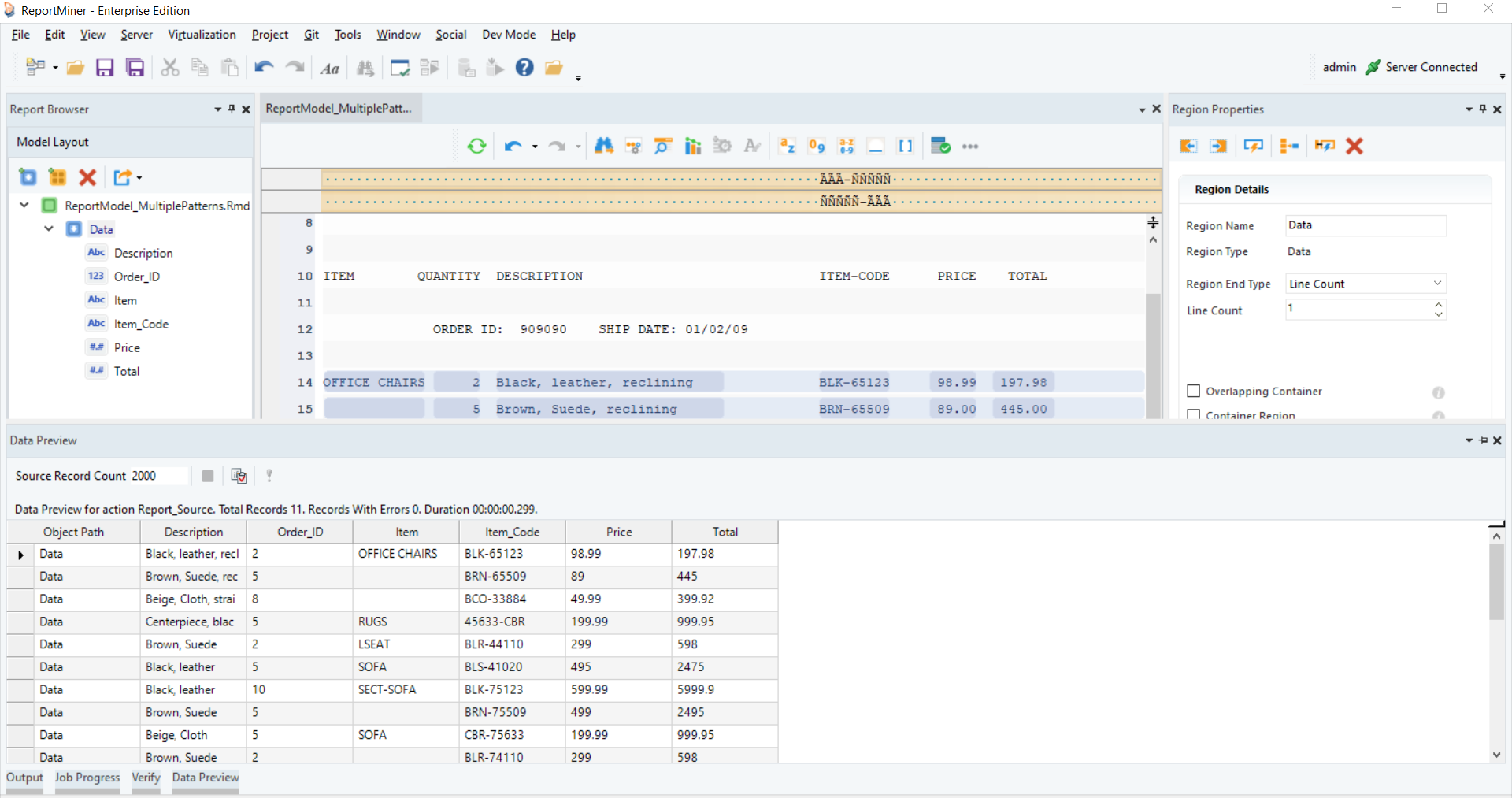
10\. Once saved, a *Data Preview* window will open, displaying a preview of the extracted data.

<figure><img src="https://3083465318-files.gitbook.io/~/files/v0/b/gitbook-x-prod.appspot.com/o/spaces%2FsR50Wa7EwZGlmPSAMkkf%2Fuploads%2F3PXkDK46PSKJhEbaqLk6%2Fimage.png?alt=media&#x26;token=bea2ae58-2037-4ce1-beca-4bece1bd247b" alt=""><figcaption></figcaption></figure>

This concludes our discussion on working with an increased *Pattern Count* in Astera.