> For the complete documentation index, see [llms.txt](https://documentation.astera.com/llms.txt). Markdown versions of documentation pages are available by appending `.md` to page URLs; this page is available as [Markdown](https://documentation.astera.com/astera-data-stack-v8/dataflows/text-processors/delimited-serializer.md).
# Delimited Serializer
The *Delimited Serializer* converts a structured data set into a single text stream with fields and records separated by delimiters or identified by text qualifiers. Serialized data with delimiters allows the sharing or storage of the data in a form that allows recovery of its original structure.
**Use Case**
In this case, we are using the *Customers* table from the *Northwind* database. You can download this sample data here:
{% file src="/files/4FSqeJnT1g1qBGp2Uz1E" %}

The source file contains the customers' contact information including their *ContactName*, *Address*, *PostalCode*, *Phone,* etc., in a structured format.

We want to convert the information contained in multiple fields into a single text stream separated by a delimiter.
## **Using the Delimited Serializer object**
1. To get the *Delimited Serializer* object, go to *Toolbox > Text Processors > Delimited Serializer* and drag and drop the object onto the designer.

You can see that the dragged object contains a *Text* field with an output port and an *Input* sub-node which is currently empty.
2. Auto-map source fields by dragging and dropping the top node of the source object, that is *Customers,* onto the *Input* node of the transformation object – *Delimited Serializer.*

3. Right-click on the object’s header and select *Properties*.

A configuration window will open as shown below.

Let’s look at the properties on this window.
* *Field Delimiter* – Allows users to specify a delimiter for the source fields from the dropdown list.
* *Text Qualifier* – Allows users to specify qualifiers at the start and end of a text stream. In most cases, a text qualifier encloses an entire record.
* *Build Operation Type* – Contains two options in which a dataset can be serialized:
* *One Record Per Input* – creates a single text record separated by delimiters for the entire data set
* *One Record Per Transaction* – creates as many text records as the source file separated by only field delimiter.
Let’s leave the properties as default, and click *OK*. The data has been serialized.
4. To preview the data, right-click on the *Delimited Serializer* object’s header and select *Preview Output* from the context menu.

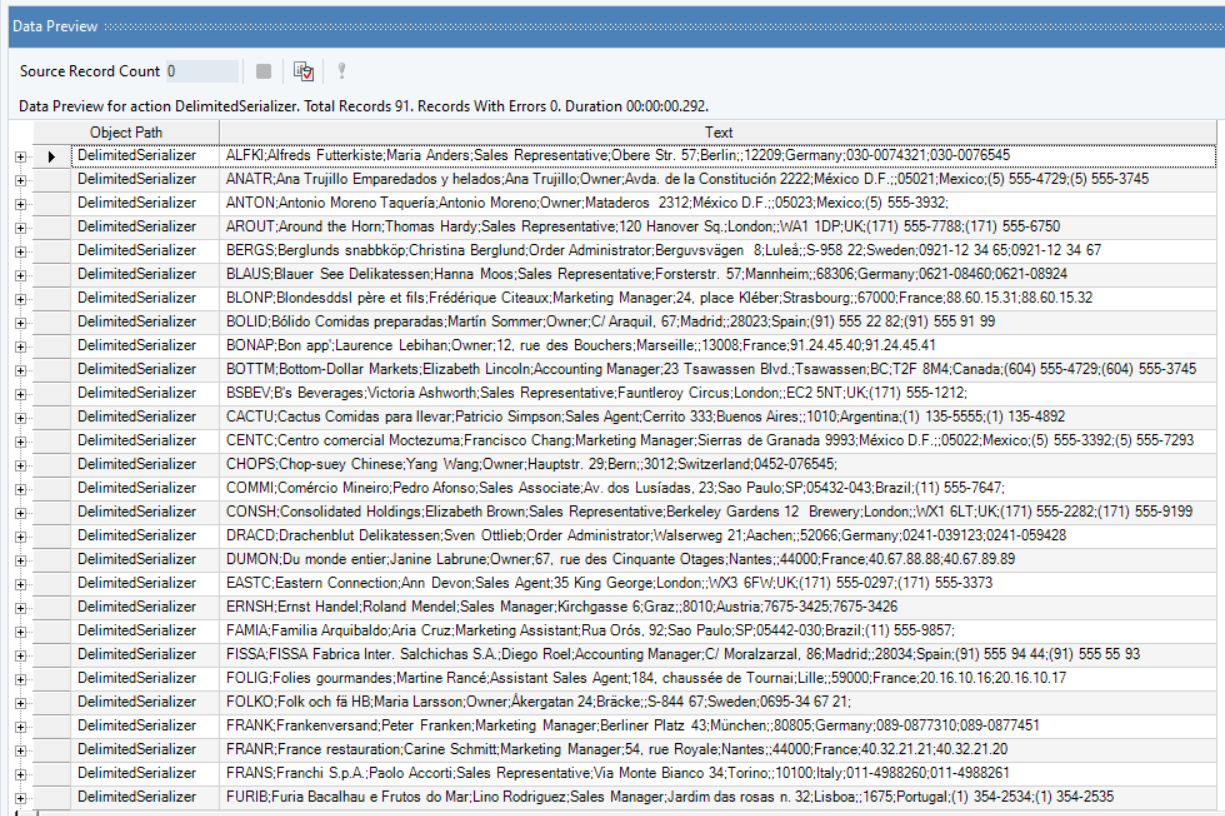
A *Data Preview* window will open showing the serialized data with field delimiters:
To store this serialized output, write it to a destination file or you can use this data further in the dataflow.
---
# Agent Instructions
This documentation is published with GitBook. GitBook is the documentation platform designed so that both humans and AI agents can read, navigate, and reason over technical content effectively. Learn more at gitbook.com.
## Querying This Documentation
If you need additional information that is not directly available in this page, you can query the documentation by asking a question.
Perform an HTTP GET request on the following URL with the `ask` and `goal` query parameters:
```
GET https://documentation.astera.com/astera-data-stack-v8/dataflows/text-processors/delimited-serializer.md?ask=&goal=
```
`ask` is the immediate question: it should be specific, self-contained, and written in natural language.
`goal` is what the user is ultimately trying to achieve, the reason they need the answer. Sharing it helps GitBook give you a better, more relevant answer. A goal is most helpful when it describes the outcome the user wants rather than restating the question. For example, with `ask=how do I create an API token`, a goal like `automate deployments from our CI pipeline` lets GitBook tailor the answer to that use case.
The response will contain a direct answer to the question and relevant excerpts and sources from the documentation.
Use this mechanism when the answer is not explicitly present in the current page, you need clarification or additional context, or you want to retrieve related documentation sections.