> For the complete documentation index, see [llms.txt](https://documentation.astera.com/llms.txt). Markdown versions of documentation pages are available by appending `.md` to page URLs; this page is available as [Markdown](https://documentation.astera.com/astera-intelligence/query-vector-db.md).
# Query Vector DB
The *Query Vector DB* object queries vector-enabled databases. It supports semantic similarity search on dense embeddings, keyword search with `tsvector`, sparse vectors, and other supported vector types.
The *Query Vector DB* object also supports re-ranking and hybrid search methods to refine results after the initial search, ensuring more relevant and context-aware retrievals.
## Prerequisites
* A shared connection configured to a vector database.
* A shared connection to an embedding provider, if your search generates dense embeddings from a query.
## Use Case
A software company stores articles in a PostgreSQL knowledge base. The database includes dense embeddings for semantic search and `tsvector` fields for keyword search. They use the *Query Vector DB* object to search either field or combine both in a hybrid search.
## How to Work with the Query Vector DB Object
1. From the *Source* section in the *Toolbox*, drag-and drop a *Variables* object to the dataflow designer and add a user query variable in it.
2. From the sources section in the *Toolbox*, drag-and-drop a *Query Vector Database* object to the dataflow designer.
3. Map the **user\_query** variable to the **Query** Input in *Query Vector Db* object.
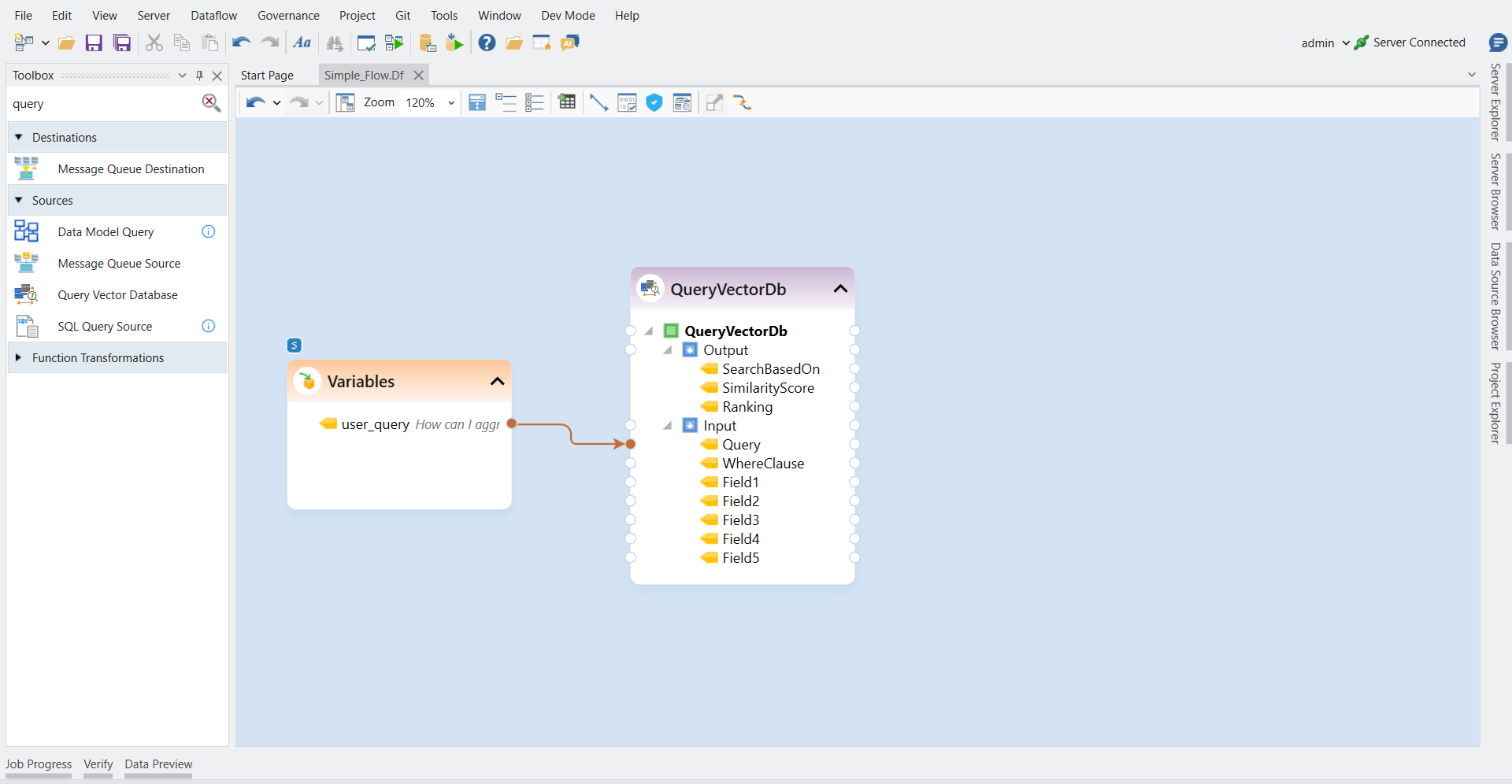 The source object includes three output fields by default: *Search Based On*, *Similarity Score*, and *Ranking*. These fields show how each result was retrieved and ranked.
### Configuring the Query Vector DB Object
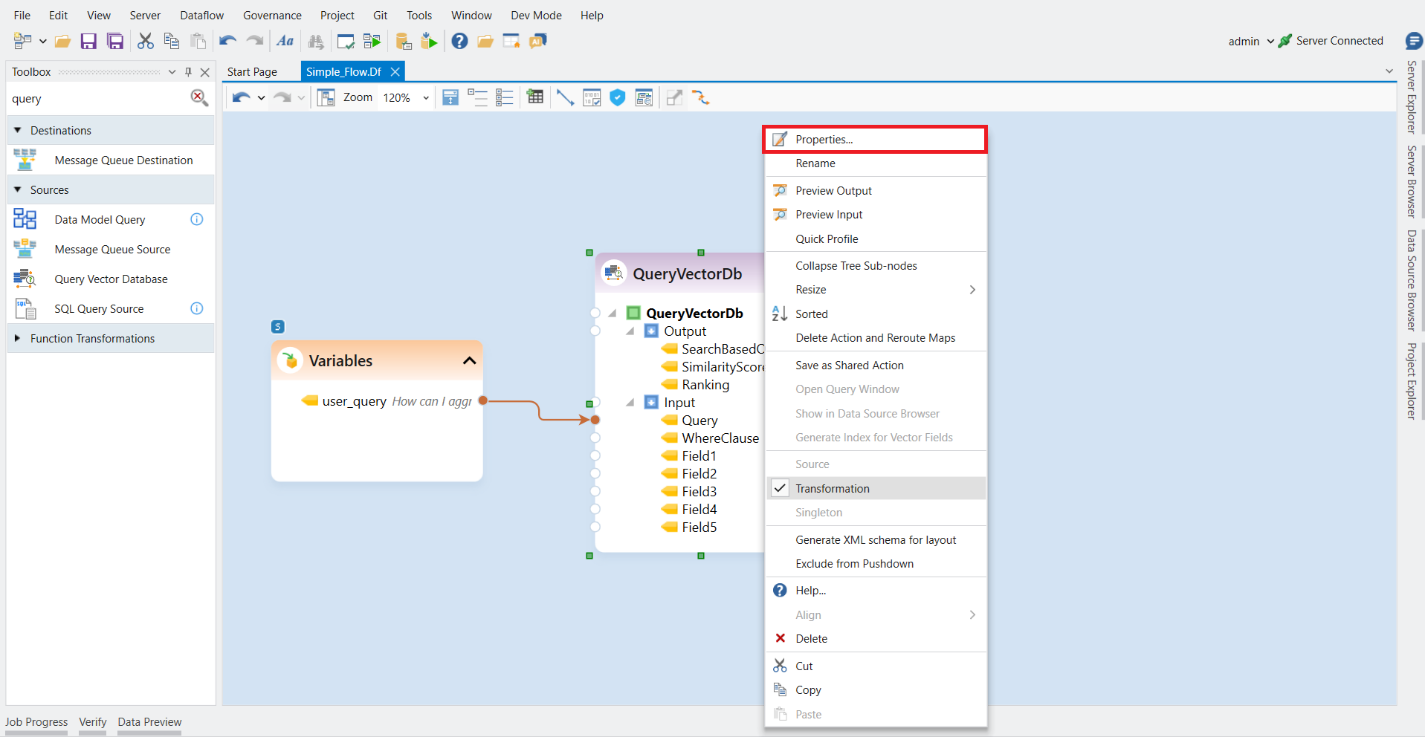
1. To configure *Query Vector Db* object, right-click on its header and select *Properties* from the context menu.
The source object includes three output fields by default: *Search Based On*, *Similarity Score*, and *Ranking*. These fields show how each result was retrieved and ranked.
### Configuring the Query Vector DB Object
1. To configure *Query Vector Db* object, right-click on its header and select *Properties* from the context menu.
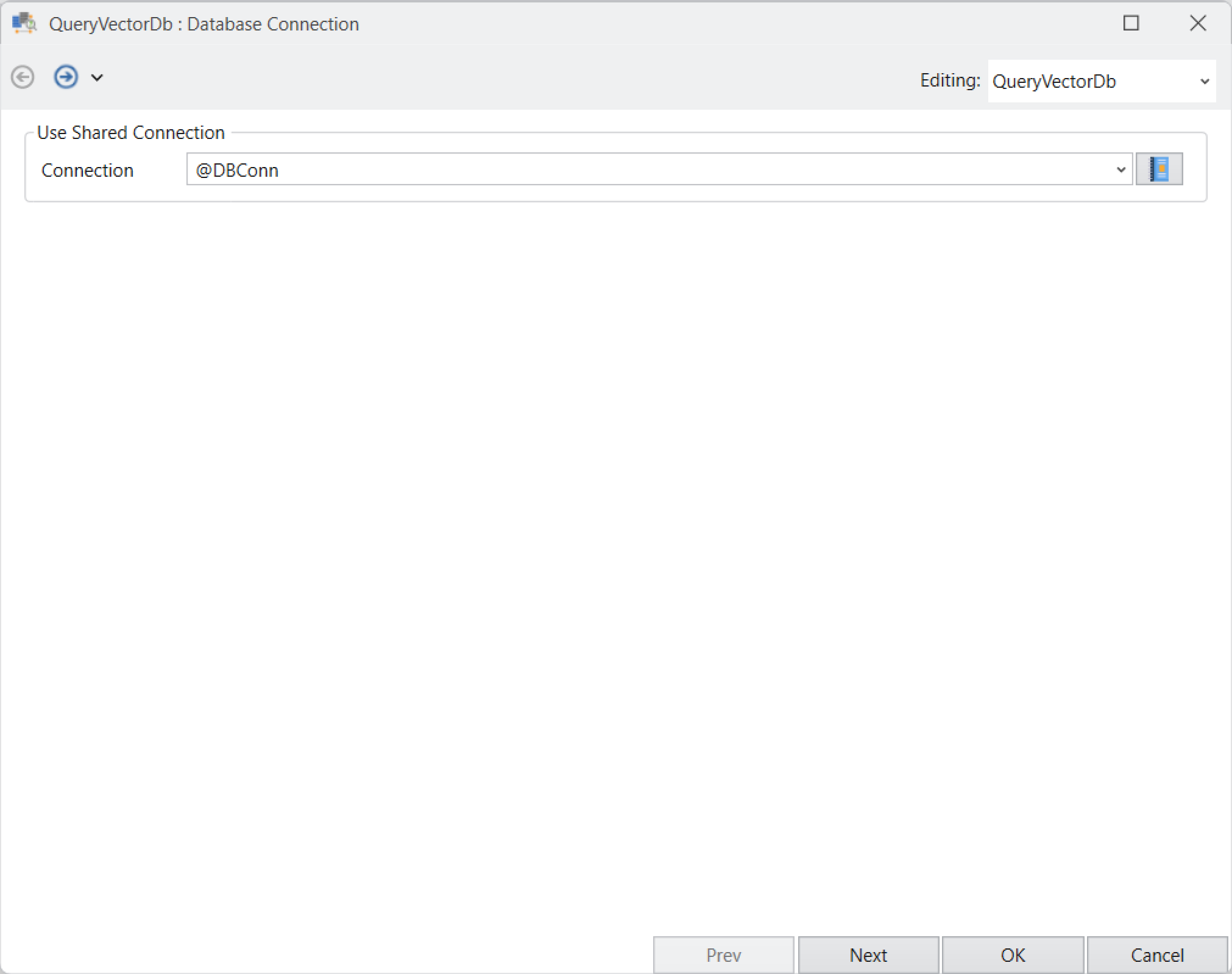
 The *Database Connection* window will now open.
2. Here select the shared connection configured to your vector database.
The *Database Connection* window will now open.
2. Here select the shared connection configured to your vector database.
 {% hint style="info" %}
**Note:** The object currently supports PostgreSQL vector databases.
{% endhint %}
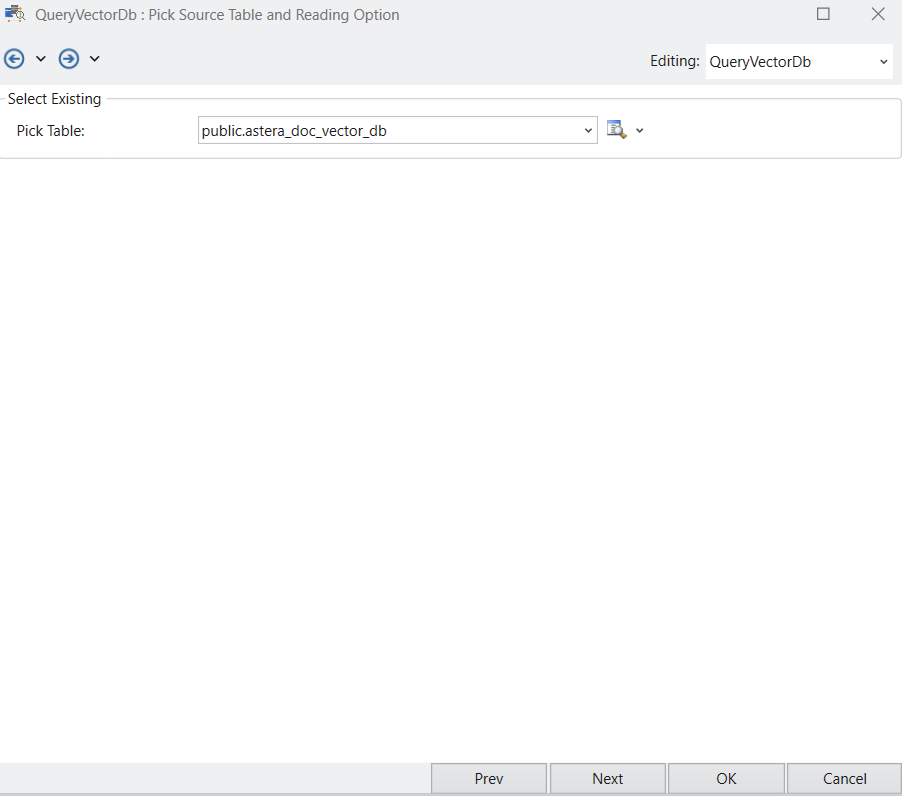
3. Next, you will see a *Pick Source Table and Reading Options* window. On this window, you will select the table from the database that you previously connected.
{% hint style="info" %}
**Note:** The object currently supports PostgreSQL vector databases.
{% endhint %}
3. Next, you will see a *Pick Source Table and Reading Options* window. On this window, you will select the table from the database that you previously connected.
 4. The next window is the *Layout Builder*. In this window you can modify the layout of your database table.
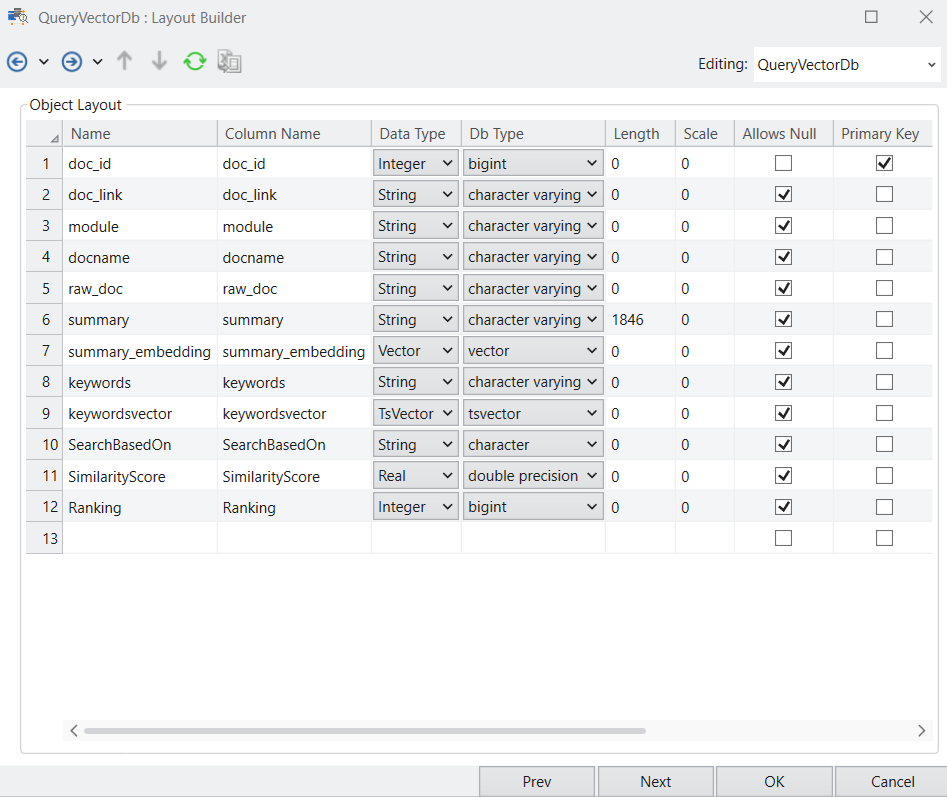 5. Once customized, click *Next*. The *Query Vector DB Properties* window opens. Configure an embedding model when searching dense embeddings.
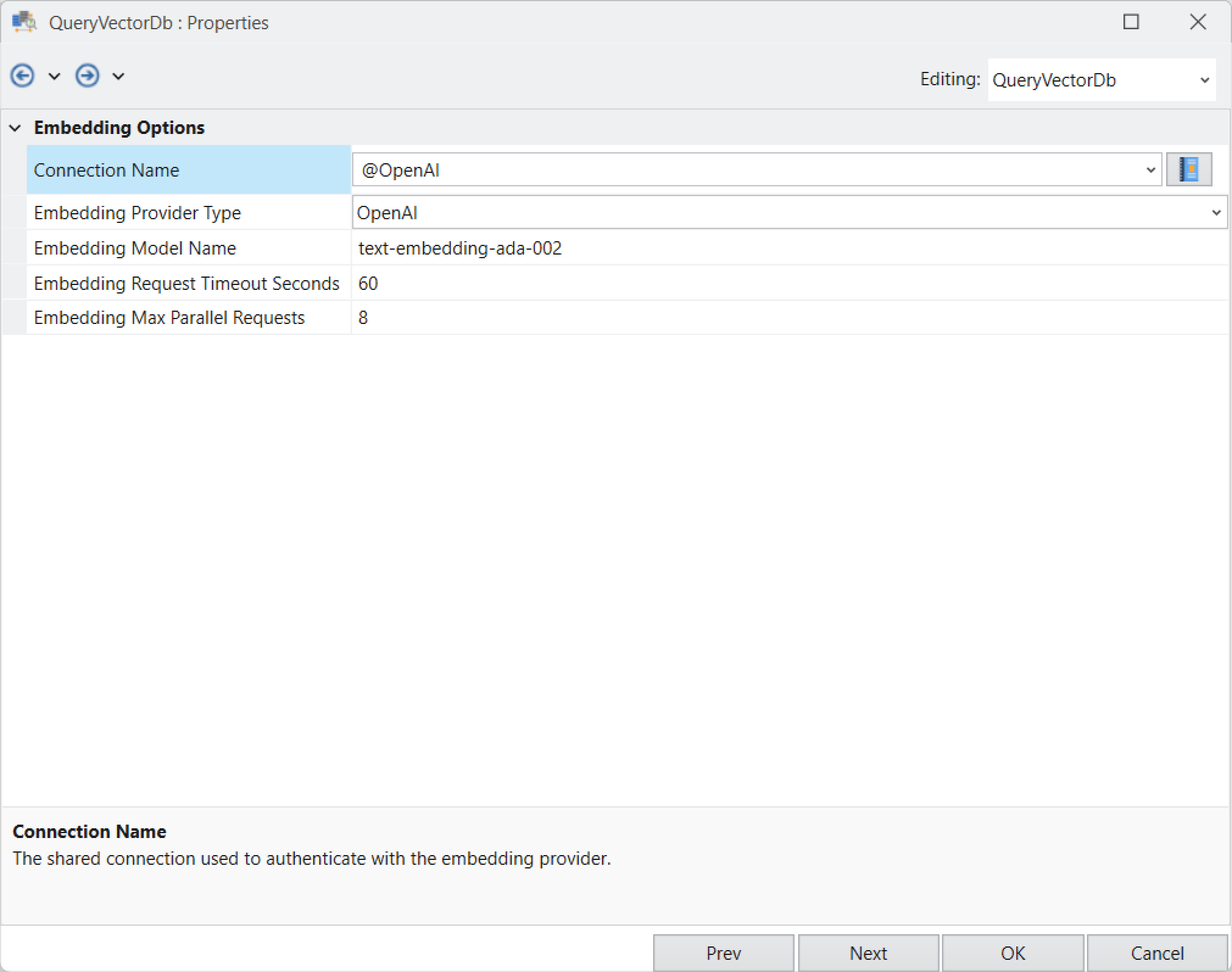 Embedding Options:
These options apply when the object generates a dense embedding for the query.
* *Connection Name:* Select the shared connection to the embedding provider (e.g., OpenAI).
* *Embedding Provider Type:* Defines the embedding service being used, such as OpenAI or another provider.
* *Embedding Model Name:* Identifies the specific model used for generating vector embeddings (e.g., text-embedding-ada-002).
{% hint style="info" %}
**Note:** Use the same embedding model that was used to create the knowledge base.
{% endhint %}
* *Embedding Request Timeout Seconds:* Maximum time to wait for a single embedding API request before it times out.
* *Embedding Max Parallel Requests:* Maximum number of embedding API Requests which can be sent concurrently.
6. Once configured, click *Next.* In the *Search Properties* window you can set up the search properties of you vector database.

Search Options:
* *Max Retrieve Count:* Defines the maximum number of results to retrieve.
* *Search Field:* Specifies the database field to search. This can store dense embeddings, sparse vectors, `tsvector` keyword vectors, or another supported vector type.
* *Search Method:* Determines how the object compares or matches values. Available methods depend on the selected vector type.
The available methods update for the selected field:

* *Match Threshold:* Sets a match threshold to filter out less relevant results. For example, *0.7* returns results above *70%* similarity where the selected method uses similarity scoring.
* *Re-Rank Result:* Enables ranking of retrieved results based on secondary ranking criteria. This option is particularly useful for hybrid searches, ensuring more accurate and relevant results.

* *Re-Ranking Methods:* Defines the technique used for re-ranking results.
Currently, two methods are available:
* Reciprocal Rank Fusion
* Weighted Average

{% hint style="info" %}
**Note:** This option can only be enabled when you have more than one search field selected.
{% endhint %}
Additionally, when *Weighted Average* re-ranking method is chosen, an extra field, *Re-Rank Weight*, is added to allow you to define the priority for each search field. The weights should always add up to *1*.

* *Filter Vectors:* Enables additional filtering conditions for refining search results by adding a filter column.

To apply one filter across search fields, map a `WHERE` clause to the *Where* input field.

7. Click *OK*.
You have successfully configured your *Query Vector Database* object. The fields from the source object can now be mapped to other objects in a dataflow.

## Preview Output
1. Right-click on the *Query Vector DB* object’s header and select *Preview Output* to view the results.
2. The preview output displays:
* The most relevant document returned at the top. For example, if the query was *"How to aggregate my data?"*, the first result would be the *Aggregate Transformation* document.
* The second most relevant document, followed by others ranked in descending order of relevance.
* A *Search Based On* column, which indicates the search field used to retrieve the record.
* A *Similarity Score* column, which quantifies how closely the result matches the query.
* A *Ranking* column, where *Rank 1* indicates the most relevant record.

---
# Agent Instructions
This documentation is published with GitBook. GitBook is the documentation platform designed so that both humans and AI agents can read, navigate, and reason over technical content effectively. Learn more at gitbook.com.
## Querying This Documentation
If you need additional information that is not directly available in this page, you can query the documentation by asking a question.
Perform an HTTP GET request on the following URL with the `ask` and `goal` query parameters:
```
GET https://documentation.astera.com/astera-intelligence/query-vector-db.md?ask=&goal=
```
`ask` is the immediate question: it should be specific, self-contained, and written in natural language.
`goal` is what the user is ultimately trying to achieve, the reason they need the answer. Sharing it helps GitBook give you a better, more relevant answer. A goal is most helpful when it describes the outcome the user wants rather than restating the question. For example, with `ask=how do I create an API token`, a goal like `automate deployments from our CI pipeline` lets GitBook tailor the answer to that use case.
The response will contain a direct answer to the question and relevant excerpts and sources from the documentation.
Use this mechanism when the answer is not explicitly present in the current page, you need clarification or additional context, or you want to retrieve related documentation sections.
Embedding Options:
These options apply when the object generates a dense embedding for the query.
* *Connection Name:* Select the shared connection to the embedding provider (e.g., OpenAI).
* *Embedding Provider Type:* Defines the embedding service being used, such as OpenAI or another provider.
* *Embedding Model Name:* Identifies the specific model used for generating vector embeddings (e.g., text-embedding-ada-002).
{% hint style="info" %}
**Note:** Use the same embedding model that was used to create the knowledge base.
{% endhint %}
* *Embedding Request Timeout Seconds:* Maximum time to wait for a single embedding API request before it times out.
* *Embedding Max Parallel Requests:* Maximum number of embedding API Requests which can be sent concurrently.
6. Once configured, click *Next.* In the *Search Properties* window you can set up the search properties of you vector database.

Search Options:
* *Max Retrieve Count:* Defines the maximum number of results to retrieve.
* *Search Field:* Specifies the database field to search. This can store dense embeddings, sparse vectors, `tsvector` keyword vectors, or another supported vector type.
* *Search Method:* Determines how the object compares or matches values. Available methods depend on the selected vector type.
The available methods update for the selected field:

* *Match Threshold:* Sets a match threshold to filter out less relevant results. For example, *0.7* returns results above *70%* similarity where the selected method uses similarity scoring.
* *Re-Rank Result:* Enables ranking of retrieved results based on secondary ranking criteria. This option is particularly useful for hybrid searches, ensuring more accurate and relevant results.

* *Re-Ranking Methods:* Defines the technique used for re-ranking results.
Currently, two methods are available:
* Reciprocal Rank Fusion
* Weighted Average

{% hint style="info" %}
**Note:** This option can only be enabled when you have more than one search field selected.
{% endhint %}
Additionally, when *Weighted Average* re-ranking method is chosen, an extra field, *Re-Rank Weight*, is added to allow you to define the priority for each search field. The weights should always add up to *1*.

* *Filter Vectors:* Enables additional filtering conditions for refining search results by adding a filter column.

To apply one filter across search fields, map a `WHERE` clause to the *Where* input field.

7. Click *OK*.
You have successfully configured your *Query Vector Database* object. The fields from the source object can now be mapped to other objects in a dataflow.

## Preview Output
1. Right-click on the *Query Vector DB* object’s header and select *Preview Output* to view the results.
2. The preview output displays:
* The most relevant document returned at the top. For example, if the query was *"How to aggregate my data?"*, the first result would be the *Aggregate Transformation* document.
* The second most relevant document, followed by others ranked in descending order of relevance.
* A *Search Based On* column, which indicates the search field used to retrieve the record.
* A *Similarity Score* column, which quantifies how closely the result matches the query.
* A *Ranking* column, where *Rank 1* indicates the most relevant record.

---
# Agent Instructions
This documentation is published with GitBook. GitBook is the documentation platform designed so that both humans and AI agents can read, navigate, and reason over technical content effectively. Learn more at gitbook.com.
## Querying This Documentation
If you need additional information that is not directly available in this page, you can query the documentation by asking a question.
Perform an HTTP GET request on the following URL with the `ask` and `goal` query parameters:
```
GET https://documentation.astera.com/astera-intelligence/query-vector-db.md?ask=&goal=
```
`ask` is the immediate question: it should be specific, self-contained, and written in natural language.
`goal` is what the user is ultimately trying to achieve, the reason they need the answer. Sharing it helps GitBook give you a better, more relevant answer. A goal is most helpful when it describes the outcome the user wants rather than restating the question. For example, with `ask=how do I create an API token`, a goal like `automate deployments from our CI pipeline` lets GitBook tailor the answer to that use case.
The response will contain a direct answer to the question and relevant excerpts and sources from the documentation.
Use this mechanism when the answer is not explicitly present in the current page, you need clarification or additional context, or you want to retrieve related documentation sections.