> For the complete documentation index, see [llms.txt](https://documentation.astera.com/llms.txt). Markdown versions of documentation pages are available by appending `.md` to page URLs; this page is available as [Markdown](https://documentation.astera.com/astera-intelligence/use-cases/template-less-data-extraction.md).
# Template Less Data Extraction
## Overview
Template-less data extraction enables the processing of unstructured documents without relying on predefined templates. This approach is highly flexible and adaptable, allowing for the extraction of structured data from various document formats, even when layouts differ.
In this document, we will outline a use case where template-less extraction is applied to invoices using AI-powered techniques.
## Use Case
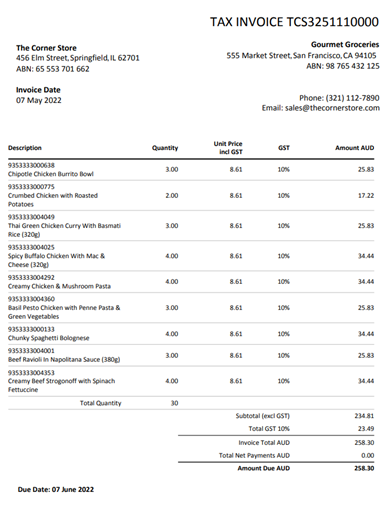
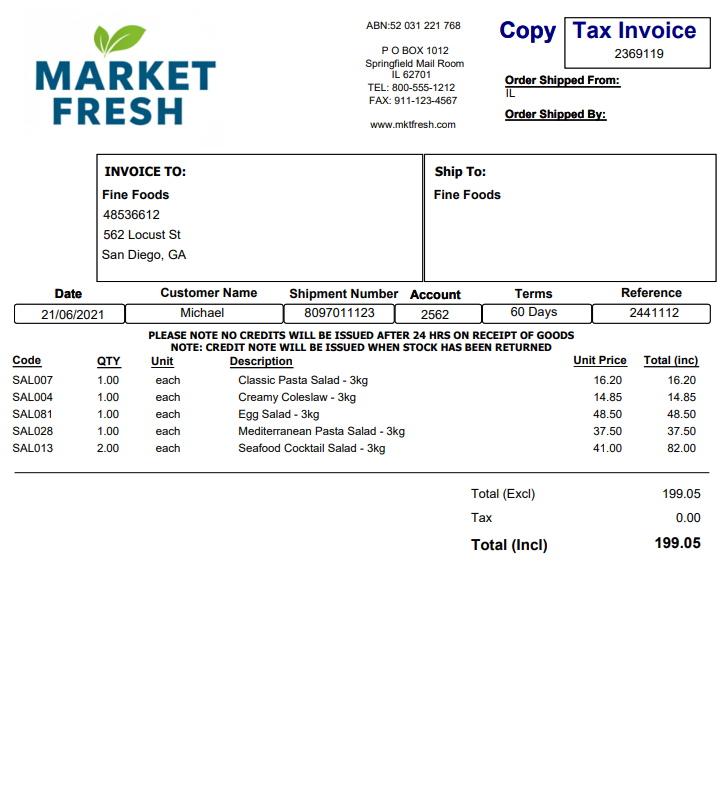
For our use case, we will use multiple PDF invoices as our source files. These invoices will have diverse and unpredictable layouts. This AI-powered technique will help us extract key information from the invoices and convert it into a structured JSON format.
Following are some layouts of the invoices:
### Building the Extraction Pipeline
#### 1. Creating the Dataflow
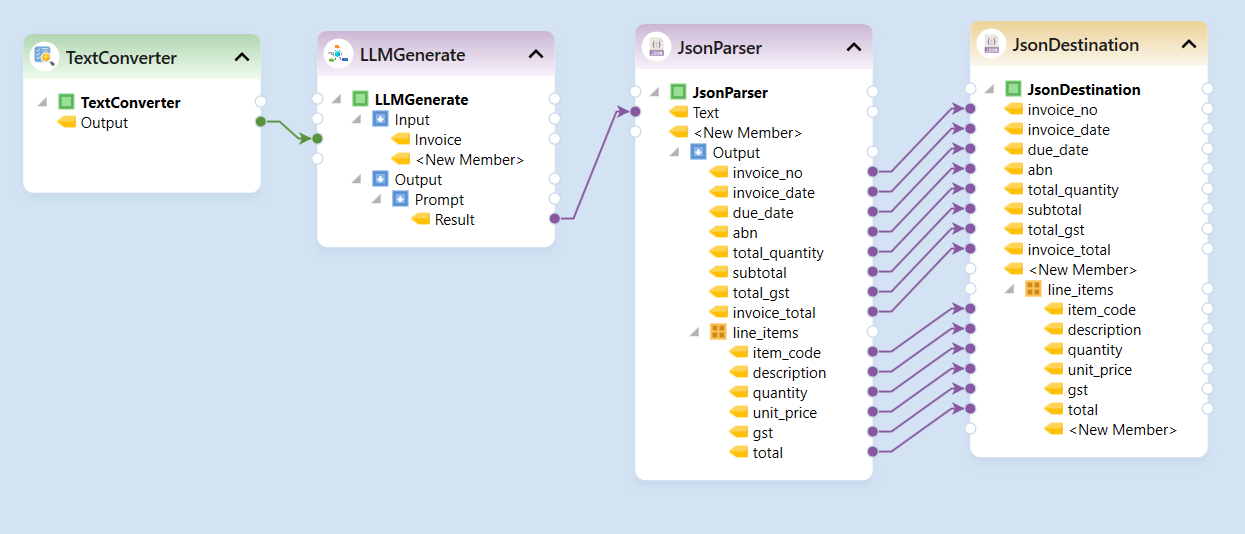
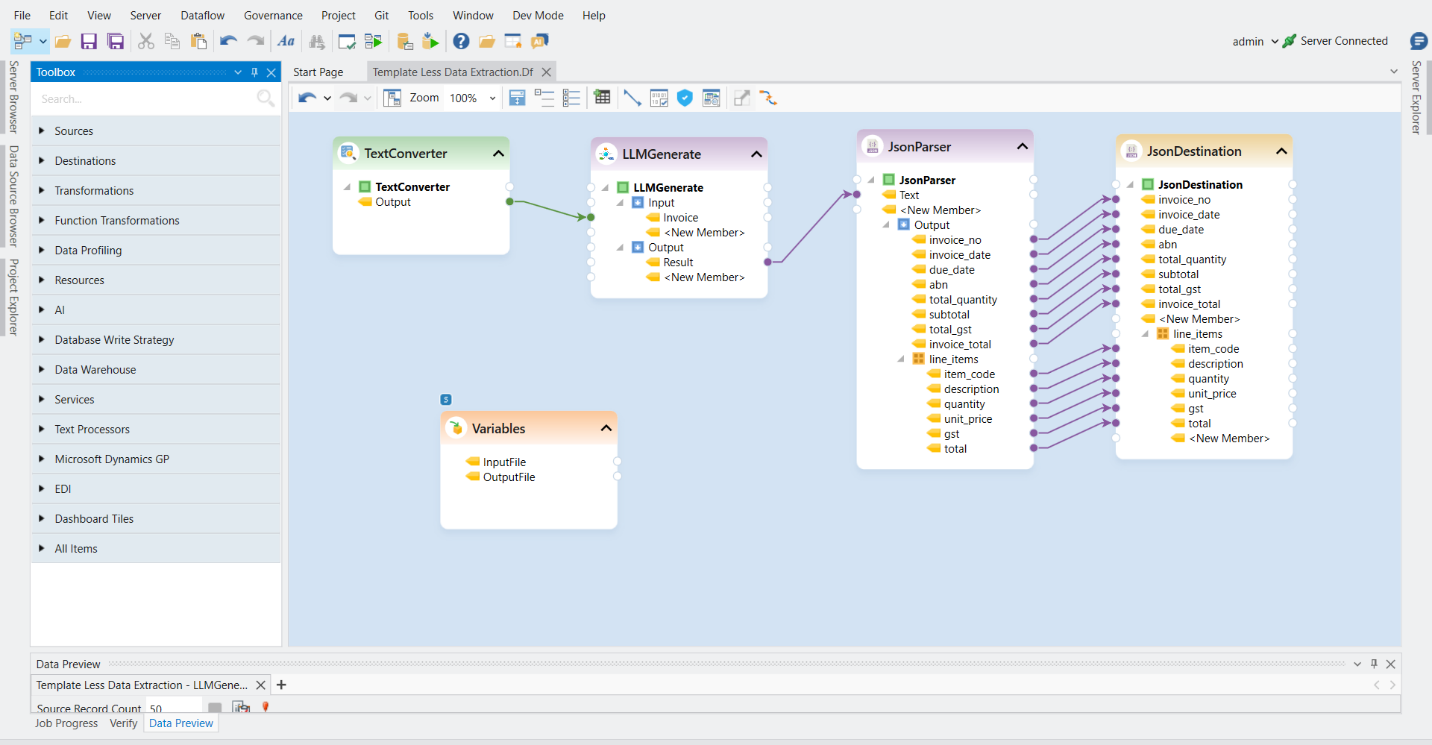
* Start by creating a new [*Dataflow*](/dataflows/what-are-dataflows.md) where we will design our invoice extraction pipeline for a single invoice.
#### 2. Configuring the Source
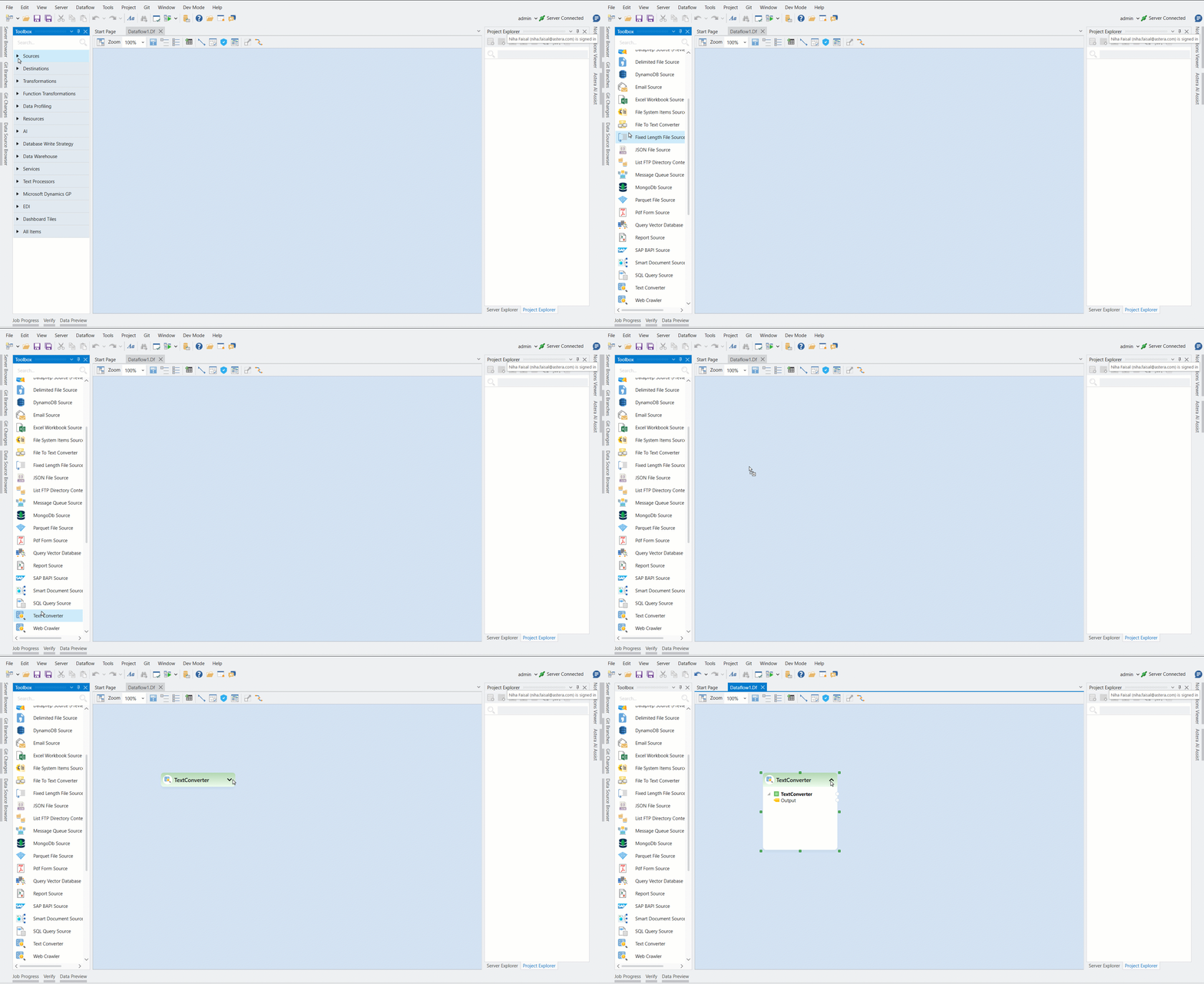
* To read unstructured data from the invoice in our pipeline we will be using the [*Text Converter*](/dataflows/sources/text-converter.md) object. \
Drag and drop the *Text Converter* object from the *Sources* section in the toolbox.
* Configure it by specifying the file path to one of the source invoice files.
The output of this object will contain the entire content of the PDF file as a single text string.
#### 3. Using LLM Generate
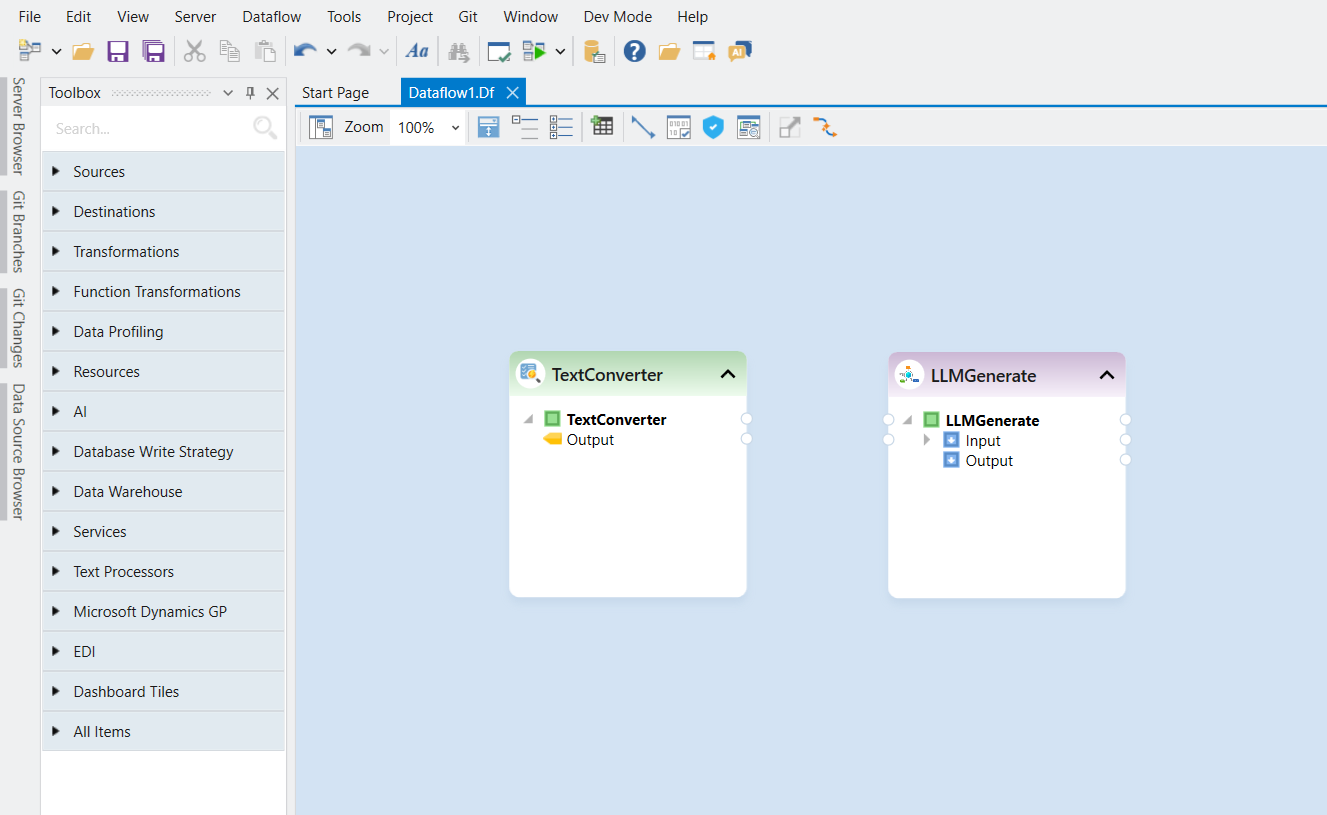
* Next, drag and drop the *LLM Generate* object from the *AI* section of the toolbox into the dataflow designer, to extract structured information from the unstructured text dynamically.
* Double-click on the objects header to configure its properties.
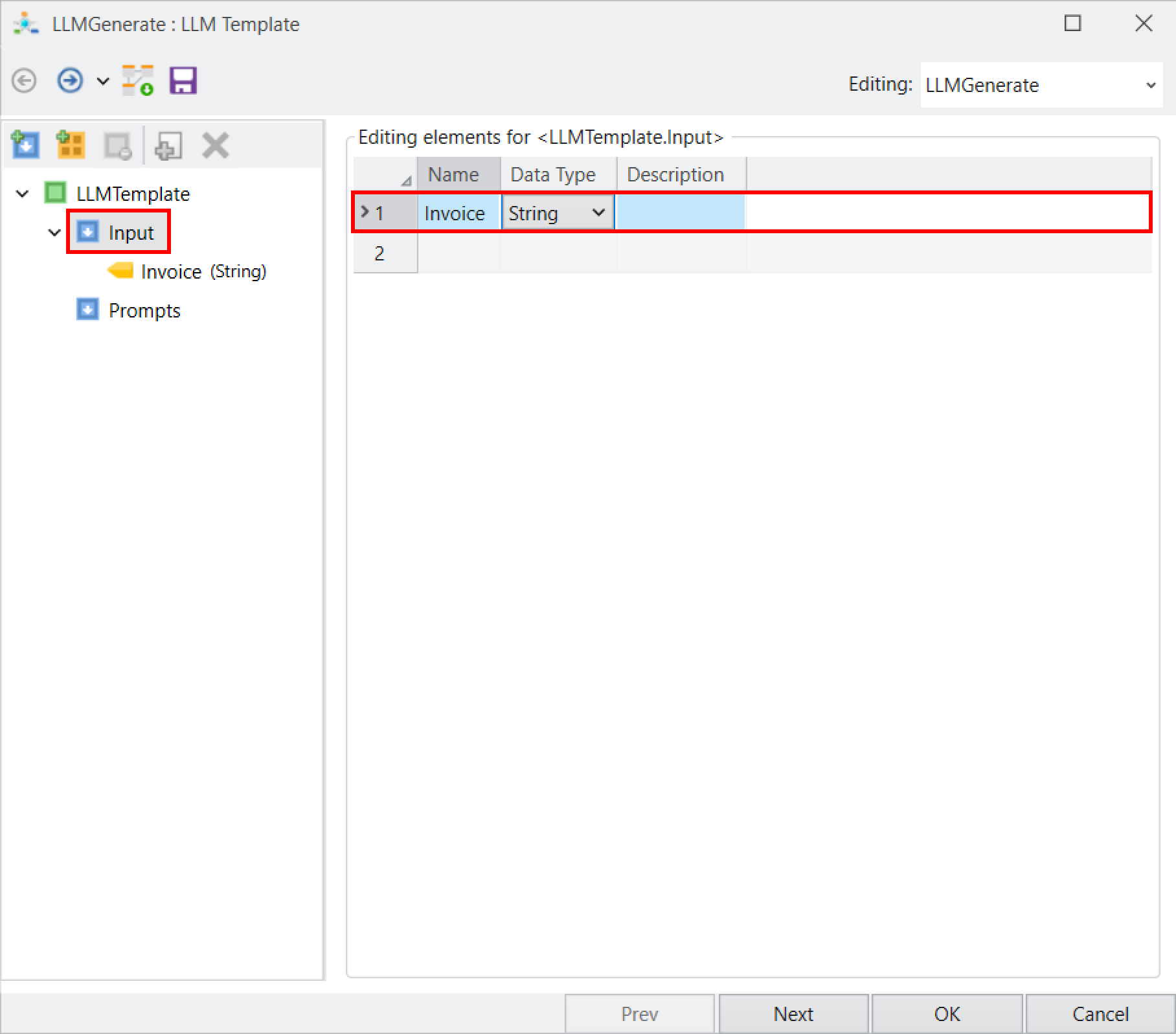
* Select the *Input* node to create the required input fields. For our use case, let’s define a single input field named *Invoice*, which will contain the invoice content as a string.
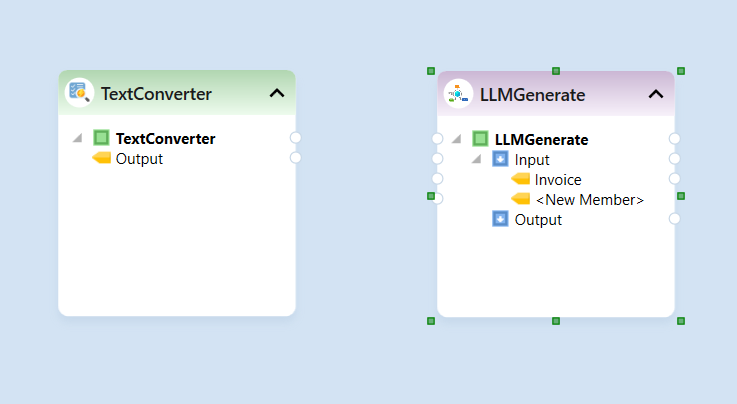
* Click *OK* to save the configuration. The invoice field will now appear in the input node.
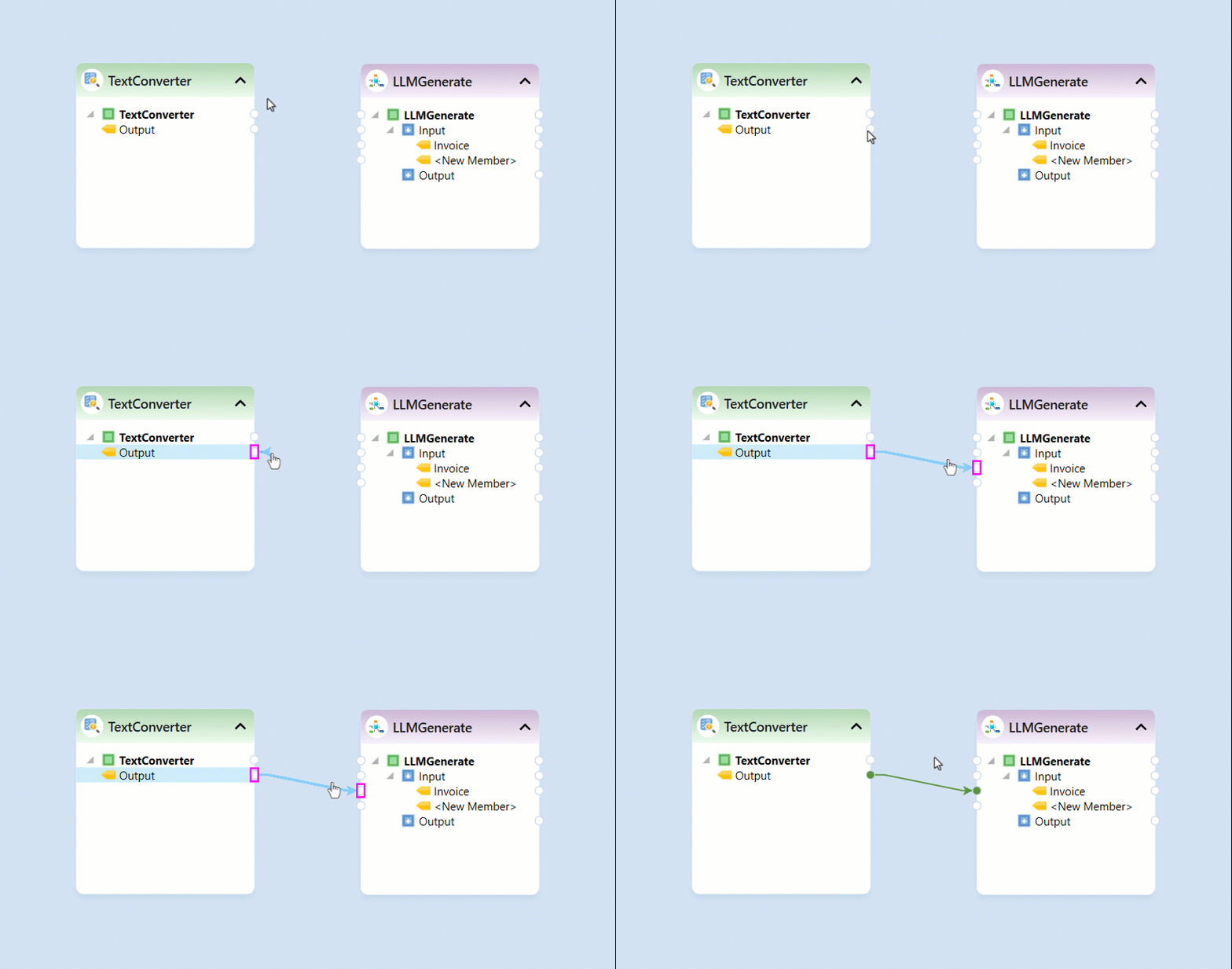
* Map the output of the *Text Converter* object to the input field of the *LLM Generate* object.
#### 4. Defining the Prompt
* Next, let’s define a prompt which acts as a set of instructions which guides the AI model in extracting and structuring data from the invoice.
* Open the properties of the *LLM Generate* object, by double-clicking on the header.
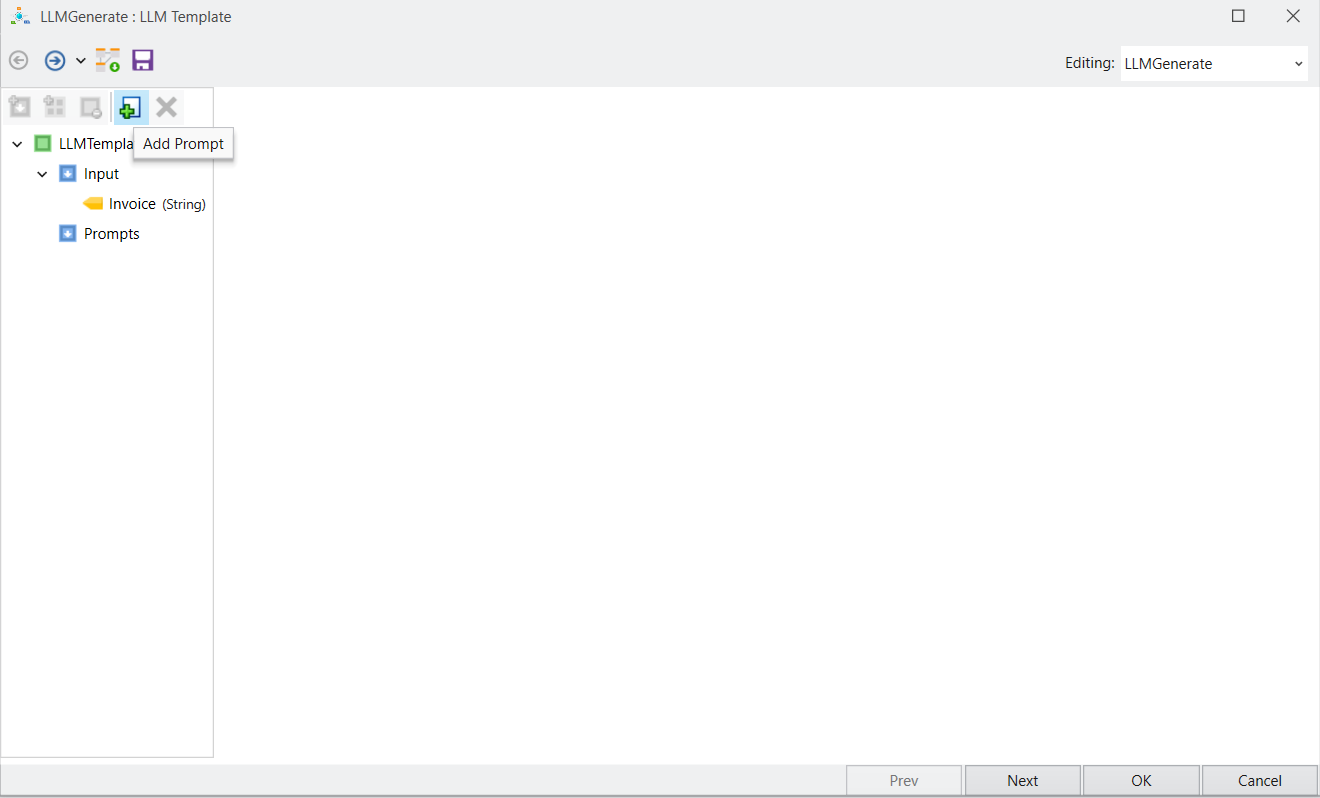
* Right-click on the *Prompts* node and select *Add Prompt* (or use the *Add Prompt* button at the top of the layout window).
* A *Prompt* node will appear with *Properties* and *Text* fields.
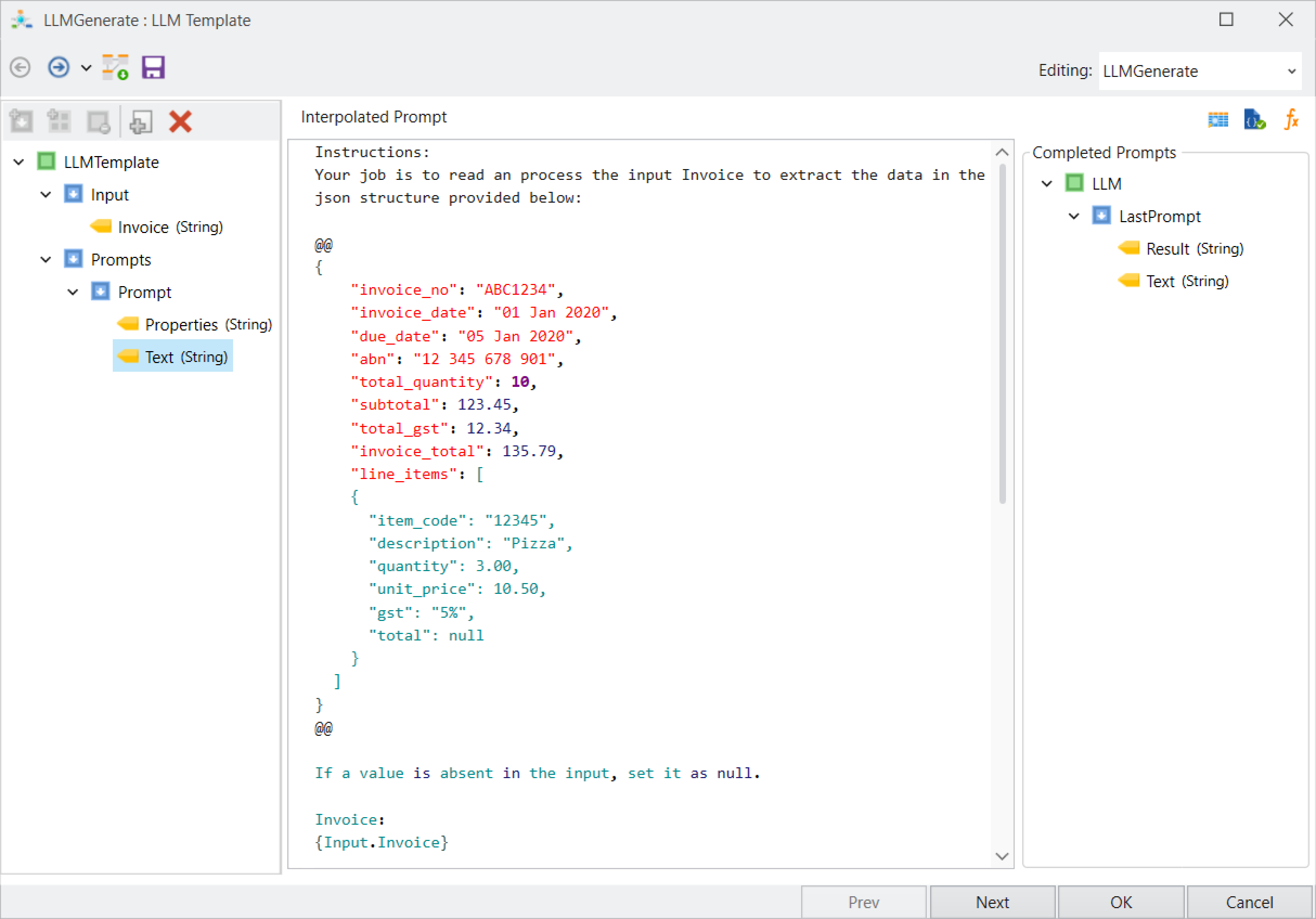
* Let’s select the *Text* field and enter a prompt which instructs the LLM to extract data from the provided invoice and generate an output in the required JSON structure.
* Click *Next* to proceed to the *LLM Generate Properties* screen.
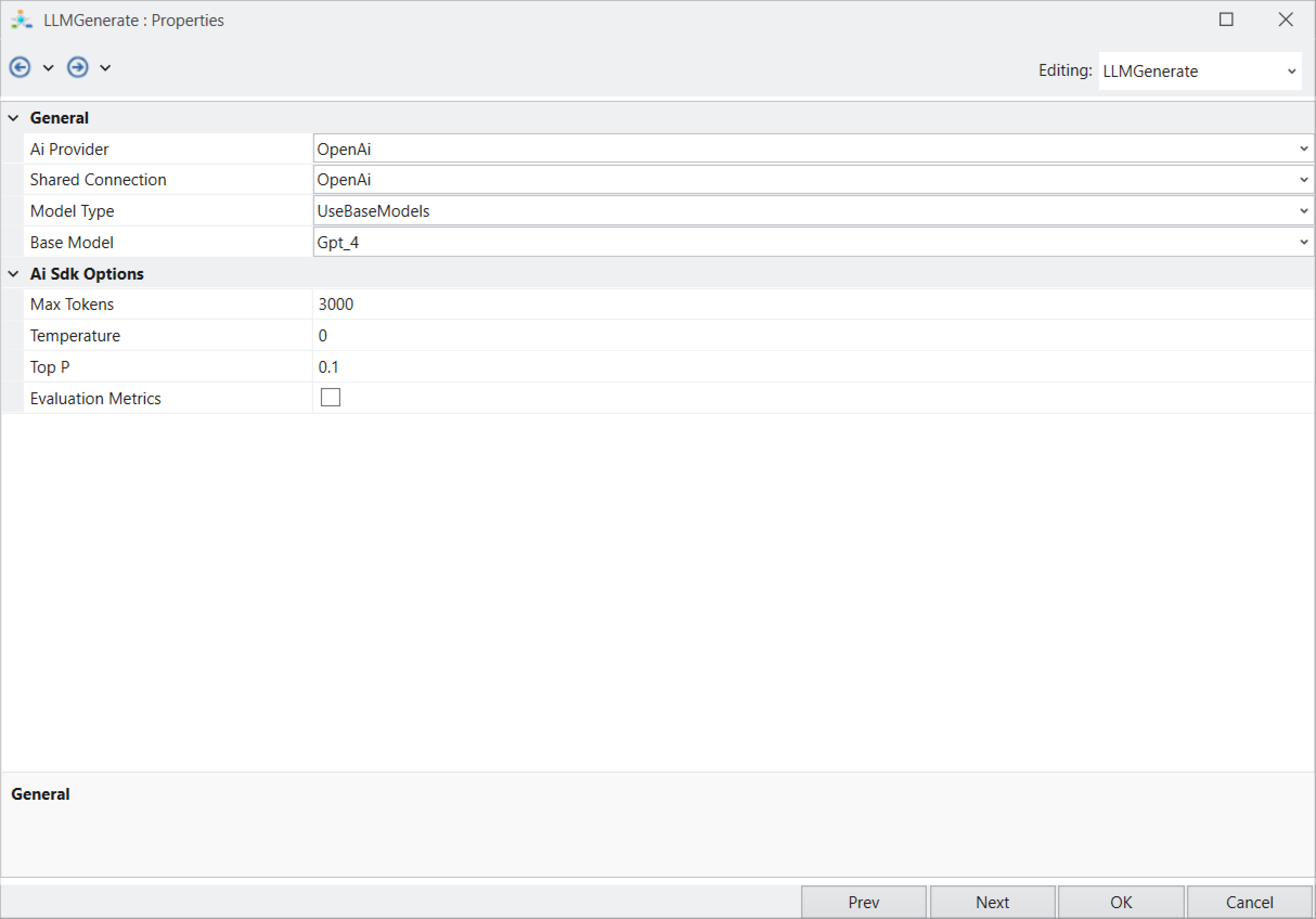
* Here, let’s select the *Ai* provider, for our use case we will be using the *OpenAI GPT-4* model, with its default settings.
{% hint style="info" %}
***Note:*** If using gpt-4o-min, set *Max Tokens* to 16000 in the *Ai Sdk Options* to ensure optimal extraction, as it can process data from up to 10 pages efficiently.
{% endhint %}
{% hint style="info" %}
***Note:*** Multiple AI providers are available, and you can configure the model settings based on your specific use case.
{% endhint %}
* Click *OK* to complete the configuration.
### Writing to Destination
#### 5. Converting and Storing JSON Output
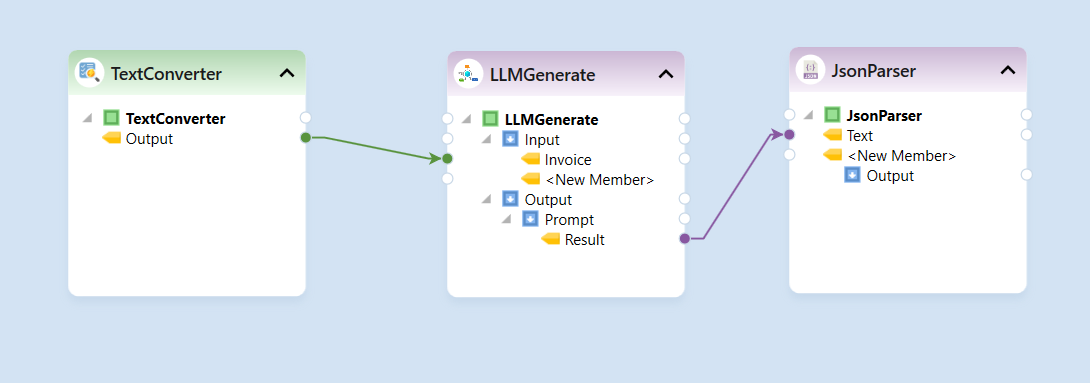
* Next, let’s drag-and-drop a *JSON Parser* object onto the designer. This will convert the extracted data which is returned as a text string into a structured JSON format.
* Map the output field of the *LLM Generate* object to the input field of the *JSON Parser* object.
* Open the *JSON Parser* properties.
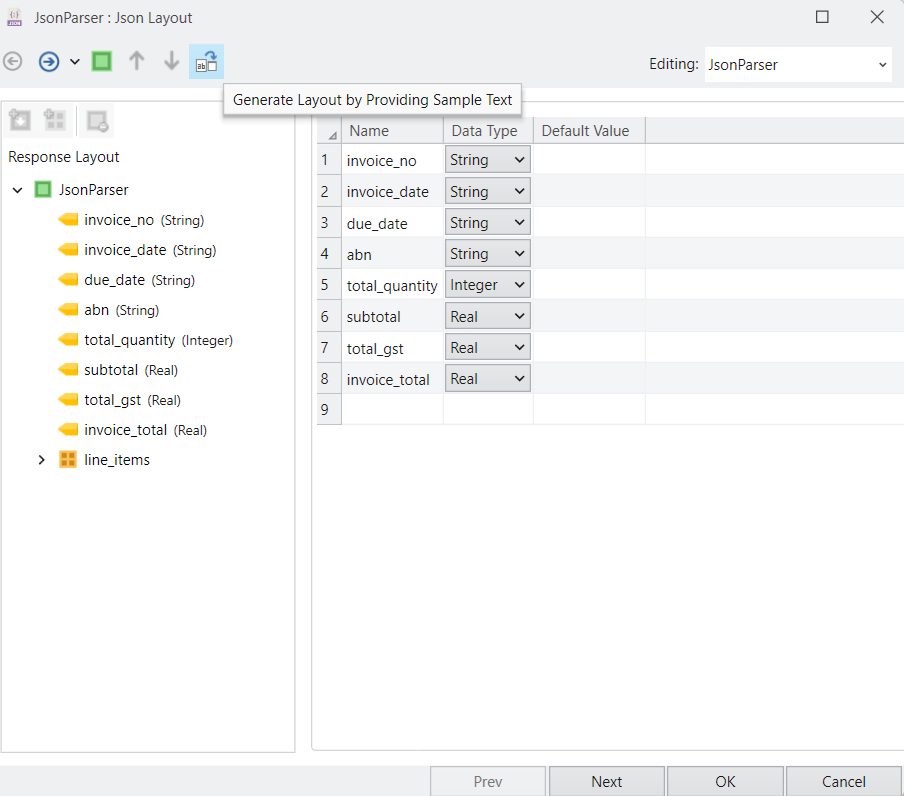
* In the layout screen, we can either create a preferred layout manually or use the *Generate Layout by Providing Sample Text* option to generate the layout automatically.
* Once the JSON Parser is configured, let’s drag and drop a [*JSON File Destination* ](/dataflows/destinations/json-file-destination.md)object.
* Configure the *JSON File Destination* object and map all fields onto it from the *JSON Parser* output.
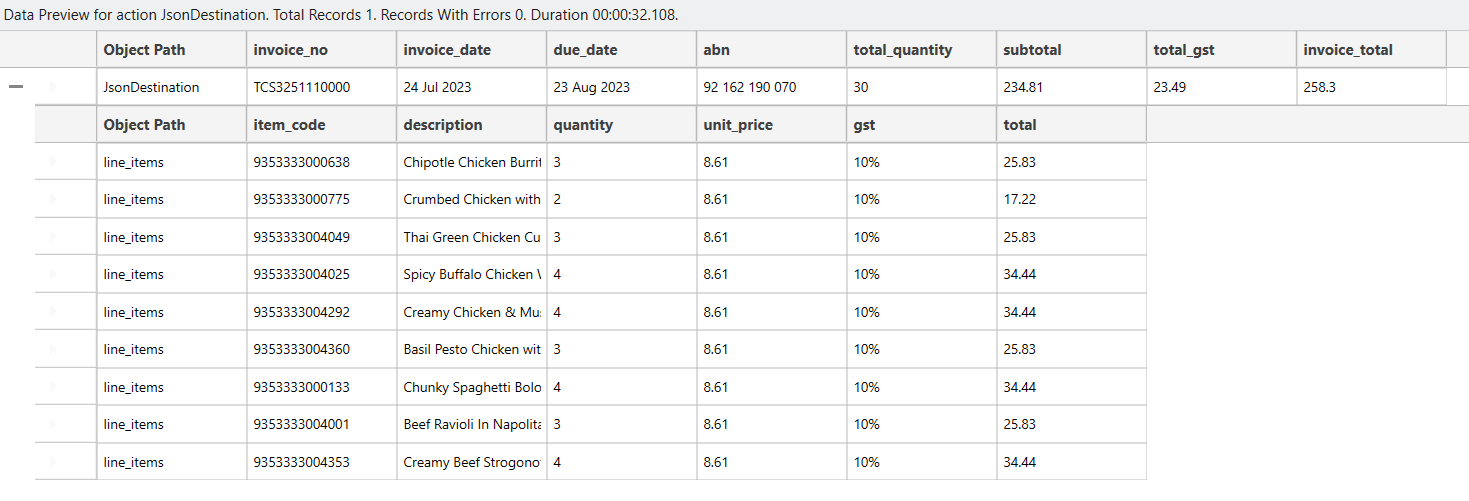
* Let's preview the extracted data by right-clicking on the object's header, to verify our output.
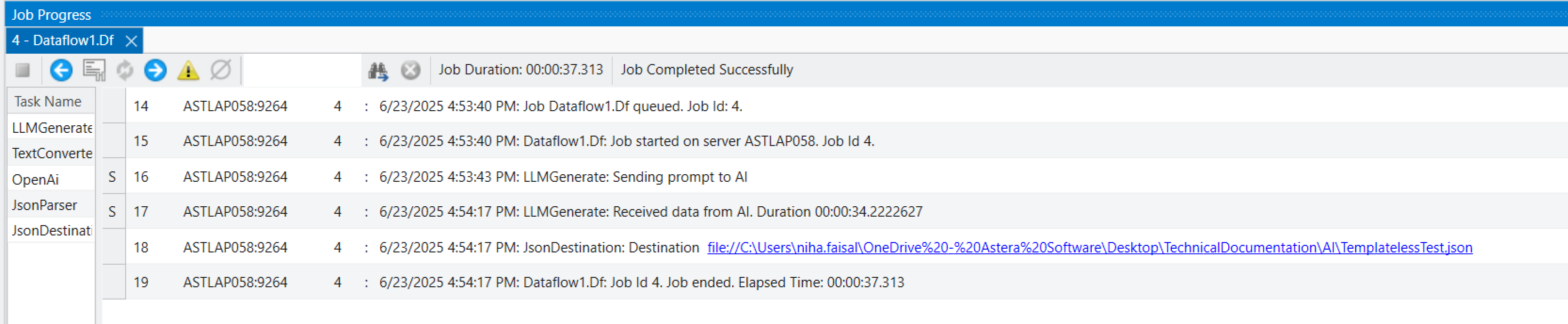
* Run the dataflow to generate the JSON file containing the extracted invoice data.
### Automating Extraction for Multiple Invoices
To automate the extraction process for multiple invoices, let’s create a [*workflow*](/workflows/creating-workflows-in-astera.md) and [parameterize](/workflows/workflows-with-a-dynamic-destination-path.md) the source and destination file paths by configuring a [*Variables*](/miscellaneous/using-output-variables-in-astera.md) object in the dataflow.
#### 6. Configuring the Workflow
The workflow will consist of three key objects:
1. [File System Items Source](/dataflows/sources/file-system-items-source.md): Fetches all invoices from the specified folder path where all invoices are stored.
2. [Expression](/dataflows/transformations/expression-transformation.md): Used to create an output JSON file path for each invoice using the source file name.
3. [Run Dataflow](/workflows/run-dataflow.md): Used to run the previously configured dataflow for the specific invoice file path.
Once the workflow is configured, running it will extract and store data in JSON format for all invoices in the specified folder.
We have now successfully configured a *Template Less Data Extraction* solution in Astera.
---
# Agent Instructions
This documentation is published with GitBook. GitBook is the documentation platform designed so that both humans and AI agents can read, navigate, and reason over technical content effectively. Learn more at gitbook.com.
## Querying This Documentation
If you need additional information that is not directly available in this page, you can query the documentation dynamically by asking a question.
Perform an HTTP GET request on the following URL with the `ask` and `goal` query parameters:
```
GET https://documentation.astera.com/astera-intelligence/use-cases/template-less-data-extraction.md?ask=&goal=
```
`ask` is the immediate question: it should be specific, self-contained, and written in natural language.
`goal` is what the user is ultimately trying to achieve, the reason they need the answer. Sharing it helps GitBook give you a better, more relevant answer. A goal is most helpful when it describes the outcome the user wants rather than restating the question. For example, with `ask=how do I create an API token`, a goal like `build a script that syncs our docs to a CMS` lets GitBook tailor the answer to that use case.
The response will contain a direct answer to the question and relevant excerpts and sources from the documentation.
Use this mechanism when the answer is not explicitly present in the current page, you need clarification or additional context, or you want to retrieve related documentation sections.
 * Configure it by specifying the file path to one of the source invoice files.
The output of this object will contain the entire content of the PDF file as a single text string.
#### 3. Using LLM Generate
* Next, drag and drop the *LLM Generate* object from the *AI* section of the toolbox into the dataflow designer, to extract structured information from the unstructured text dynamically.
* Configure it by specifying the file path to one of the source invoice files.
The output of this object will contain the entire content of the PDF file as a single text string.
#### 3. Using LLM Generate
* Next, drag and drop the *LLM Generate* object from the *AI* section of the toolbox into the dataflow designer, to extract structured information from the unstructured text dynamically.
 * Double-click on the objects header to configure its properties.
* Select the *Input* node to create the required input fields. For our use case, let’s define a single input field named *Invoice*, which will contain the invoice content as a string.
* Double-click on the objects header to configure its properties.
* Select the *Input* node to create the required input fields. For our use case, let’s define a single input field named *Invoice*, which will contain the invoice content as a string.
 * Click *OK* to save the configuration. The invoice field will now appear in the input node.
 * Map the output of the *Text Converter* object to the input field of the *LLM Generate* object.
 #### 4. Defining the Prompt
* Next, let’s define a prompt which acts as a set of instructions which guides the AI model in extracting and structuring data from the invoice.
* Open the properties of the *LLM Generate* object, by double-clicking on the header.
* Right-click on the *Prompts* node and select *Add Prompt* (or use the *Add Prompt* button at the top of the layout window).
#### 4. Defining the Prompt
* Next, let’s define a prompt which acts as a set of instructions which guides the AI model in extracting and structuring data from the invoice.
* Open the properties of the *LLM Generate* object, by double-clicking on the header.
* Right-click on the *Prompts* node and select *Add Prompt* (or use the *Add Prompt* button at the top of the layout window).
 * A *Prompt* node will appear with *Properties* and *Text* fields.
* Let’s select the *Text* field and enter a prompt which instructs the LLM to extract data from the provided invoice and generate an output in the required JSON structure.
* A *Prompt* node will appear with *Properties* and *Text* fields.
* Let’s select the *Text* field and enter a prompt which instructs the LLM to extract data from the provided invoice and generate an output in the required JSON structure.
 * Click *Next* to proceed to the *LLM Generate Properties* screen.
* Here, let’s select the *Ai* provider, for our use case we will be using the *OpenAI GPT-4* model, with its default settings.
{% hint style="info" %}
***Note:*** If using gpt-4o-min, set *Max Tokens* to 16000 in the *Ai Sdk Options* to ensure optimal extraction, as it can process data from up to 10 pages efficiently.
{% endhint %}
* Click *Next* to proceed to the *LLM Generate Properties* screen.
* Here, let’s select the *Ai* provider, for our use case we will be using the *OpenAI GPT-4* model, with its default settings.
{% hint style="info" %}
***Note:*** If using gpt-4o-min, set *Max Tokens* to 16000 in the *Ai Sdk Options* to ensure optimal extraction, as it can process data from up to 10 pages efficiently.
{% endhint %}
 * Open the *JSON Parser* properties.
* In the layout screen, we can either create a preferred layout manually or use the *Generate Layout by Providing Sample Text* option to generate the layout automatically.
* Open the *JSON Parser* properties.
* In the layout screen, we can either create a preferred layout manually or use the *Generate Layout by Providing Sample Text* option to generate the layout automatically.
 * Once the JSON Parser is configured, let’s drag and drop a [*JSON File Destination* ](/dataflows/destinations/json-file-destination.md)object.
* Configure the *JSON File Destination* object and map all fields onto it from the *JSON Parser* output.
* Once the JSON Parser is configured, let’s drag and drop a [*JSON File Destination* ](/dataflows/destinations/json-file-destination.md)object.
* Configure the *JSON File Destination* object and map all fields onto it from the *JSON Parser* output.
 * Let's preview the extracted data by right-clicking on the object's header, to verify our output.
 #### 6. Configuring the Workflow
The workflow will consist of three key objects:
1. [File System Items Source](/dataflows/sources/file-system-items-source.md): Fetches all invoices from the specified folder path where all invoices are stored.
2. [Expression](/dataflows/transformations/expression-transformation.md): Used to create an output JSON file path for each invoice using the source file name.
3. [Run Dataflow](/workflows/run-dataflow.md): Used to run the previously configured dataflow for the specific invoice file path.
#### 6. Configuring the Workflow
The workflow will consist of three key objects:
1. [File System Items Source](/dataflows/sources/file-system-items-source.md): Fetches all invoices from the specified folder path where all invoices are stored.
2. [Expression](/dataflows/transformations/expression-transformation.md): Used to create an output JSON file path for each invoice using the source file name.
3. [Run Dataflow](/workflows/run-dataflow.md): Used to run the previously configured dataflow for the specific invoice file path.
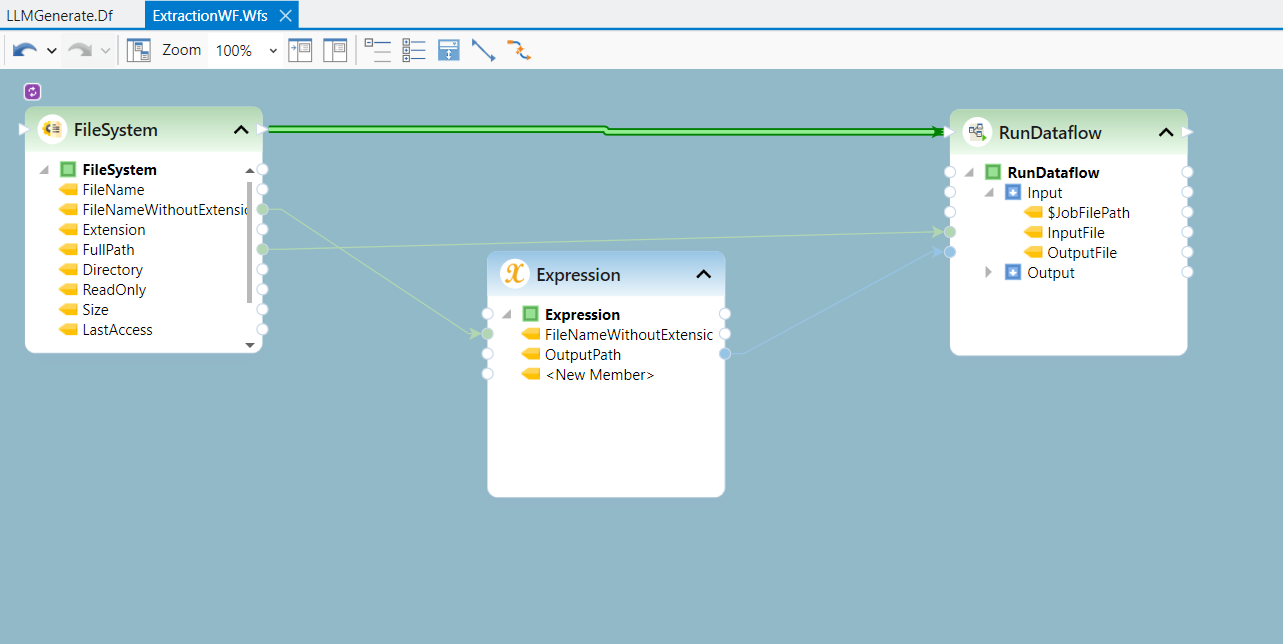 Once the workflow is configured, running it will extract and store data in JSON format for all invoices in the specified folder.
We have now successfully configured a *Template Less Data Extraction* solution in Astera.
---
# Agent Instructions
This documentation is published with GitBook. GitBook is the documentation platform designed so that both humans and AI agents can read, navigate, and reason over technical content effectively. Learn more at gitbook.com.
## Querying This Documentation
If you need additional information that is not directly available in this page, you can query the documentation dynamically by asking a question.
Perform an HTTP GET request on the following URL with the `ask` and `goal` query parameters:
```
GET https://documentation.astera.com/astera-intelligence/use-cases/template-less-data-extraction.md?ask=
Once the workflow is configured, running it will extract and store data in JSON format for all invoices in the specified folder.
We have now successfully configured a *Template Less Data Extraction* solution in Astera.
---
# Agent Instructions
This documentation is published with GitBook. GitBook is the documentation platform designed so that both humans and AI agents can read, navigate, and reason over technical content effectively. Learn more at gitbook.com.
## Querying This Documentation
If you need additional information that is not directly available in this page, you can query the documentation dynamically by asking a question.
Perform an HTTP GET request on the following URL with the `ask` and `goal` query parameters:
```
GET https://documentation.astera.com/astera-intelligence/use-cases/template-less-data-extraction.md?ask=