> For the complete documentation index, see [llms.txt](https://documentation.astera.com/llms.txt). Markdown versions of documentation pages are available by appending `.md` to page URLs; this page is available as [Markdown](https://documentation.astera.com/dataflows/sources/text-converter.md).
# Text Converter
The *Text Convertor* object enables users to extract text from various file formats, including documents, images, and audio files. It supports Optical Character Recognition (OCR) for enhanced performance in text extraction.
The Text Convertor object provides conversion for:
* **Document to Text**: Extract text from PDFs, Doc/Docx and TXT files.
* **Image to Text**: Use Optical Character Recognition (OCR) to extract text from images in JPG, PNG and JPEG formats.
* **HTML to Text**: Extract text from HTML, HTM, and XHTML files.
* **Markdown to Text**: Extract text from MD, MARKDOWN, MKD, MKDN, MDWN, and MDOWN files.
* **Excel to Text**: Extract text from XLS, XLSX, and CSV files.
## Overview
In this guide, we will cover how to:
* [Convert documents using OCR to text](#convert-documents-using-ocr-to-text)
* [Extract text from Excel files](#extract-text-from-excel-files)
* [Use the Text Converter object as a transformation](#use-the-text-converter-object-as-a-transformation)
## How to Use the Text Convertor Object
### Getting the Text Convertor Object
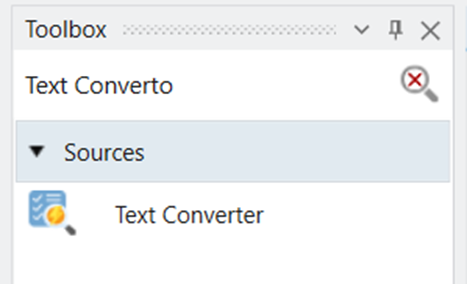
1. To get a *Text Converter* object, go to *Toolbox > Sources > Text Converter*. If you are unable to see the Toolbox, go to *View > Toolbox* or press Ctrl + Alt + X.
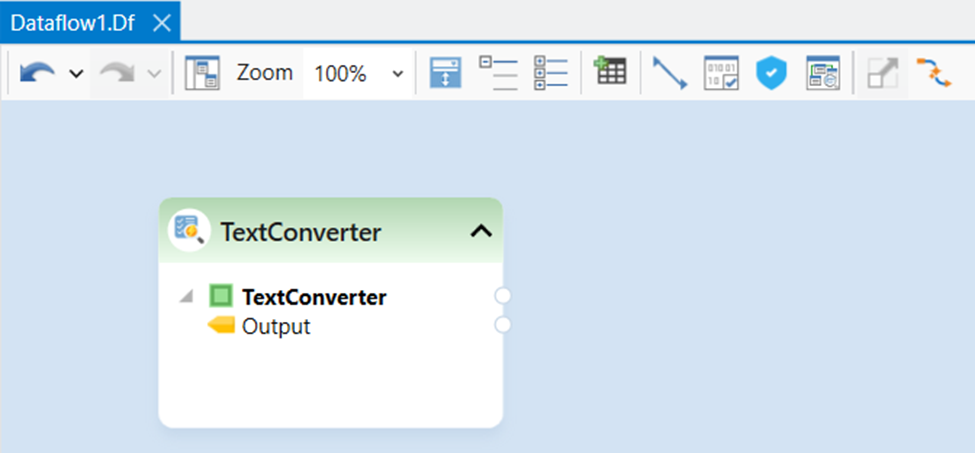
2. Drag-and-drop the *Text Convertor* object onto the designer.
### Configuring the Text Convertor Object
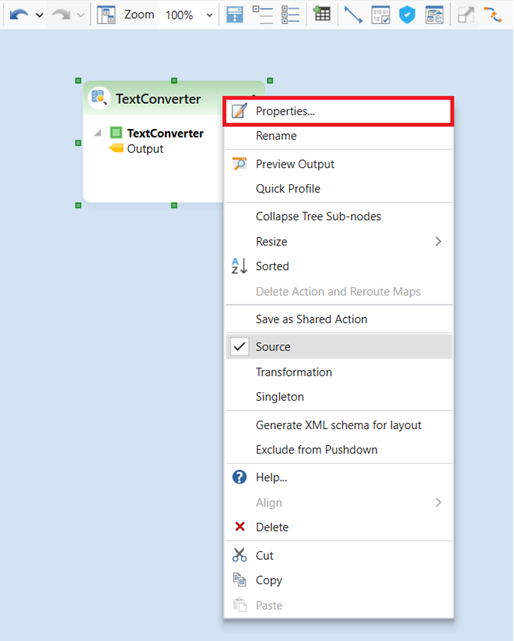
1. Configure the object, by right-clicking on its header and select *Properties* from the context menu.
A dialog box will open.
This is where you can configure the properties for the Text Converter object.
#### Convert documents using OCR to Text
1. Specify the *File Path* to the scanned PDF/Image file that needs to be converted.
2. Next, define an *Output Directory* where the converted text will be stored in another file. *(optional)*
3. Configure the *PDF Converter Options*.
* *Pdf Password:* Provide the password if the pdf file is password protected.
* *Pages To Read:* Specify which pages need to be read. Leaving this empty means read all pages.
* *Text Converter Model:* Select from the available models:
* CustomOCRApi
* GoogleOCR
* TesseractOCR
* TextractOCR
{% hint style="info" %}
**Note:** TesseractOCR is free to use, while GoogleOCR and Textract require subscriptions. Tesseract is a third-party open-source component and may not provide the highest quality. For the best results, GoogleOCR is recommended.
{% endhint %}
* *Resolution*: This option is available with TesseractOCR and TextractOCR. There are three types of resolutions to choose from: Auto, High, Low, and Medium. To learn more on which resolution would suit your needs best, click [here](https://documentation.astera.com/report-model/optical-character-recognition/best-practices-for-ocr-usage#resolution-option-in-astera).
* *Force OCR*: This option applies OCR to both digital and scanned files, regardless of their format. When unchecked (the default setting), the system first determines whether an incoming file is scanned or an image. OCR is applied only if the file is detected as scanned or image based.
* *Split Output:* Check this box to split the text for each page into a separate output record.
* *Apply Rotation Correction:* Corrects page rotation before text extraction. Available only when using *GoogleOCR*. Options are `None` (no correction), `OCR_Based` (uses OCR to detect and correct rotation), and `ML_Based` (uses a machine learning model to detect and correct rotation).
* *Deskew:* Straightens pages that are slightly tilted due to scanning misalignment before text extraction. Applies to PDF files only, regardless of the selected OCR model. Enable this when scanned documents produce garbled or misread text caused by skewed pages.
4. Once you have configured the *Text Convertor* object, click *OK*.
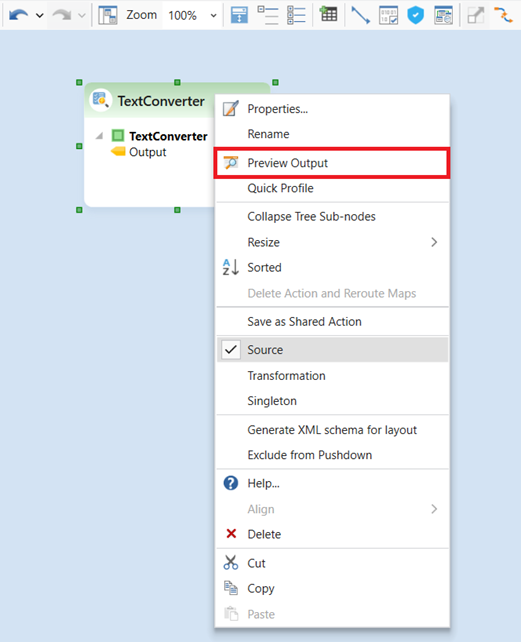
5. Right-click on the *Text Convertor* object’s header and select *Preview Output* from the context menu.
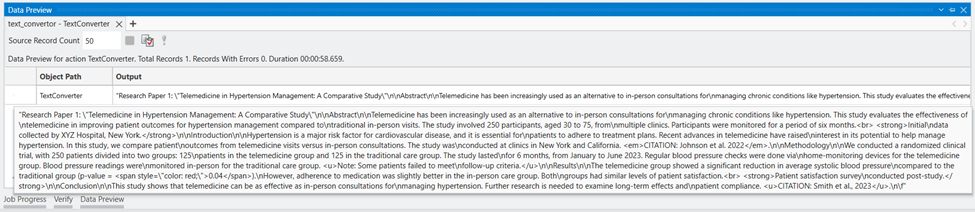
7. A *Data Preview* window will open and will show you the preview of the extracted text.
#### **Using Custom OCR API Model**
The *Custom OCR API* model lets you connect any external OCR service via a Centerprise *API flow*. Instead of a built-in engine, the *Text Converter* executes an API flow you build, which calls your OCR endpoint and returns the extracted text. Refer to this [document](/dataflows/sources/text-converter/using-custom-ocr-api-model.md) to understand this option in detail.
#### Extract Text from Excel files
1. Specify the *File Path* to the Excel file that needs to be converted.
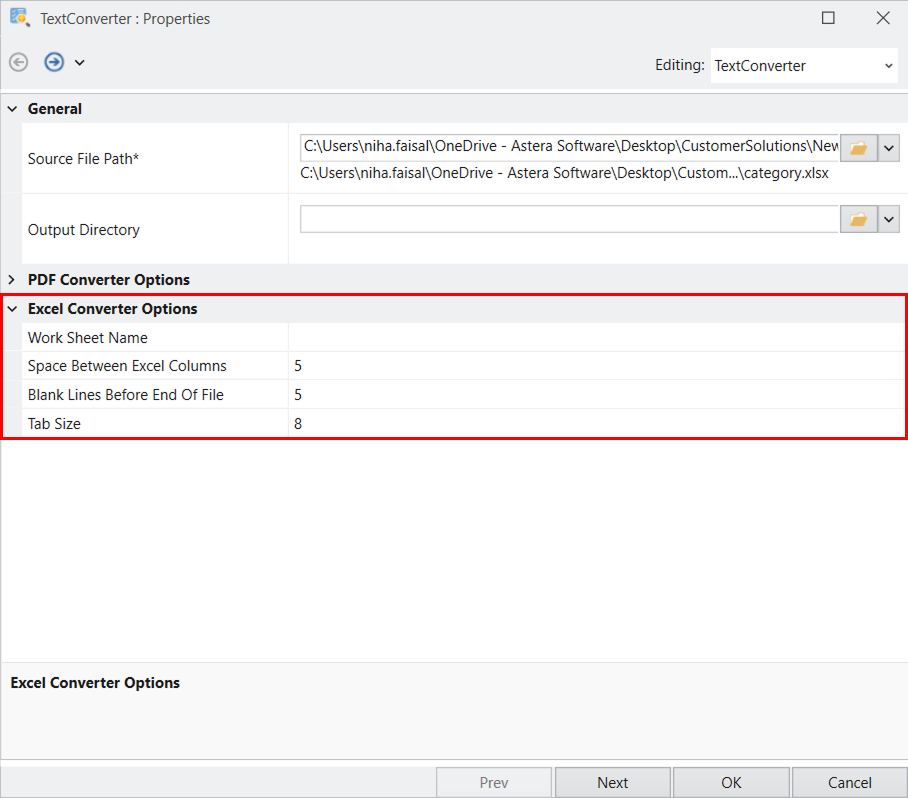
2. Next, configure the *Excel Converter Options*
* *Work Sheet Name:* Specify the name of your worksheet that you want to read data from.
* *Space Between Excel Columns:* Specify the space between the Excel Columns.
* *Blank Lines Before End of File: S*pecify the number of blank lines at which the file ends.
* *Tab Size:* Specify the tab spacing to be used in the extracted text.
4. Once you have configured the *Text Convertor* object, click *OK*.
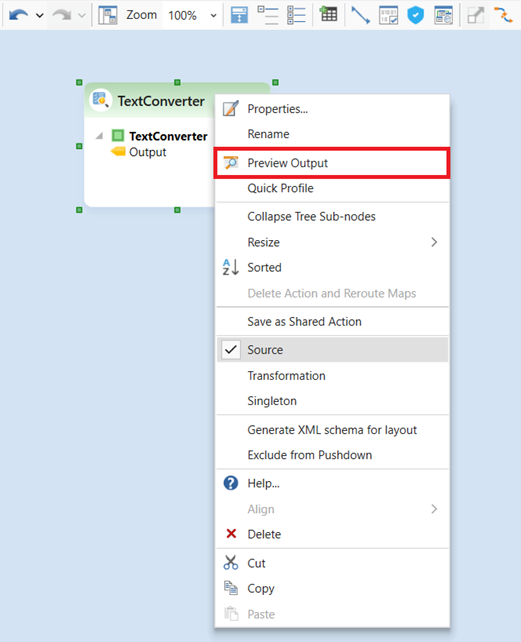
5. Right-click on the *Text Convertor* object’s header and select *Preview Output* from the context menu.
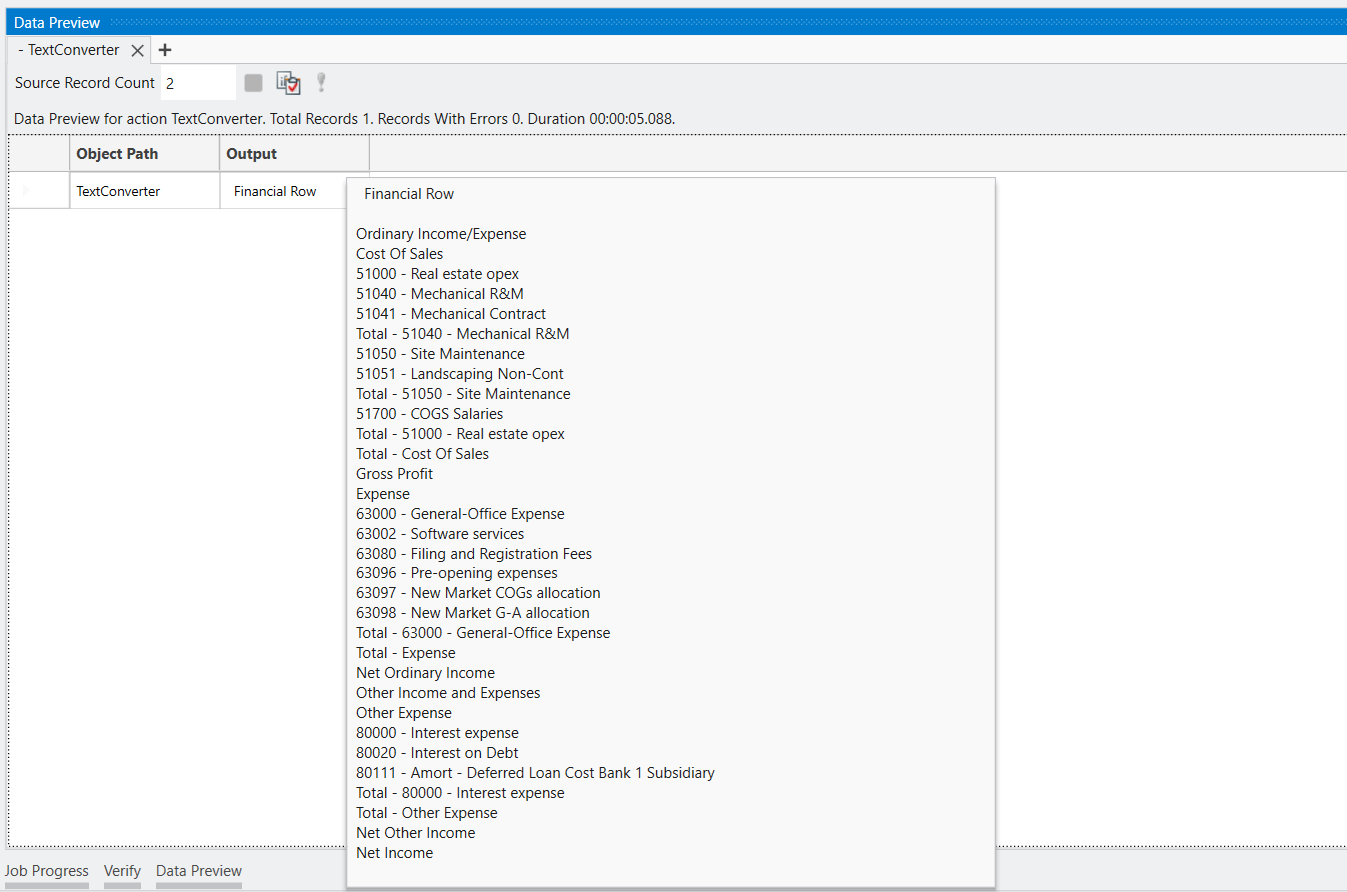
6. A *Data Preview* window will open, displaying the extracted text from the Excel file.
### Use the Text Converter Object as a Transformation
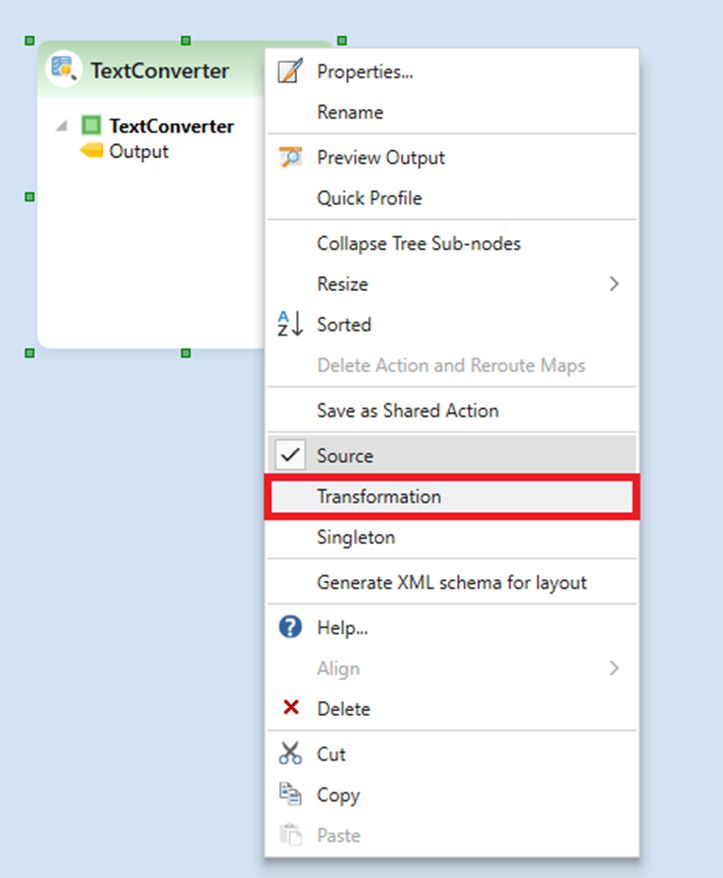
1. We can also use the Text Converter object as a transformation. To do so, right click on the header of the object and select Transformation.
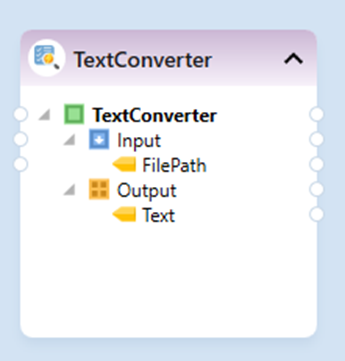
2. You’ll see the color of the header changing from green to purple. Depicting its transition from a source to transformation. You can also notice an input node being added along with the output node.
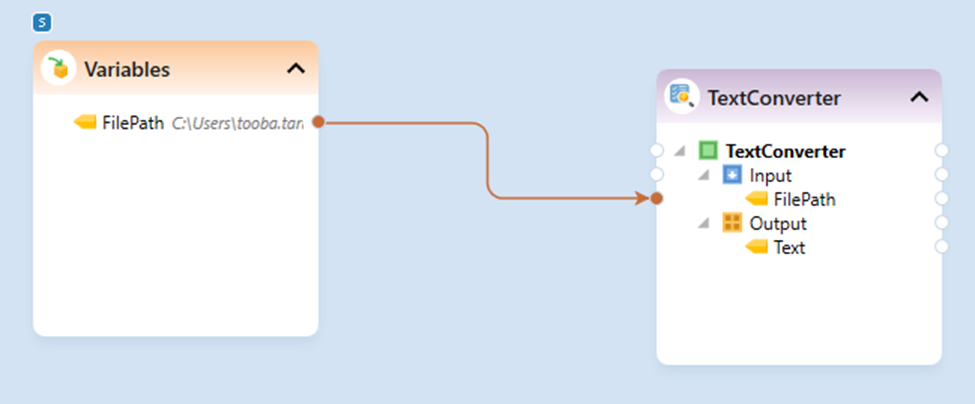
3. You can now provide the input from any source object to the Text Converter object in your dataflow directly.
This concludes working with the Text Converter object in Astera Data Stack.
---
# Agent Instructions
This documentation is published with GitBook. GitBook is the documentation platform designed so that both humans and AI agents can read, navigate, and reason over technical content effectively. Learn more at gitbook.com.
## Querying This Documentation
If you need additional information that is not directly available in this page, you can query the documentation dynamically by asking a question.
Perform an HTTP GET request on the following URL with the `ask` and `goal` query parameters:
```
GET https://documentation.astera.com/dataflows/sources/text-converter.md?ask=&goal=
```
`ask` is the immediate question: it should be specific, self-contained, and written in natural language.
`goal` is what the user is ultimately trying to achieve, the reason they need the answer. Sharing it helps GitBook give you a better, more relevant answer. A goal is most helpful when it describes the outcome the user wants rather than restating the question. For example, with `ask=how do I create an API token`, a goal like `build a script that syncs our docs to a CMS` lets GitBook tailor the answer to that use case.
The response will contain a direct answer to the question and relevant excerpts and sources from the documentation.
Use this mechanism when the answer is not explicitly present in the current page, you need clarification or additional context, or you want to retrieve related documentation sections.