> For the complete documentation index, see [llms.txt](https://documentation.astera.com/llms.txt). Markdown versions of documentation pages are available by appending `.md` to page URLs; this page is available as [Markdown](https://documentation.astera.com/dataprep/reading-sources/reading-a-project-source.md).
# Reading a Project Source
Astera Dataprep supports two ways to add sources:
* By interacting with the AI-powered chat interface
* Manually through Data Source Browser
### Option 1: Add Sources using Chat
You can simply ask the Dataprep chat interface to load your data by:
* Providing it the name of the source:

* Providing it the file path of your source:

The system will automatically load it as a dataset, making it ready for use in your data preparation workflow.
### Option 2: Toolbar Method
1. Open Astera Dataprep.

2. Navigate to the Toolbar and select *Read > Project Source**.***

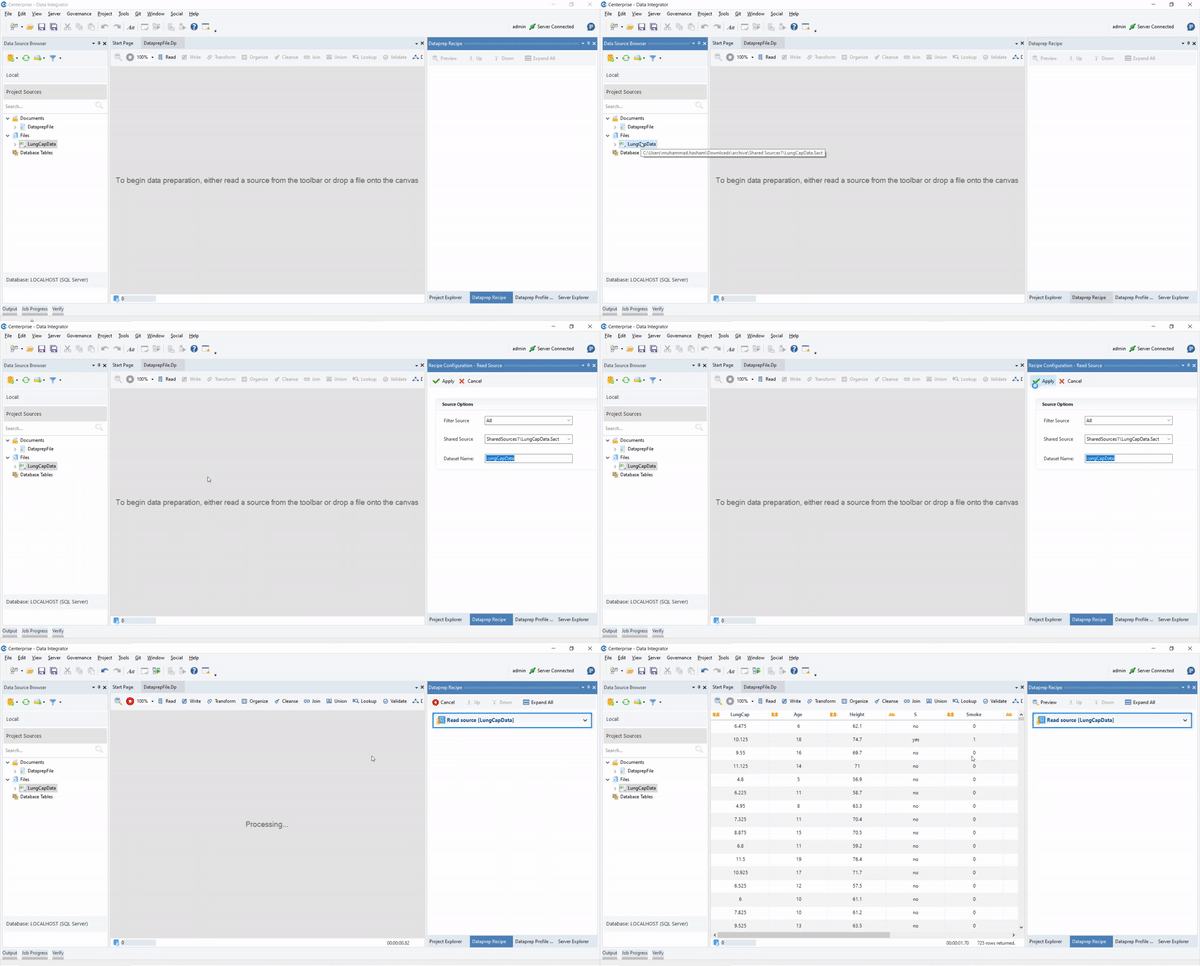
3. Once clicked, the recipe action is added to the *Recipe Panel*. Here, we have to configure the options to read the Project Source.

The options to be configured are:
* **Filter Source**: This dropdown filters the type of shared sources you will be able to view and choose in the Shared Source options. Options are:
* **All**: Shows all shared sources.
* **Excel Source**: Shows only Excel sources.
* **Delimited Source**: Shows only delimited sources.
* **Dataprep Source**: Shows only Dataprep sources.
* **Database Table Source**: Shows only database table sources.
* **Report Model Source**: Shows only report model sources.

* **Shared Source**: This dropdown shows the shared sources in the project (after filtering has been applied) that you can read.

* **Dataset Name**: This is the name given to the dataset. You can configure this to be able to use the dataset separately elsewhere. The dataset name is auto filled and defaults to the name of the selected shared source. However, this name can be changed as needed.

4. Click *Apply*  to apply the changes or *Cancel*  to discard them.
5. Once you click *Apply*, the dataset will now be visible in Astera Dataprep, and further data processing can be applied to it.

### Option 3: Dataprep Grid Method
1. Open the *Data Source Browser* and navigate to *Project Sources* and expand the accordion. Here you will see all the relevant supported shared sources that you can read from.

2. Drag and drop the desired source onto the Dataprep canvas. A 2x2 matrix will appear. Drop the source onto the *Read* option within the matrix.
3. Click *Apply*  to apply the changes or *Cancel*  to discard them.
4. Once you click *Apply*, the source will be loaded into the Dataprep Grid, and you can begin working with it.

This concludes the document on reading a Project Source in Astera Dataprep.
---
# Agent Instructions
This documentation is published with GitBook. GitBook is the documentation platform designed so that both humans and AI agents can read, navigate, and reason over technical content effectively. Learn more at gitbook.com.
## Querying This Documentation
If you need additional information that is not directly available in this page, you can query the documentation by asking a question.
Perform an HTTP GET request on the following URL with the `ask` and `goal` query parameters:
```
GET https://documentation.astera.com/dataprep/reading-sources/reading-a-project-source.md?ask=&goal=
```
`ask` is the immediate question: it should be specific, self-contained, and written in natural language.
`goal` is what the user is ultimately trying to achieve, the reason they need the answer. Sharing it helps GitBook give you a better, more relevant answer. A goal is most helpful when it describes the outcome the user wants rather than restating the question. For example, with `ask=how do I create an API token`, a goal like `automate deployments from our CI pipeline` lets GitBook tailor the answer to that use case.
The response will contain a direct answer to the question and relevant excerpts and sources from the documentation.
Use this mechanism when the answer is not explicitly present in the current page, you need clarification or additional context, or you want to retrieve related documentation sections.