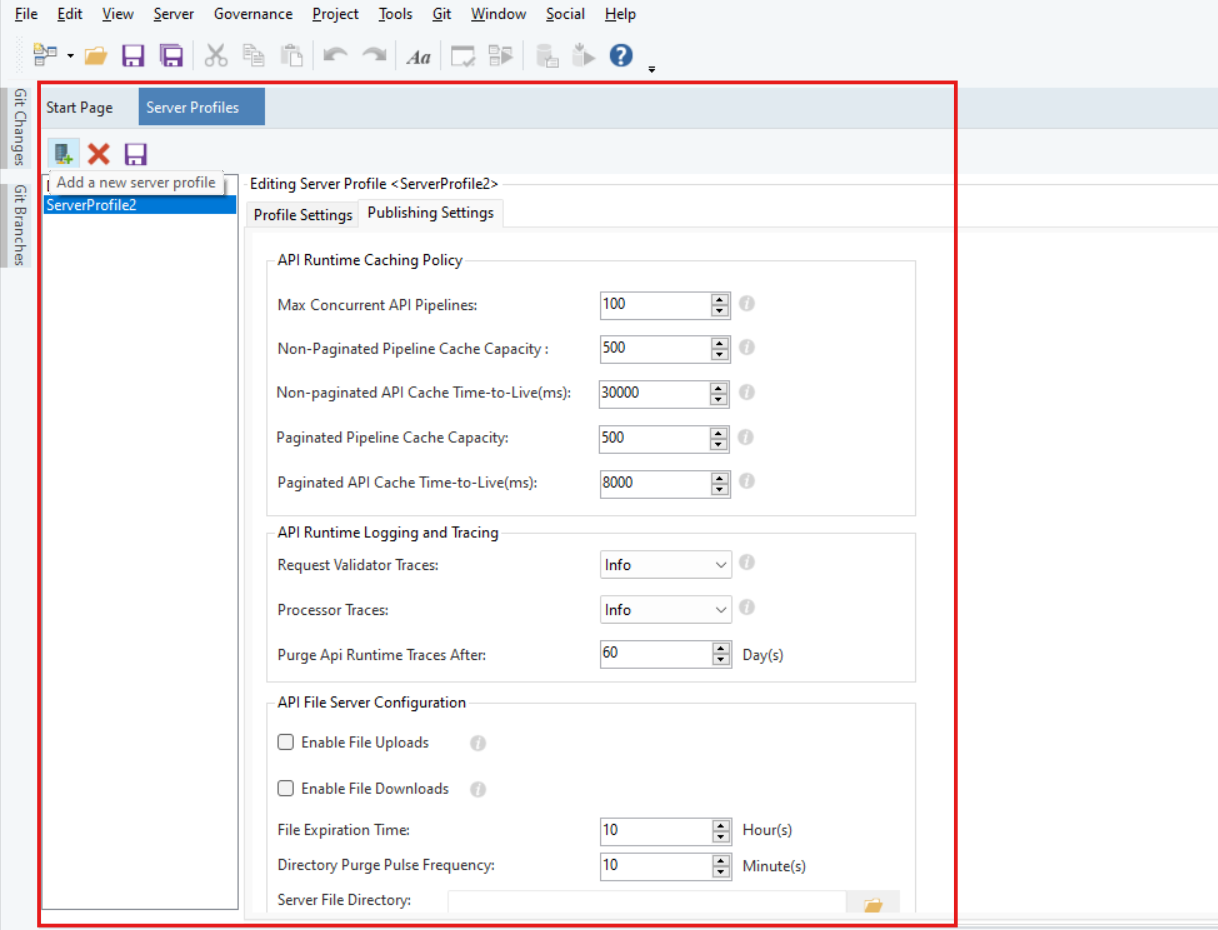
01-server-profiles-window
01-server-profiles-window
 button in the toolbar.
2. A new profile is created with a default name.
3. The profile editor opens on the right side with two tabs: **Profile Settings** and **Publishing Settings**.
#### Profile Settings Tab
In this tab, you can configure the following options:
button in the toolbar.
2. A new profile is created with a default name.
3. The profile editor opens on the right side with two tabs: **Profile Settings** and **Publishing Settings**.
#### Profile Settings Tab
In this tab, you can configure the following options:
| Option | Description |
|---|---|
| Name | Specify a unique name for the server profile. |
| Max Concurrent Jobs | Set the maximum number of jobs that can run concurrently (default: 5). |
| Event Severity | Select the minimum event severity level to record (Info, Warning, Error, or Critical). Server events are recorded based on this choice. |
| Active Components | Select which server components to enable. Components include Analytics, APIServiceAgent, Authorization, ClientHealthManager, ConfigUiSupport, DbAgent, EndpointManager, FailoverProcessor, FileDropListener, InProcJobManager, and othe |
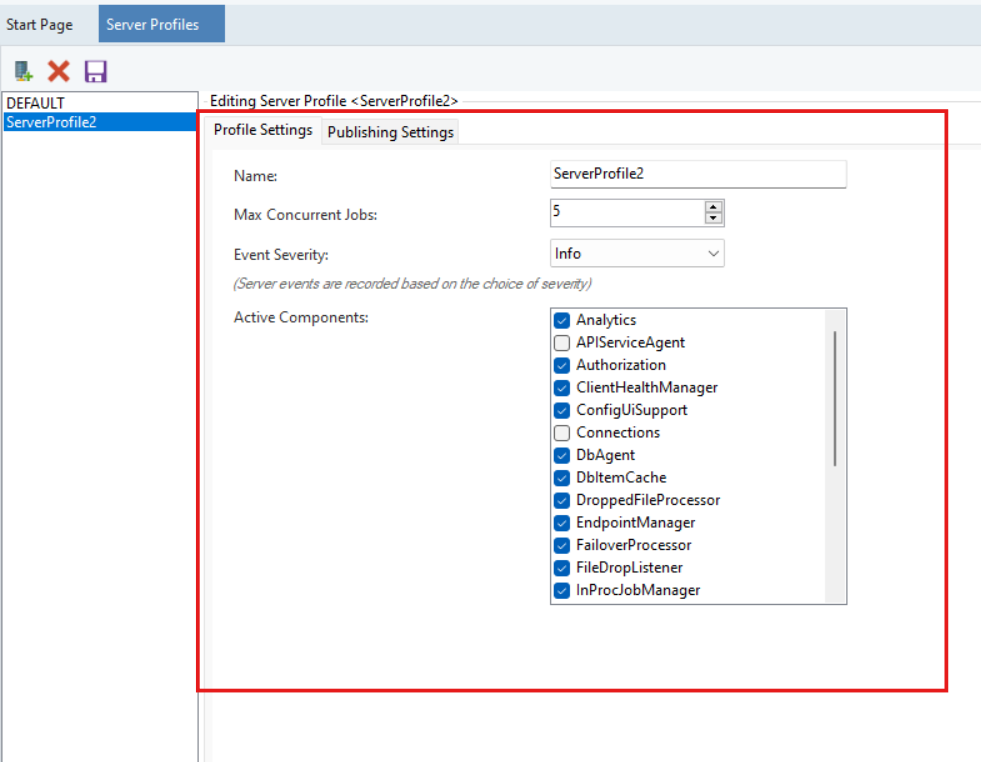
02-profile-settings-tab
| Section | Configurable Options |
|---|---|
| API Runtime Caching Policy | Max Concurrent API Pipelines, Non-Paginated/Paginated Pipeline Cache Capacity, Cache Time-to-Live settings |
| API Runtime Logging and Tracing | Request Validator Traces, Processor Traces, Purge API Runtime Traces After (days) |
| API File Server Configuration | Enable File Uploads/Downloads, File Expiration Time, Directory Purge Frequency, Server File Directory |
| Service Type Configuration | Relay Server settings, Agent Server Name, Relay Server URI, Port, Timeout, Ping Delay |
 button in the toolbar to save the profile.
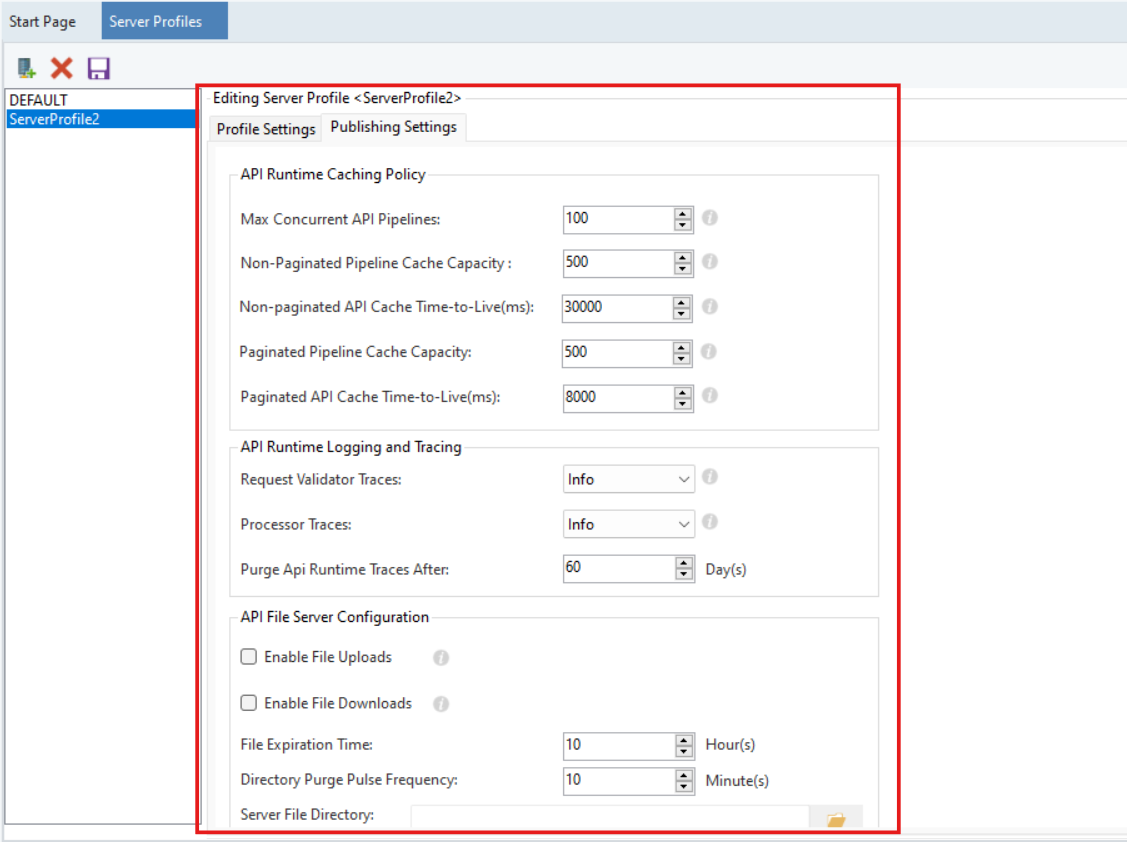
03-publishing-settings-tab

04-server-properties-window