> For the complete documentation index, see [llms.txt](https://documentation.astera.com/llms.txt). Markdown versions of documentation pages are available by appending `.md` to page URLs; this page is available as [Markdown](https://documentation.astera.com/setting-up/on-prem/how-to-supply-a-license-key-without-prompting-the-user.md).
# How to Supply a License Key Without Prompting the User
In some cases, it may be necessary to supply a license key without prompting the end user to do so. For example, in a scenario where the end user does not have access to install software, a systems administrator may do this as part of a script.
One possible solution is to place the license key in a text file. This way, the administrator can easily license each machine without having to go through the licensing prompt for each user.
Here’s a step-by-step guide to supplying a license key without prompting the user:
### **Step 1: Create a** **New Text Document**
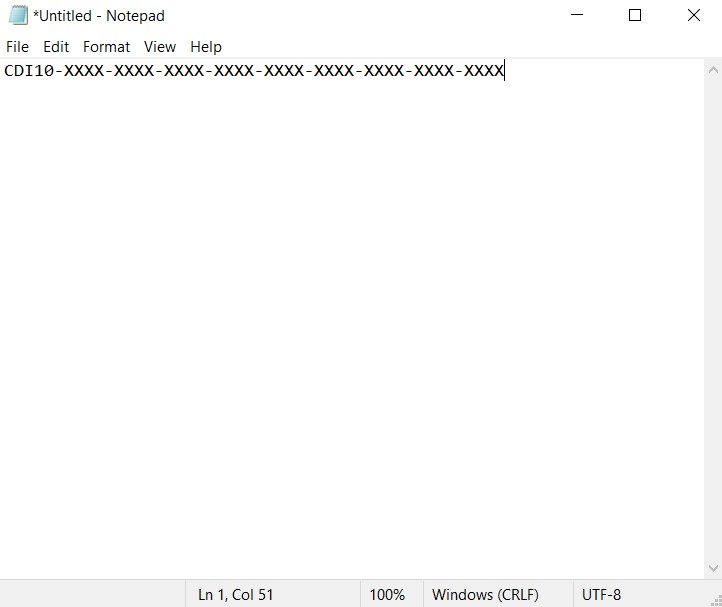
To get started, create a new text document that will hold the license key required to access the application.
### **Step 2: Enter the License Key**
In the text document, enter a valid license key. The key must be the only thing in the document, and it must be on the very first line. Make sure there are no unnecessary leading or trailing spaces, lines, or any characters other than those of the license key.
### **Step 3: Save the Text Document by the name “Serial” in the Server Application Folder**
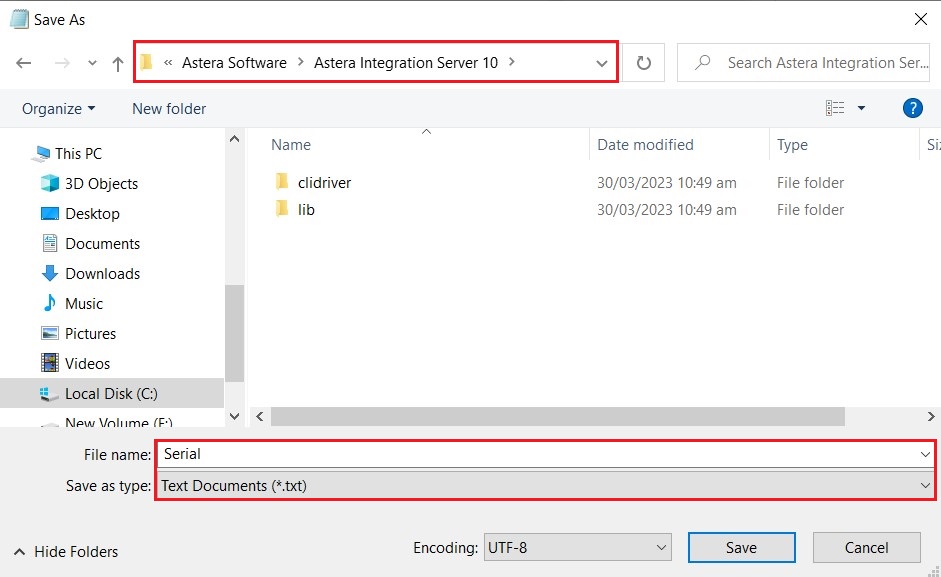
Name the text document “Serial” and save it in the Integration Server Folder of the application located in Program Files on your PC. For instance, if the application is Astera, save the Text Document in the “Astera Integration Server 10” folder. This folder contains the files and settings for the server application. The directory path would be as follows:
*C:\Program Files\Astera Software\Astera Integration Server 10.*
{% hint style="info" %}
**Note:** This approach works for all Astera applications, except for Astera API Management and Astera Express. For API Management, there is a different server. Thus, for it, you’ll need to locate the corresponding server folder and follow the same steps. Whereas for Astera Express, since there is no server involved, simply copy the *Serial* text document to the “Astera Express 10” folder, and the remaining steps remain unchanged.
{% endhint %}
### **Step 4: Restart the Service**
Finally, restart the *Astera Integration Server 10* service to complete the process. This step ensures that, from now on, when the user launches Astera or any other application by Astera, they will not be prompted to enter a license key.
{% hint style="info" %}
**Note:** There is no need to restart the service for Astera Express as it does not have a corresponding server.
{% endhint %}
Also, please keep in mind that all license restrictions are still in effect, and this process only bypasses the user prompt for the key.
In conclusion, by following these simple steps, system administrators can easily supply a license key without prompting the end user. This approach is particularly useful when installing software remotely or when licensing multiple machines.
---
# Agent Instructions
This documentation is published with GitBook. GitBook is the documentation platform designed so that both humans and AI agents can read, navigate, and reason over technical content effectively. Learn more at gitbook.com.
## Querying This Documentation
If you need additional information that is not directly available in this page, you can query the documentation by asking a question.
Perform an HTTP GET request on the following URL with the `ask` and `goal` query parameters:
```
GET https://documentation.astera.com/setting-up/on-prem/how-to-supply-a-license-key-without-prompting-the-user.md?ask=&goal=
```
`ask` is the immediate question: it should be specific, self-contained, and written in natural language.
`goal` is what the user is ultimately trying to achieve, the reason they need the answer. Sharing it helps GitBook give you a better, more relevant answer. A goal is most helpful when it describes the outcome the user wants rather than restating the question. For example, with `ask=how do I create an API token`, a goal like `automate deployments from our CI pipeline` lets GitBook tailor the answer to that use case.
The response will contain a direct answer to the question and relevant excerpts and sources from the documentation.
Use this mechanism when the answer is not explicitly present in the current page, you need clarification or additional context, or you want to retrieve related documentation sections.