> For the complete documentation index, see [llms.txt](https://documentation.astera.com/llms.txt). Markdown versions of documentation pages are available by appending `.md` to page URLs; this page is available as [Markdown](https://documentation.astera.com/astera-data-stack-v8/miscellaneous/cloud-deployment/deploying-astera-on-oracle-cloud.md).
# Deploying Astera on Oracle Cloud
Users can deploy Astera on Oracle Cloud through two methods.
## **Deploying Astera using Oracle Cloud Marketplace**
1. First, open the site which houses the Oracle Cloud Marketplace. Simply click [here](https://cloudmarketplace.oracle.com/marketplace/en_US/homeLinkPage) to be redirected to the website.
It will look like this:

2. Go to the search bar and type “Astera”, then select *Go.*
You will now be led to a screen with two Astera Software products present.

3. Select Astera Data Integrator and a new window will open.

If you scroll down, you can see information regarding the product as well as various videos and documentation related to it.

Under the *Provider* tab, you can see information regarding the company itself.

4. Click on *Get App*.

You will be taken to a new window where you will be asked to sign in to the Oracle Cloud Infrastructure Account.

5. Select *Commercial Market* and click *Sign In*. It will redirect you to another location.

Now, the Oracle Cloud site will open.
{% hint style="info" %}
**Note:** If you are not already signed in, it will ask you to sign in to Oracle Cloud first. Otherwise, it is going to take you directly to the site.
{% endhint %}

At the bottom of the page, we have these tabs:

* *Overview:* Provides an overview of the product as well as its documentation and videos.
* *Provider:* Provides information on the company itself.
* *More Apps:* This shows other apps by Astera apart from this one.
* *Usage Information:* Provides step-by-step instructions on how to use the product.
6. Once done, scroll back up and select *Version* and *Compartment*
For *Version*, select the default value, and for *Compartment*, select A\_stera (root).\_

7. Select *Launch Instance* and you will be taken to the next screen.

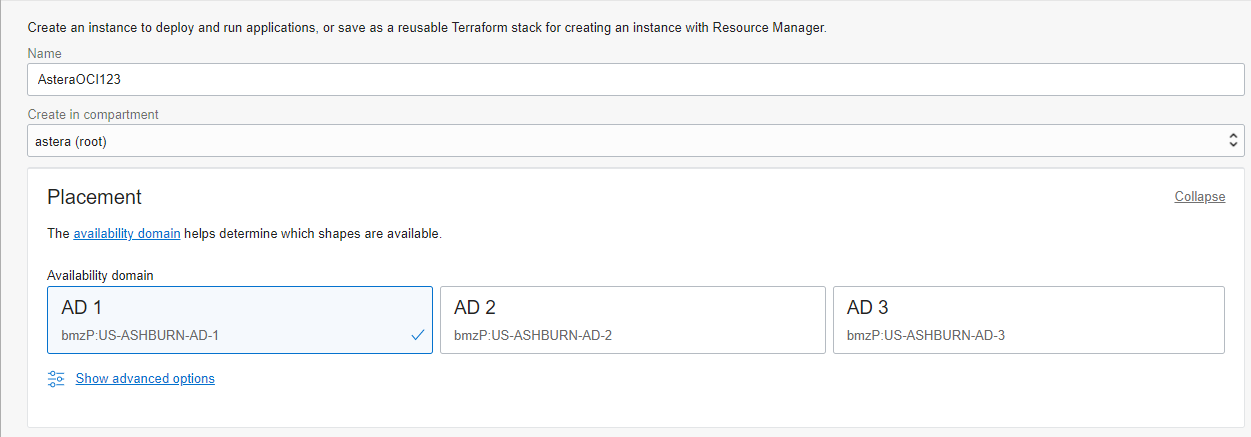
8. Next, fill in the following details:
* *Name:* Name of the instance being created. We are using the name ‘AsteraOCI’
* *Create In Compartment:* The compartment in which it is going to be created. We are using the compartment ‘astera (roots)’
* *Placement – Availability Domain*: This helps determine which shapes are available. It will be kept as the default one; ‘AD1’
* *Show Advanced Options*: These are extra options for the Availability domain. They will be kept as default.

9. Scroll down and specify the following information:
* *Image:* This is the product that is being used. Here, it will be *Astera Data Integrator.*
* *Shape:* The specifications of the Virtual Machine, depending on the application. We have selected “VM.Standard2.2” for our application.


The rest of the options will remain default.
10. Click *Select Shape* and it will be selected.
Next, we will select the *Networking* options. They will all remain set to default.

11. Scroll down to the *Boot Volume* options.
They will also be kept as default.

12. Click *Create*.

It will now start to create the Virtual Machine.

{% hint style="info" %}
**Note:** It can take 5 to 10 minutes to create.
{% endhint %}
13. The Virtual Machine has been created. You can now use the remote desktop connection to connect to it. The credentials are generated once the machine is created.

Once connected to the machine, you can install Astera Data Stack on it.
{% hint style="info" %}
**Note:** Start *Astera Integration Server 8* from Services first.
{% endhint %}
## **Deploying Astera Manually**
1. To start, enter the Oracle Cloud login page and sign in. Once you are signed in, a new screen will appear.

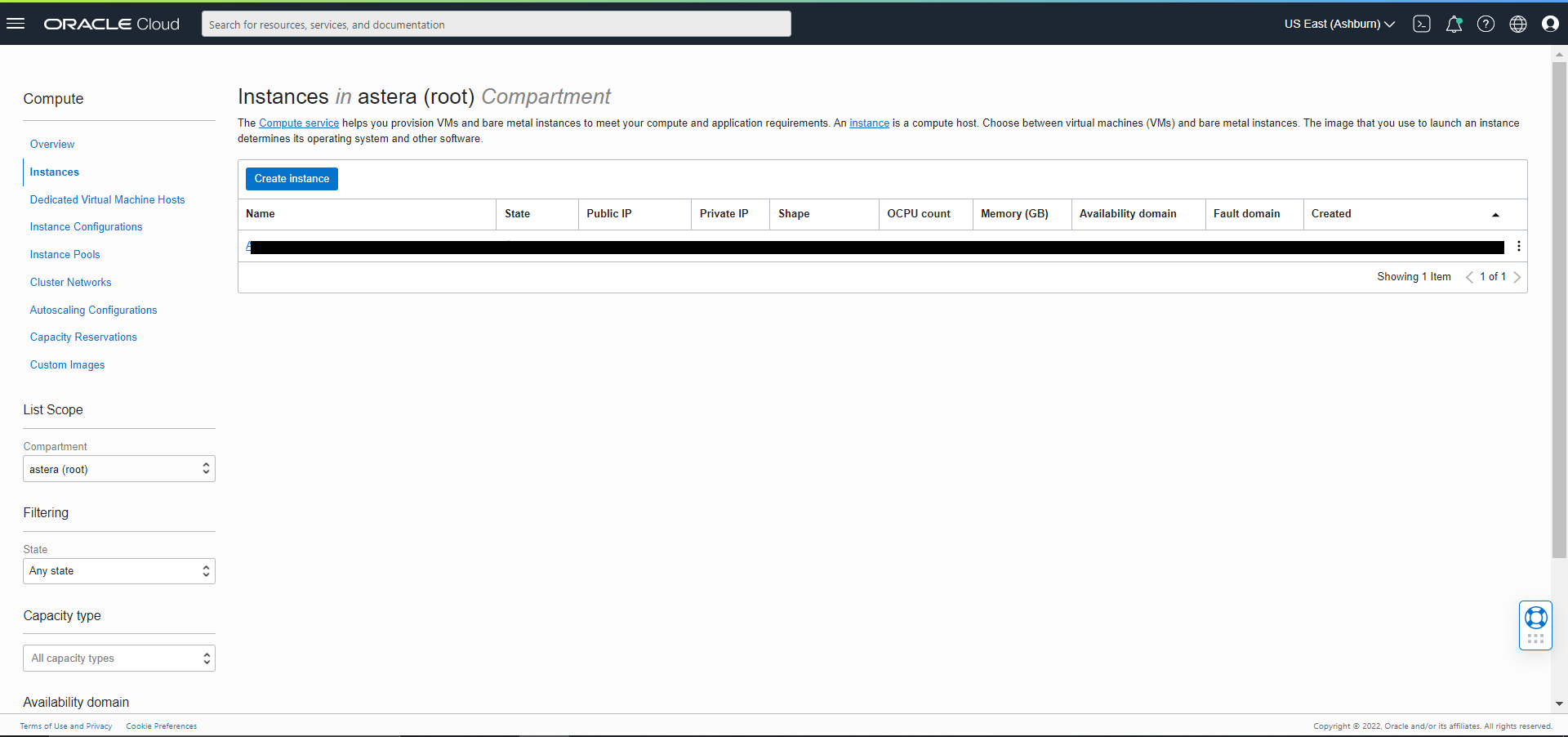
2. Click on the three lines next to the search bar located at the top, select *Compute*, and then click *Instances*.
A new window will open.
Here, you can add a new instance or use an existing one.
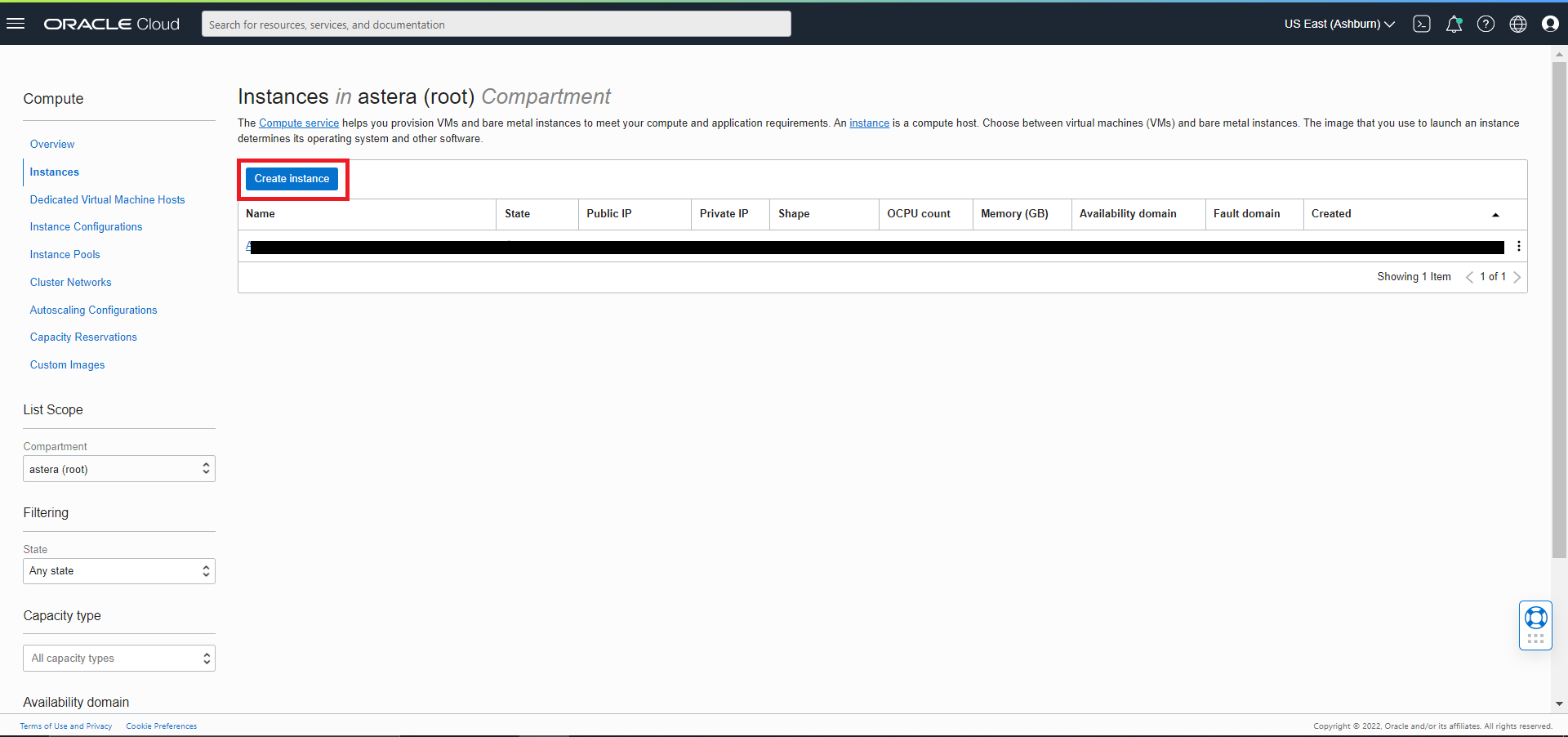
3. Select the *Compartment* as “astera (roots)” and select *Create Instance.*
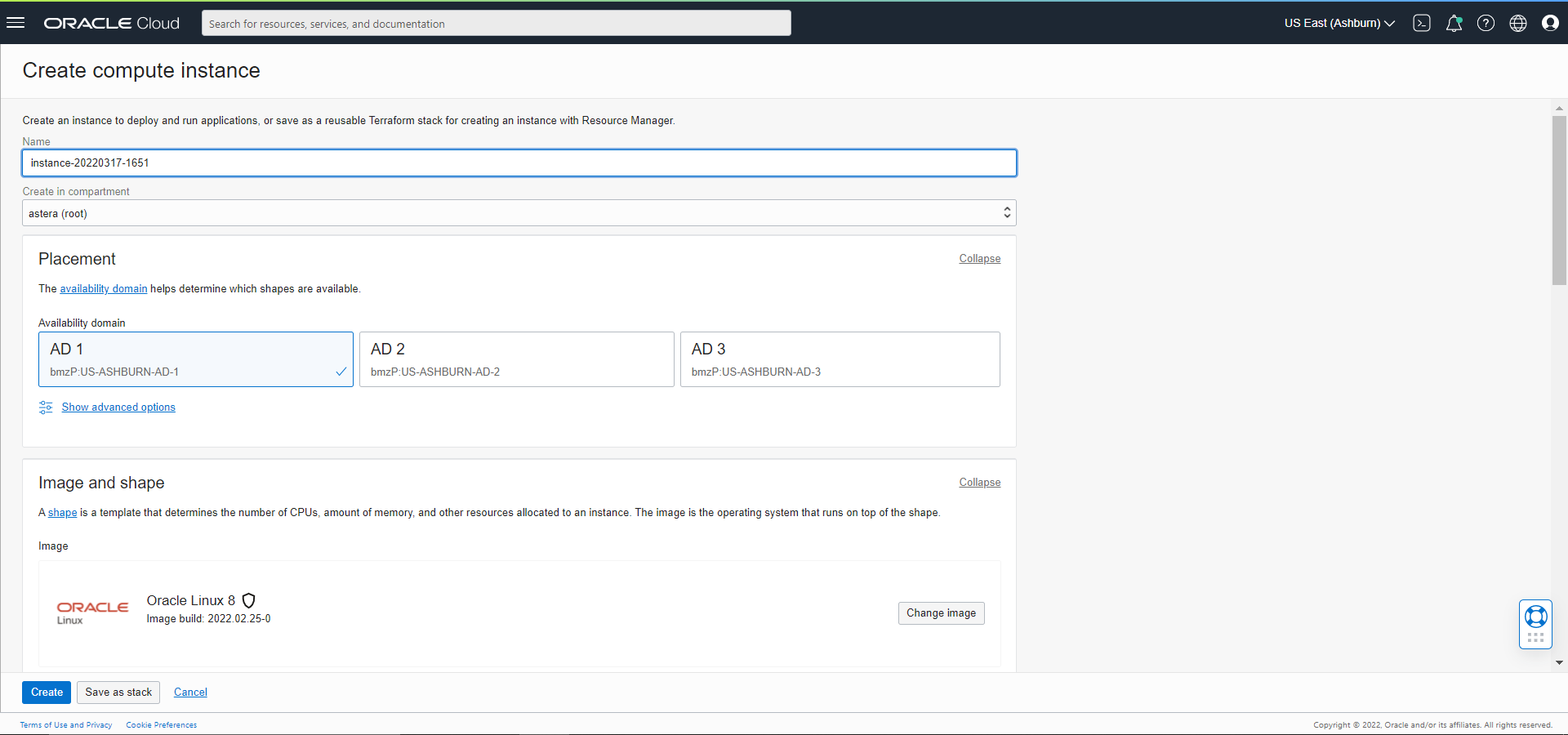
Here, we see a screen like the one in the previous method.
4. Write a name of your choice, select the *compartment* as *astera (roots)*, and select default placement.
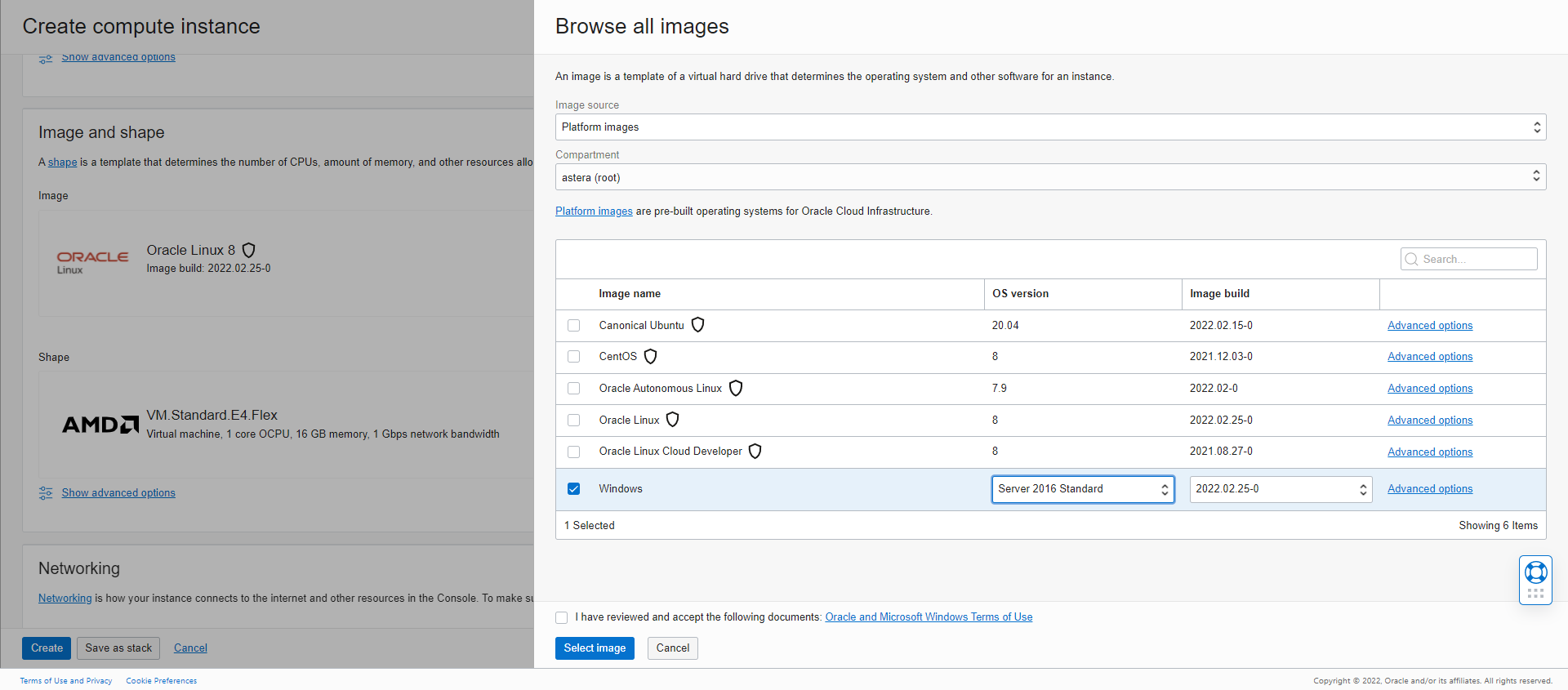
5. The next section is the *Image* and *Shape* section.
For *Image*, we will select *Windows Server 2016 Standard:*
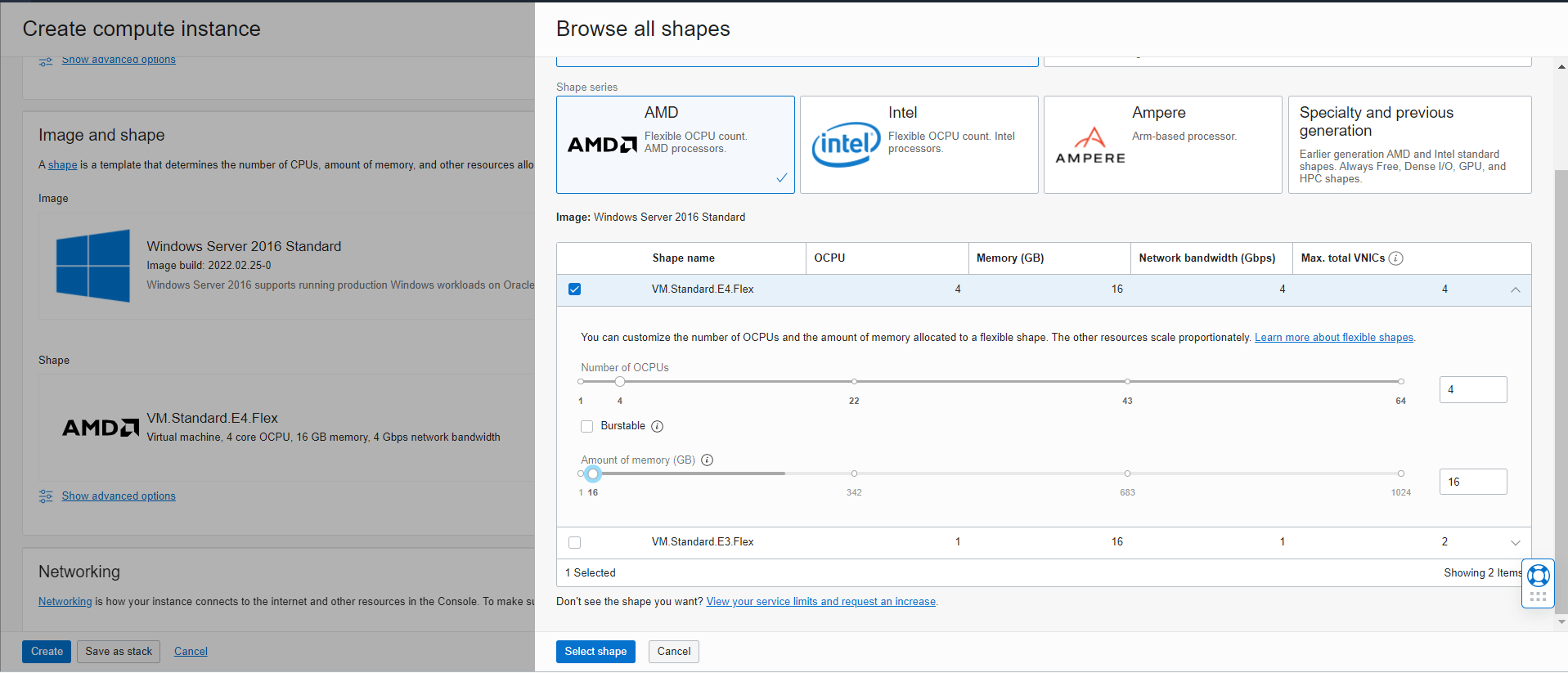
6. Select *Image* and head to the *Shape* option.
We have selected 4 OCPUs and 16 GB of memory.
7. Select *Shape* and head to the next option.
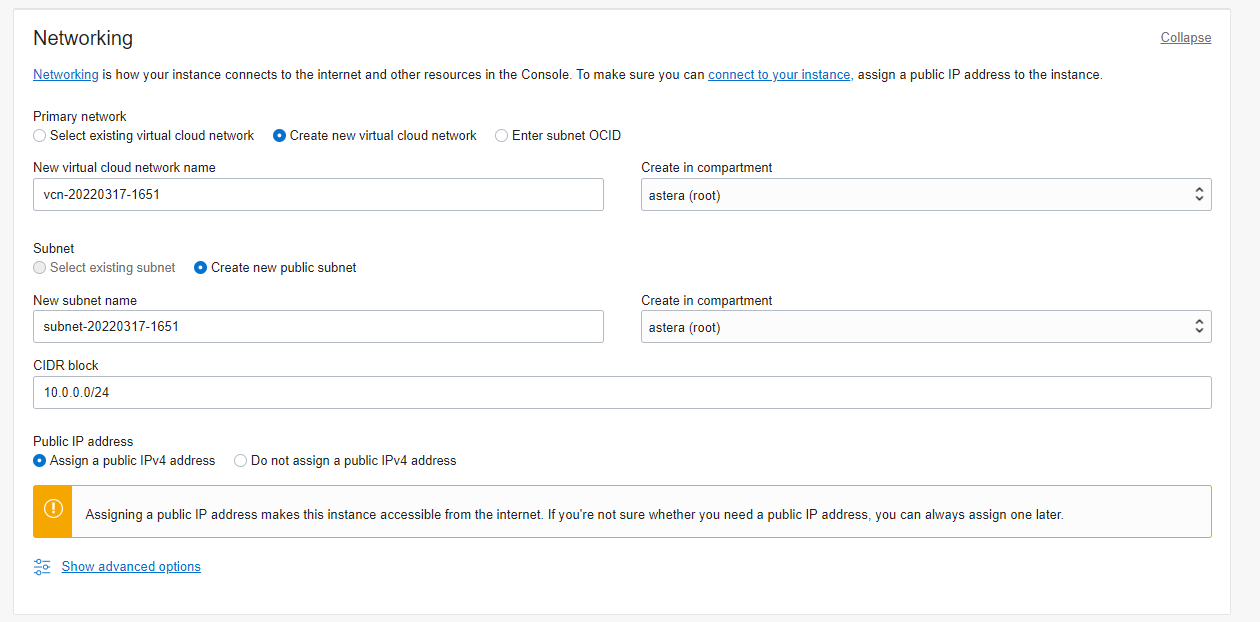
The networking options will remain set as default.
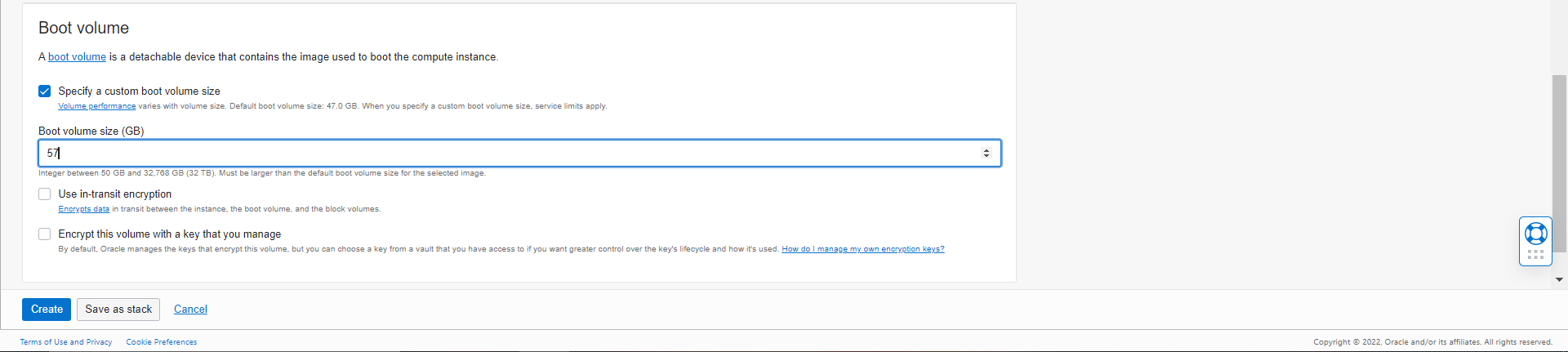
8. Scroll to the *Boot Volume* section and select *Specify a custom boot volume size*. We are keeping it at 60GB.
9. Once done, Click *Create* and it will start to create the Virtual Machine.
{% hint style="info" %}
**Note:** With Oracle Cloud, the user also must install the SQL Server alongside since it does not offer it by default.
{% endhint %}
To learn more about the installation of a SQL database and configuration of an SQL server, click [here](https://docs.microsoft.com/en-us/sql/database-engine/install-windows/install-sql-server?view=sql-server-ver15).
To learn more about the installation of Astera, click here.
This concludes our discussion on the deployment of Astera on Oracle Cloud, both through the Oracle Cloud Marketplace and Manually.
---
# Agent Instructions
This documentation is published with GitBook. GitBook is the documentation platform designed so that both humans and AI agents can read, navigate, and reason over technical content effectively. Learn more at gitbook.com.
## Querying This Documentation
If you need additional information that is not directly available in this page, you can query the documentation by asking a question.
Perform an HTTP GET request on the following URL with the `ask` and `goal` query parameters:
```
GET https://documentation.astera.com/astera-data-stack-v8/miscellaneous/cloud-deployment/deploying-astera-on-oracle-cloud.md?ask=&goal=
```
`ask` is the immediate question: it should be specific, self-contained, and written in natural language.
`goal` is what the user is ultimately trying to achieve, the reason they need the answer. Sharing it helps GitBook give you a better, more relevant answer. A goal is most helpful when it describes the outcome the user wants rather than restating the question. For example, with `ask=how do I create an API token`, a goal like `automate deployments from our CI pipeline` lets GitBook tailor the answer to that use case.
The response will contain a direct answer to the question and relevant excerpts and sources from the documentation.
Use this mechanism when the answer is not explicitly present in the current page, you need clarification or additional context, or you want to retrieve related documentation sections.