> For the complete documentation index, see [llms.txt](https://documentation.astera.com/llms.txt). Markdown versions of documentation pages are available by appending `.md` to page URLs; this page is available as [Markdown](https://documentation.astera.com/setting-up/cloud/user-management.md).
# User Management
Managing user access in Astera Cloud Portal is user-centric and allows you to efficiently control who can access your cloud resources. This guide will walk you through the process of managing users in your Organization.
### User Management
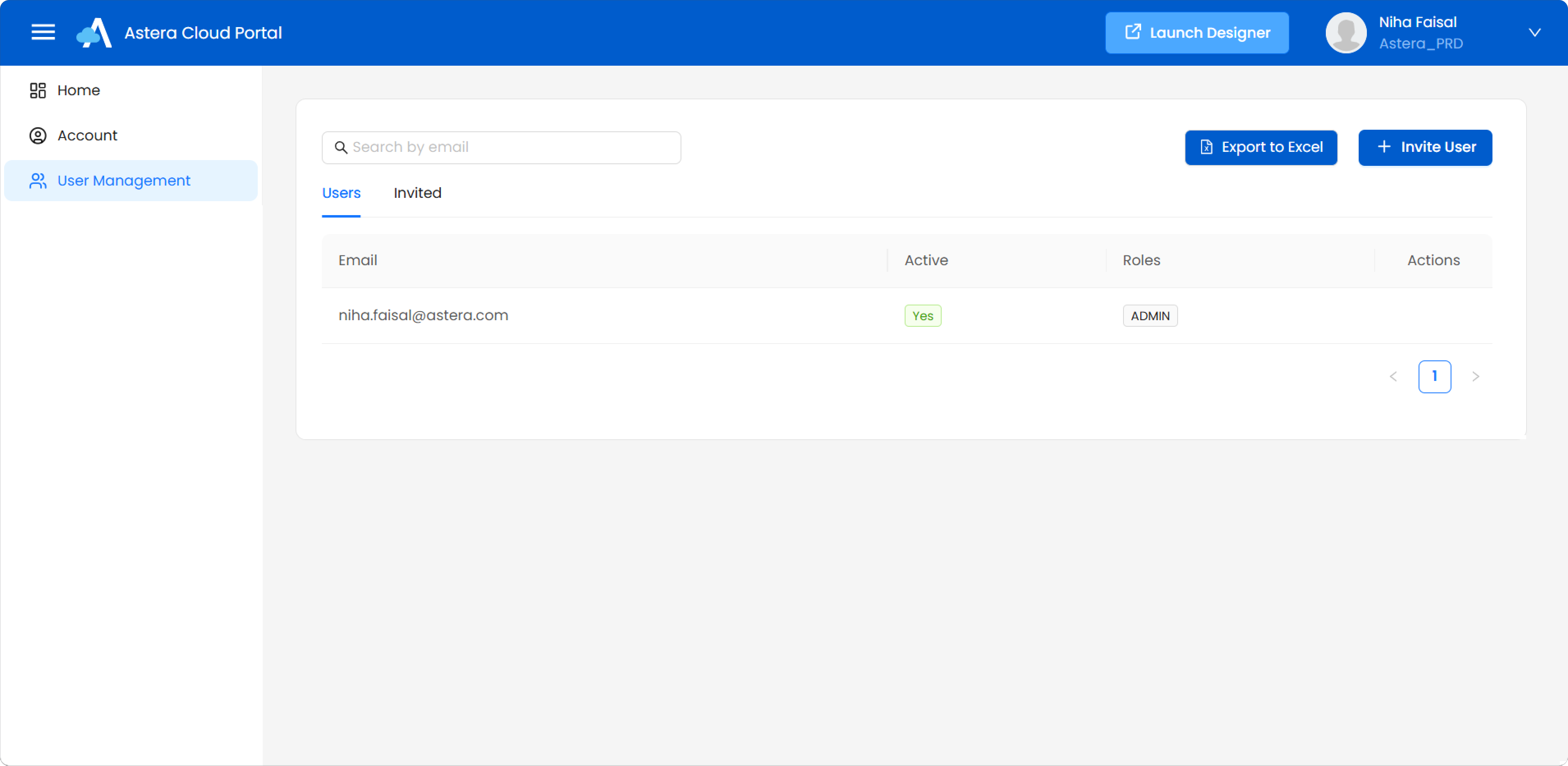
1. Let's begin by navigating to the *User Management* section in your Astera Cloud Portal.\
Here, you'll see the *User Management* interface displaying existing users and their roles
2. To add a new user to your portal, click on the *Invite User* button.
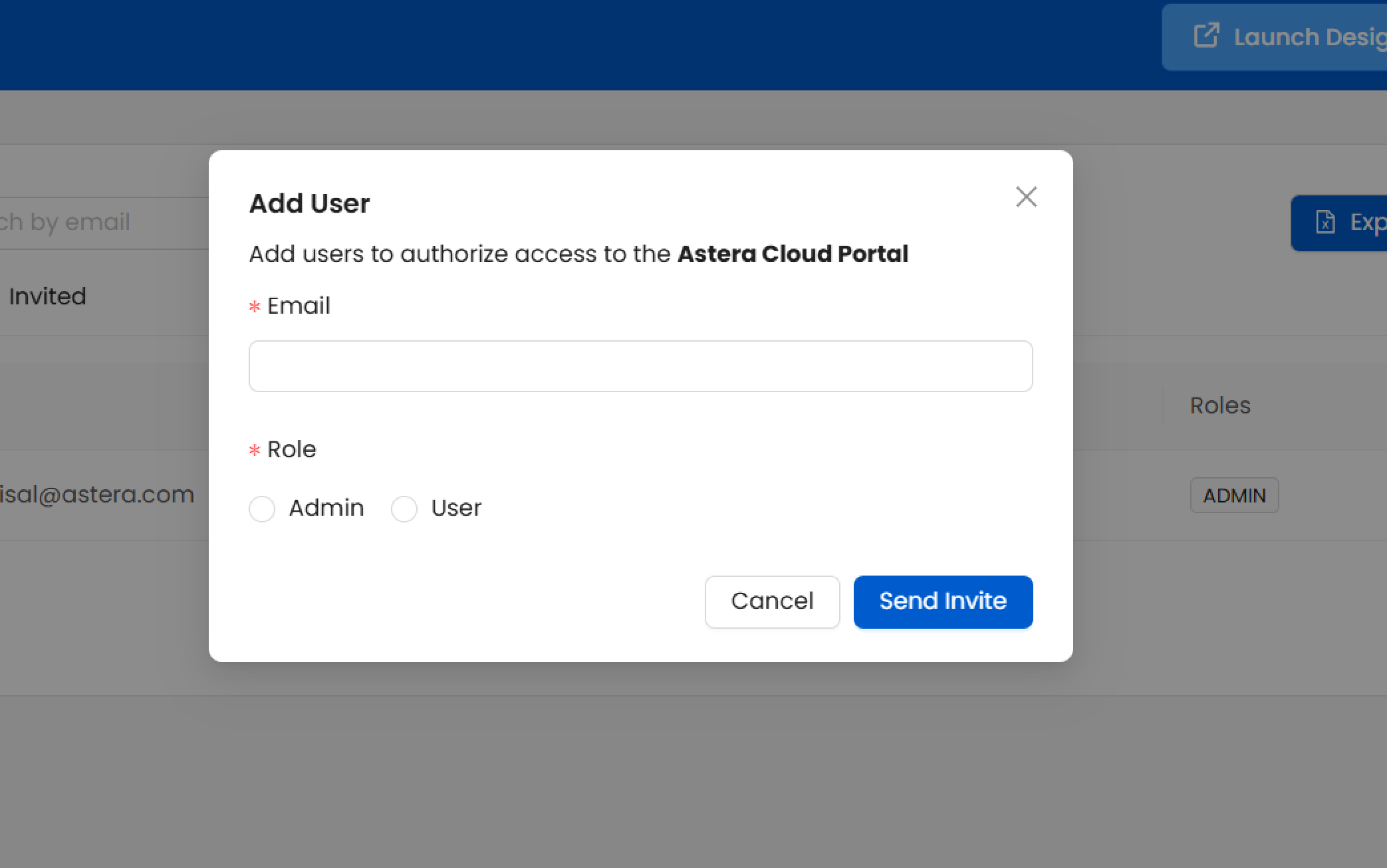
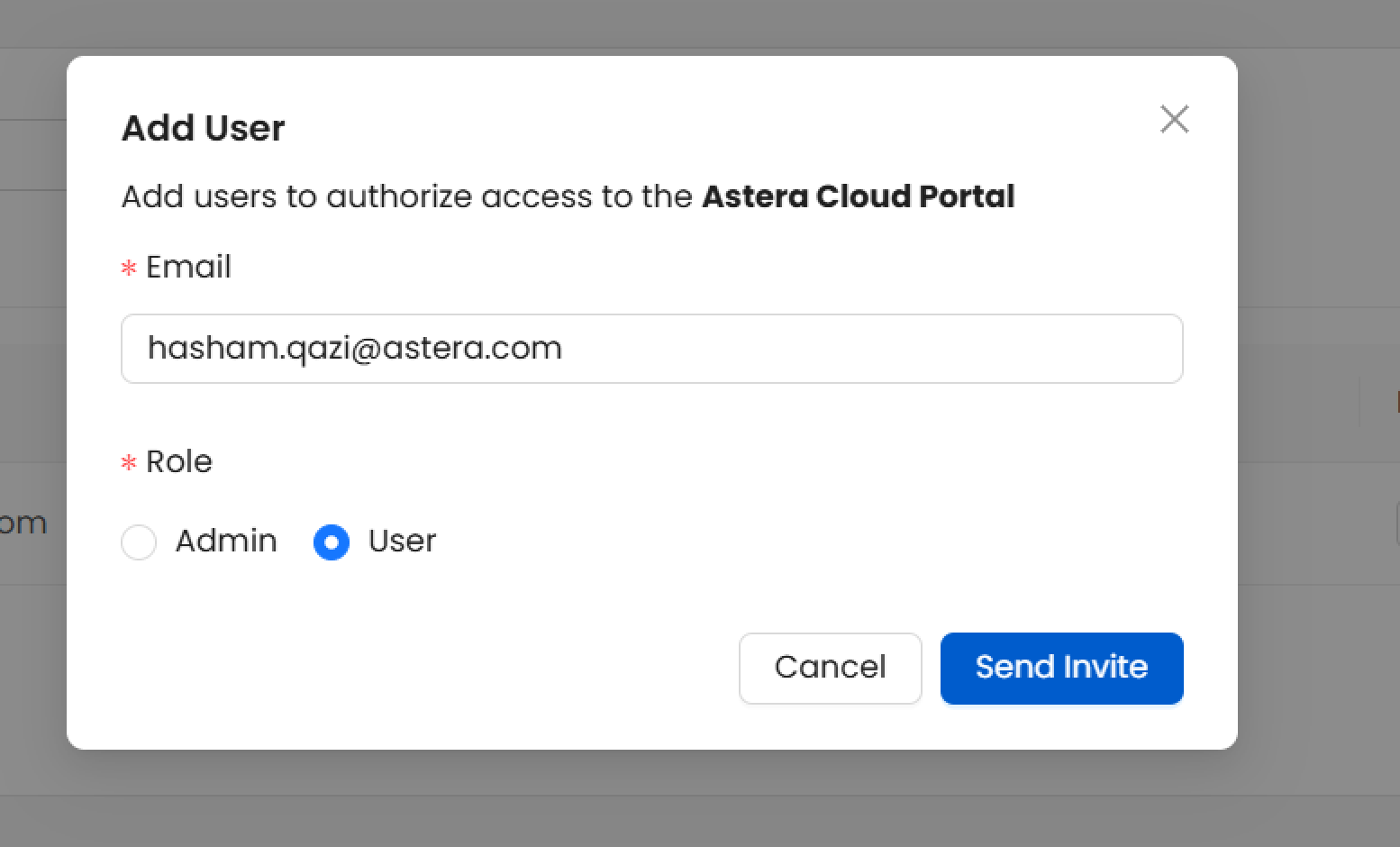
3. The *Add User* pop-up will appear. Here, you'll need to provide the following information:
* Email Address: Enter the email address of the user you want to invite
* Role Assignment: You can assign one of two roles to the new user:
* Admin: Provides full administrative access to the portal, including the ability to manage other users, access all resources, and modify settings
* User: Provides standard user access with limited administrative privileges
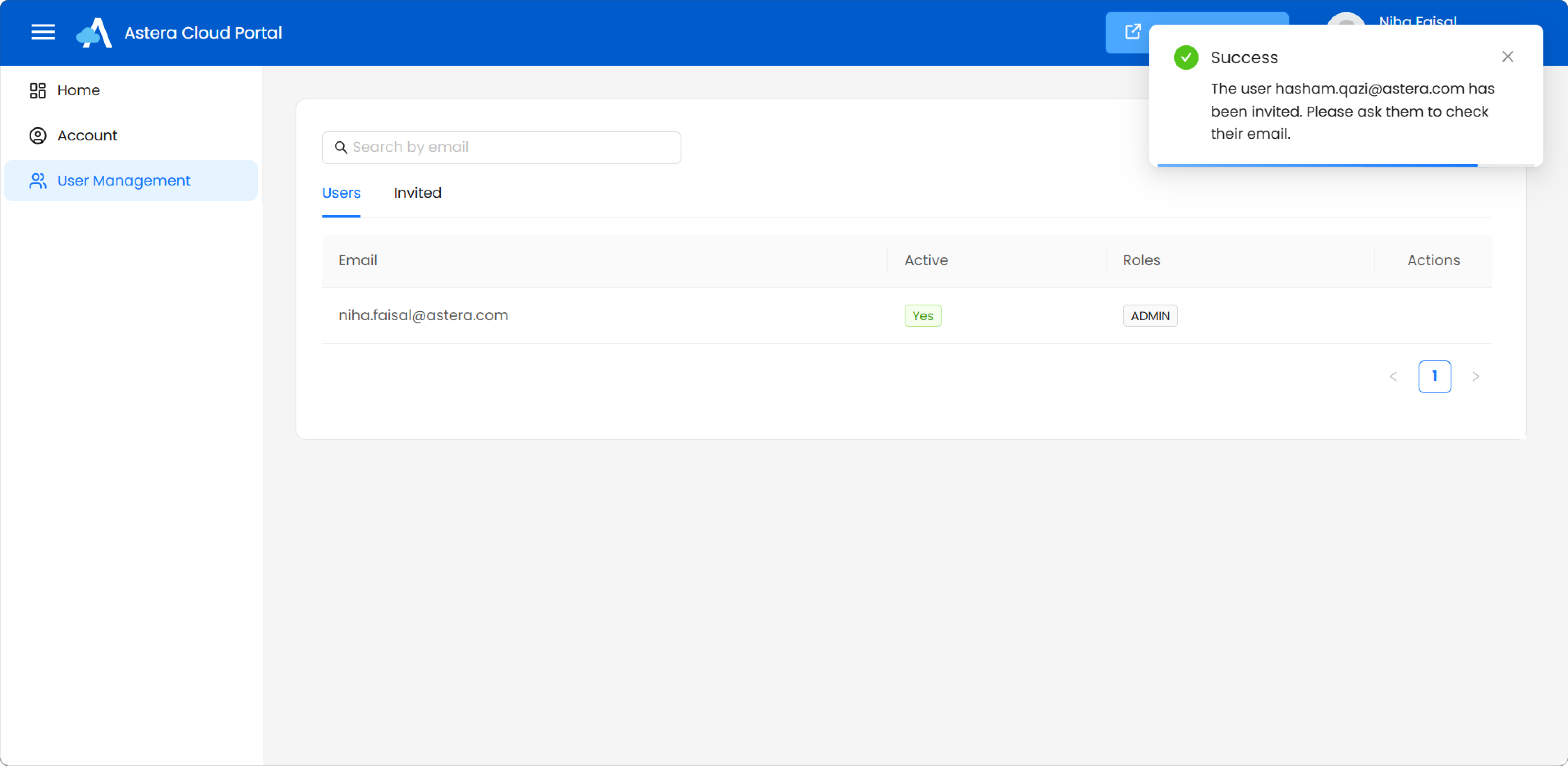
* Click *Send Invite* to send an invitation email to the new user. A success message will appear notifying if the email was sent successfully.
The user will now be able to accept the invitation and login to this organization.
{% hint style="info" %}
**Note:** The invitation is only valid for 3 days, if the user could not accept the invitation within the time limit, then you can resend the invitation.
{% endhint %}
### Managing Invitations
After sending an invitation, you can monitor the status of your invites in the *Invited* section.

The interface displays several important details about each user:
* Email: The user's email address
* Roles: Displays the assigned role (Admin or User)
* Status: Shows whether the user is *Active*, *Accepted* or *Cancelled*
* Active: The invitation has been sent but not yet accepted
* Accepted: The user has accepted the invitation and can access the portal
* Cancelled: The invitation for the user has been cancelled
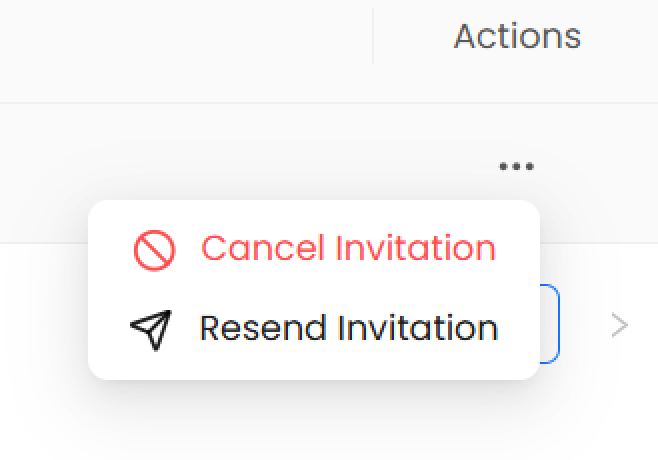
* Actions:
* Cancel Invitation: Cancel an invitation here.
* Resend Invitation: Resend an invitation here
### Managing Existing Users
Once users have accepted their invitations and are part of your organization, an *Admin* can manage their access and roles as needed in the *Users* section.
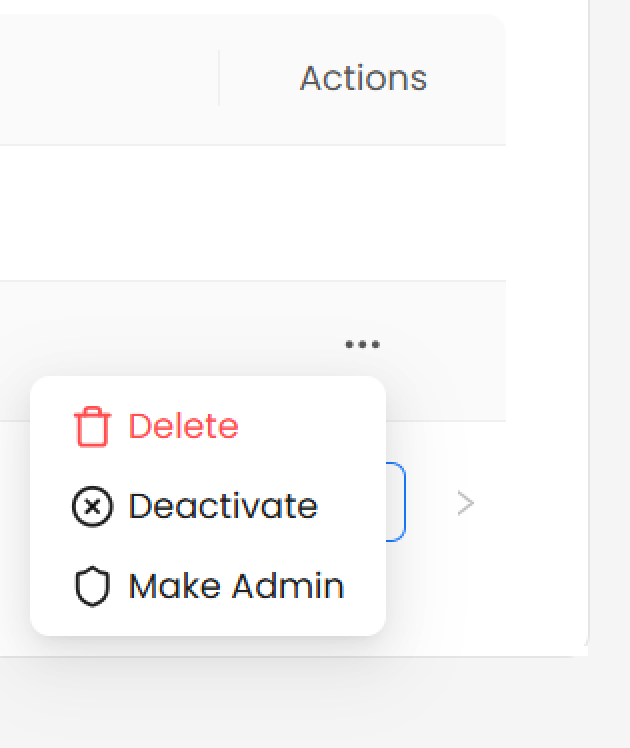
In the *Actions* column for each active user, you'll find a menu with the following options:
* Delete: Permanently removes the user from the organization
* Deactivate: Temporarily disables the user's access without removing them
* Make Admin: Promotes a regular user to admin role
---
# Agent Instructions
This documentation is published with GitBook. GitBook is the documentation platform designed so that both humans and AI agents can read, navigate, and reason over technical content effectively. Learn more at gitbook.com.
## Querying This Documentation
If you need additional information that is not directly available in this page, you can query the documentation by asking a question.
Perform an HTTP GET request on the following URL with the `ask` and `goal` query parameters:
```
GET https://documentation.astera.com/setting-up/cloud/user-management.md?ask=&goal=
```
`ask` is the immediate question: it should be specific, self-contained, and written in natural language.
`goal` is what the user is ultimately trying to achieve, the reason they need the answer. Sharing it helps GitBook give you a better, more relevant answer. A goal is most helpful when it describes the outcome the user wants rather than restating the question. For example, with `ask=how do I create an API token`, a goal like `automate deployments from our CI pipeline` lets GitBook tailor the answer to that use case.
The response will contain a direct answer to the question and relevant excerpts and sources from the documentation.
Use this mechanism when the answer is not explicitly present in the current page, you need clarification or additional context, or you want to retrieve related documentation sections.
 * Email Address: Enter the email address of the user you want to invite
* Role Assignment: You can assign one of two roles to the new user:
* Admin: Provides full administrative access to the portal, including the ability to manage other users, access all resources, and modify settings
* User: Provides standard user access with limited administrative privileges
* Email Address: Enter the email address of the user you want to invite
* Role Assignment: You can assign one of two roles to the new user:
* Admin: Provides full administrative access to the portal, including the ability to manage other users, access all resources, and modify settings
* User: Provides standard user access with limited administrative privileges
 * Click *Send Invite* to send an invitation email to the new user. A success message will appear notifying if the email was sent successfully.
 ### Managing Existing Users
Once users have accepted their invitations and are part of your organization, an *Admin* can manage their access and roles as needed in the *Users* section.
In the *Actions* column for each active user, you'll find a menu with the following options:
### Managing Existing Users
Once users have accepted their invitations and are part of your organization, an *Admin* can manage their access and roles as needed in the *Users* section.
In the *Actions* column for each active user, you'll find a menu with the following options:
 * Delete: Permanently removes the user from the organization
* Deactivate: Temporarily disables the user's access without removing them
* Make Admin: Promotes a regular user to admin role
---
# Agent Instructions
This documentation is published with GitBook. GitBook is the documentation platform designed so that both humans and AI agents can read, navigate, and reason over technical content effectively. Learn more at gitbook.com.
## Querying This Documentation
If you need additional information that is not directly available in this page, you can query the documentation by asking a question.
Perform an HTTP GET request on the following URL with the `ask` and `goal` query parameters:
```
GET https://documentation.astera.com/setting-up/cloud/user-management.md?ask=
* Delete: Permanently removes the user from the organization
* Deactivate: Temporarily disables the user's access without removing them
* Make Admin: Promotes a regular user to admin role
---
# Agent Instructions
This documentation is published with GitBook. GitBook is the documentation platform designed so that both humans and AI agents can read, navigate, and reason over technical content effectively. Learn more at gitbook.com.
## Querying This Documentation
If you need additional information that is not directly available in this page, you can query the documentation by asking a question.
Perform an HTTP GET request on the following URL with the `ask` and `goal` query parameters:
```
GET https://documentation.astera.com/setting-up/cloud/user-management.md?ask=